

A translated contract can read fluently while using the wrong term, and a longer target-language paragraph can push a table onto another page. To translate a Word document, choose a method that fits the file, then check both the language and the layout before sharing it.
TL;DR
|
Short Answer
In a supported version of Word, choose Review > Translate > Translate Document, select the target language, and translate. Save the separate translated copy. For multiple files or terminology controls, consider a document translator; arrange qualified review for consequential content.
How to translate a whole Word document in Microsoft Word
Word lets you start translation inside the application and opens a separate translated copy. You still use an online service: Microsoft explains that Translator sends the selected content or entire document for processing. Check your organization’s data-handling rules before translating confidential material.
- Open your document in a supported version of Word. You need an internet connection and connected experiences enabled.
- Go to the Review tab on the ribbon.
- Select Translate, then choose Translate Document.
- Pick the source and target languages in the panel that appears on the right.
- Click Translate. Word opens a new document containing the translated text.
- Save the new file with a distinct name so you keep the original intact.
Keep the source file for comparison. You can clean up its styles before translation and adjust the translated copy afterward. See Microsoft’s Word translation instructions for version-specific availability.
You can translate without leaving Word. Its standard Translator workflow does not document a custom-glossary input. Check specialist terms and audience-appropriate wording rather than assuming the first result is ready to publish.
Translate selected text in Word with the Translator pane
 Sometimes you only need a sentence, a comment, or a short passage translated, not the entire file. Word’s Translator pane handles that without disturbing the rest of the document.
- Highlight the text you want translated, then go to Review > Translate > Translate Selection.
- The Translator pane opens on the right, showing the translation of just that selection.
- Choose Insert to replace the highlighted text with its translation. Keep a copy if you need both versions.
- Use Copy to paste the result elsewhere, such as into an email or a different file.
- Compare the result with your intended meaning; translating a passage again is not independent quality assurance.
This approach suits reviewers checking a vendor’s translation or writers who need one paragraph localized without running the whole document through a translator.
Translate a Word file using online document translators while keeping the layout
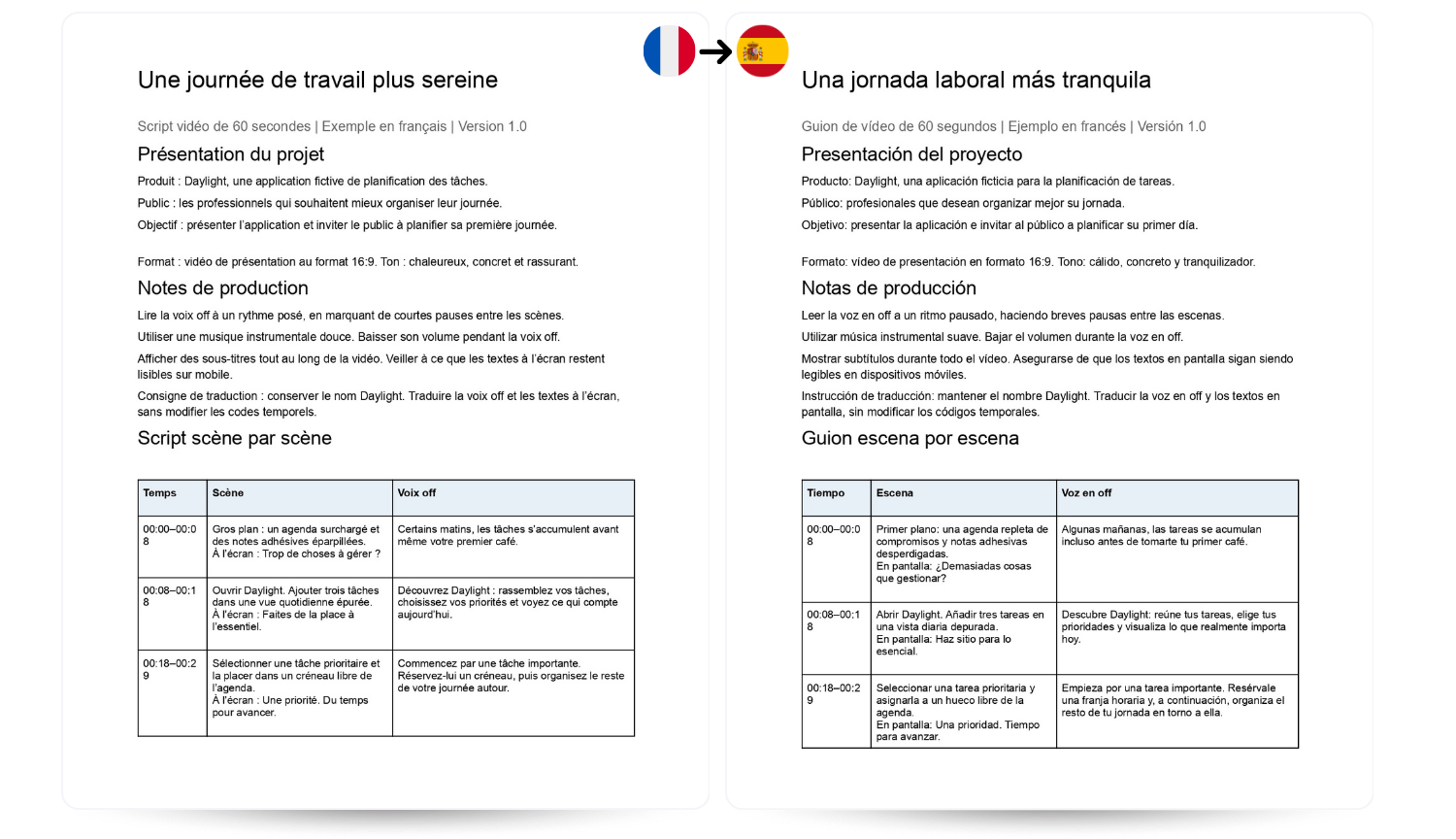
For formatted files, translating the document itself avoids reconstructing the layout from pasted text. Results depend on the service and the source file; there is no general guarantee that an online translator will outperform Word. Test a representative file before committing a large project.
- Open the translator’s document upload tool and select your .docx file. Check support before uploading older .doc files or PDFs.
- Choose the source and target language, then submit the file for processing.
- Wait for the platform to process the document. Most tools handle common file formats, though very large files or dense layouts can take longer or hit size limits.
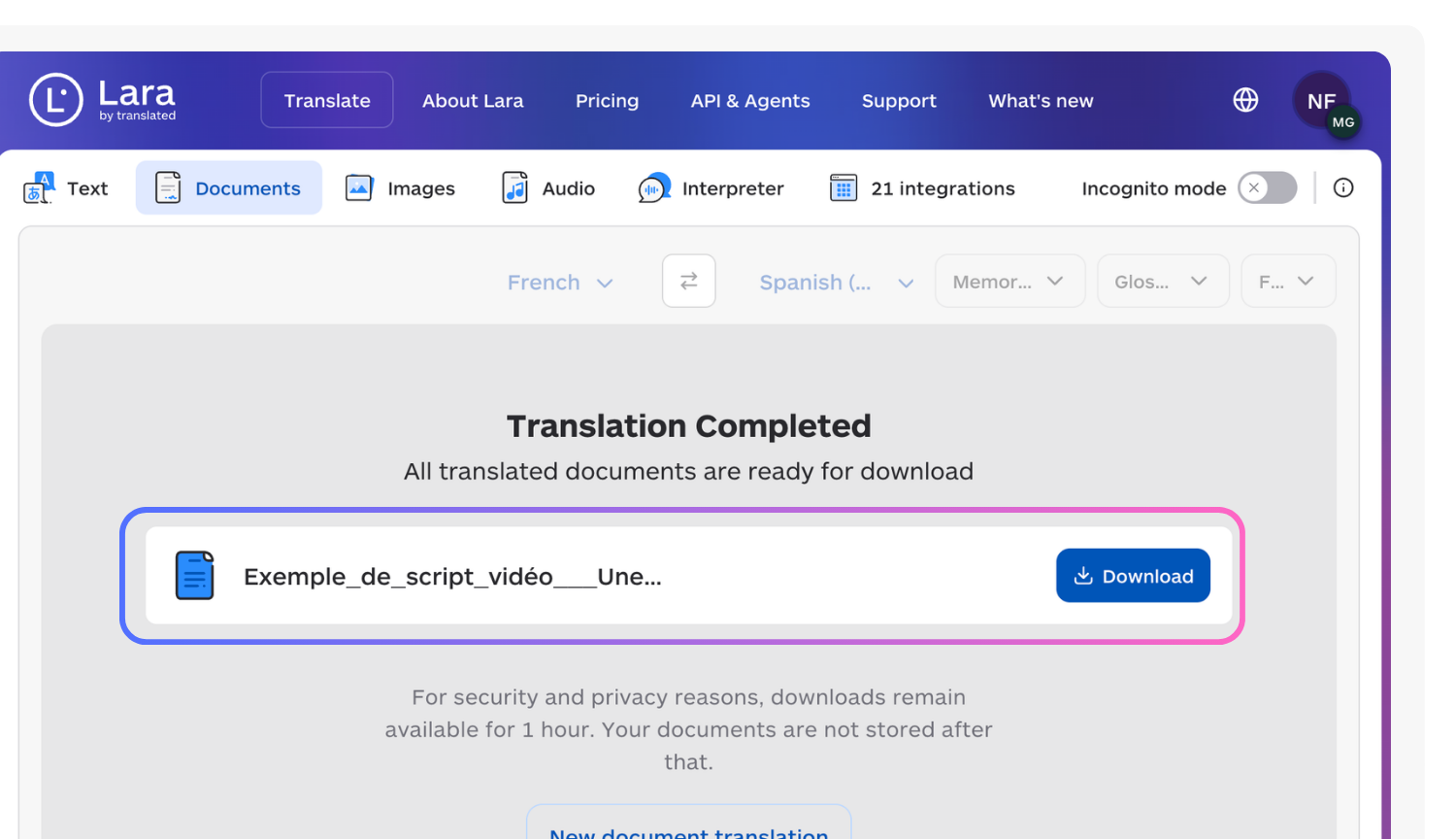
- Download the translated file and open it to check that tables, columns, and images landed where expected.
- For documents with heavy formatting (manuals, brochures, legal forms), compare page by page against the original.
For recurring reports, look for batch upload, supported target languages, and glossary controls. Availability and limits vary by service and plan. Lara Translate’s DOCX workflow supports bulk uploads and terminology resources.
Check the provider’s retention terms, processing arrangements, and your organization’s approval before uploading sensitive files. A paid plan alone does not establish suitability. Our guide to translating Word documents online explains the available workflows.
Pro Tip: Always open and visually check the translated file before sending it anywhere. Machine translation can shift table widths or drop a text box even when the translation itself is accurate.
Keep your Word file editable
Test a representative DOCX and inspect the downloaded translation.
Tips to preserve formatting and improve translation quality
Formatting changes can come from source-file structure, text expansion, font coverage, or the translator’s document-processing pipeline. You can reduce avoidable problems with a consistent source file and a visual check afterward.
- Save a clean copy of the original file before running any translation, so you always have an untouched version to compare against.
- Simplify inconsistent styles (mixed fonts, manual spacing, nested text boxes) before translating. Clean structure translates more predictably.
- Handle images, embedded text boxes, and headers or footers separately when the main translation pass skips them, because coverage varies by tool. Text embedded in an image may need separate translation.
- Build a glossary of recurring terms, like product names or legal phrases, so terminology stays consistent across the document.
- Search for recurring terms after translation and review each proposed replacement in context; a global replacement can introduce grammatical errors.
- Request human validation on the final draft when the document will be published, signed, or sent to a client.
For spreadsheet-based workflows, such as extracting document text into a table for batch processing, Excel’s TRANSLATE function lets you translate cell contents directly using the syntax =TRANSLATE(text,[source],[target]) with standard language codes like “en” for English and “fr” for French. This translates cell text, not a Word file or its layout. Availability depends on your Excel version; see Microsoft’s TRANSLATE function documentation.
A document with heavy formatting and specialized terms usually benefits from pairing an automated first pass with a professional AI+human review, to check meaning and terminology alongside the separate layout inspection.
Common problems and how to fix them
If translation fails, start with connectivity, feature availability, file format, and access permissions. If it completes but reads poorly, review the language and terminology.
- If Word refuses to translate the file, confirm you have an active internet connection, since the built-in feature requires one.
- If the document is in an older .doc format, convert it to .docx first; some translation features work more reliably on the newer format.
- If the file is password-protected or has restricted editing, ask the document owner or administrator for an approved translation workflow. Change protections only when you are authorized to do so.
- If formatting breaks after translation, simplify the source styles and test the DOCX again. Converting to PDF is not a guaranteed fix and can make later editing harder.
- If the file contains macros, check whether the provider supports .docm and how it handles macros. Converting a copy to .docx removes macro functionality; preserve the original if that functionality is needed.
- If the translation reads awkwardly or misses industry terms, supply a glossary where the tool allows it, then run a second editing pass or request a professional review.
When professionals should use an AI+human translation service
When a mistranslation could affect an agreement, a filing, or a published campaign, arrange qualified language review. An AI + human workflow adds a professional check of meaning, terminology, and tone. You should still confirm any required certification, specialist expertise, or submission conditions with the recipient.
For bulk projects, give reviewers a shared glossary, reference translations, and the same brief. Reuse approved terminology and agree on who signs off the final files.

What actually matters when translating a Word document
Choose the method before translating: a draft for your own reading needs a different review process from a document that will be signed or published. Check the output against the source, with particular attention to names, numbers, dates, obligations, and terminology.
For heavily formatted documents, compare tables, page breaks, headers, footers, and image captions. Readable formatting does not prove that the translation is accurate.
Lara Translate for professional Word document translation
Lara Translate supports Word document translation with layout preservation and optional professional review. You can use an automated first pass, then request a review proposal for a document that needs additional checks.
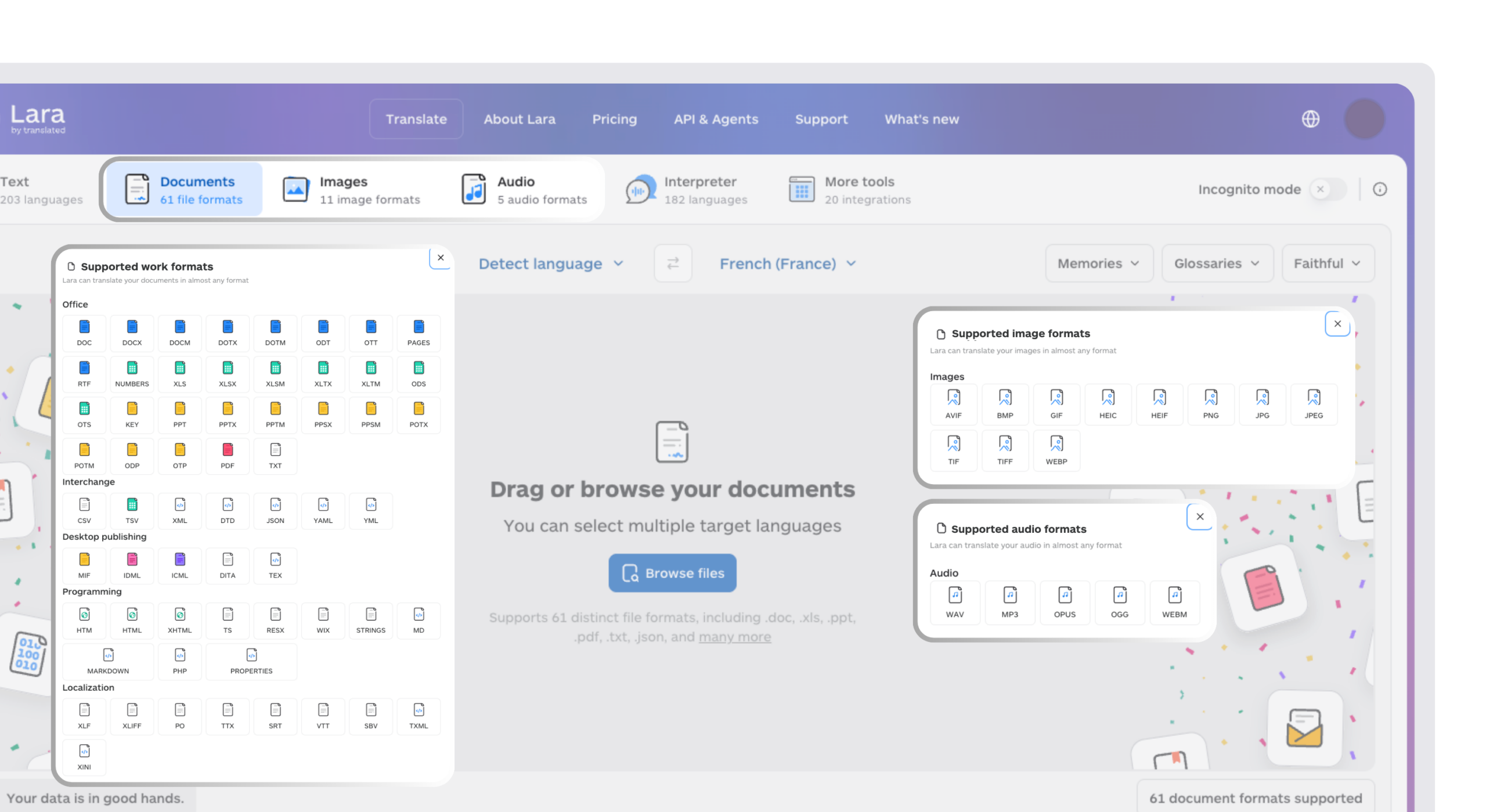
- We support document translation for DOCX, DOC, PDF, and other supported files. Verify the exact extension before uploading.
- Our AI + human translation option adds professional review for contracts, regulatory filings, or anything where tone and terminology need to be exact.
- Incognito mode limits retention of translation content; processing still happens on the service’s servers. Review Lara Translate’s privacy guidance before uploading confidential material.
- Glossaries and translation memories help reuse approved terms and translations. Activate the correct resources for your language pair and check plan availability.
Consider Lara Translate when you need bulk processing or terminology resources. Review the output before delivery. Start at our document translation page to check the workflow and available options.
Need a professional review?
Request a proposal with your word count, language pair, and intended use. Human review is optional.
Conclusion: check meaning and layout
Use Word for a convenient first pass, or choose a document workflow with the terminology and batch controls you need. Keep the source, inspect the translated file, and arrange appropriate review before signing or publishing consequential content.
Have a valuable tool, resource, or insight that could enhance one of our articles?
Send us an email at press@laratranslate.com
We’ll be happy to review it and consider it for inclusion to enrich our content for our readers! ✍️
FAQ
Can I use Google Translate on a Word document?
Yes. On a computer, open Google Translate, select Documents, and upload a DOCX file. Google currently lists a 10 MB limit for document uploads. Alternatively, convert the Word file to Google Docs, then use Tools > Translate document. Uploading a DOCX alone does not enable that menu option while you remain in Office editing mode.
How do I turn a Word doc into Spanish?
In Word, choose Review > Translate > Translate Document, select Spanish, and translate. Save the separate translated copy and check its terminology and layout.
How do I activate Microsoft Translator in Word?
Open Review > Translate in a supported Word version. An internet connection and enabled connected experiences are required. If the option is unavailable, check your version and ask your administrator whether organization settings restrict it.
Will translating a Word file keep my original formatting?
Document translation can preserve styles and layout, but text expansion, fonts, and complex elements can affect the result. Compare the translated file with the source before sharing it.
Sources: Google Translate document help; Google Docs translation help.
This article is about: translating Word documents, using Microsoft Translator, preserving DOCX formatting, and choosing professional review.
Links to official help pages and practical how-tos
- Translate Word Document Without Losing Formatting | Lara
- How to Translate a Word Document Online [2026] | Lara
- How to Translate Business Report Word Document – Lara
Recommended
- How to Translate a Word Document Online [2026]
- How to Translate Business Report Word Document
- How to Translate a Document from English to Spanish