

The need to translate a Word document online usually hits at the worst moment — a deadline, a client waiting, and a tool that returns a formatted mess. Translating a Word document sounds simple until the formatting falls apart, tables shift, or footnotes disappear.
The question is: how to translate a Word document online? This guide covers every reliable method for translating a DOCX file in 2026, from quick free tools to scalable API solutions.
|
TL;DR
|
Short answer
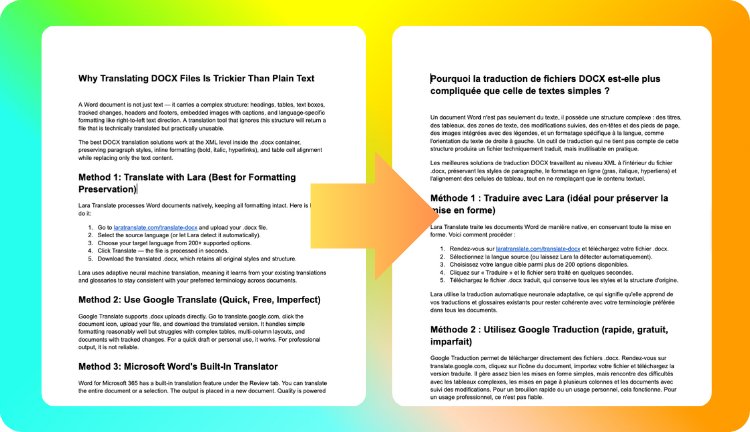
The fastest way to translate a Word document online without breaking the layout is Lara Translate, which processes .docx files at the XML level — preserving styles, tables, and headers automatically, with no reformatting required after download.
Why it matters: When a document translation breaks the layout, the recipient must reformat before they can even read the content. For professional deliverables — client reports, contracts, manuals — broken formatting signals carelessness and can delay approvals or cause confusion.
Translate your Word documents — formatting included
Upload any .docx and get a translated file with all styles, tables, and headers intact. No reformatting required.
Why Translating DOCX Files Is Trickier Than Plain Text
A Word document is not just text — it carries a complex structure: headings, tables, text boxes, tracked changes, headers and footers, embedded images with captions, and language-specific formatting like right-to-left text direction. A translation tool that ignores this structure will return a file that is technically translated but practically unusable.
The best DOCX translation solutions work at the XML level inside the .docx container, preserving paragraph styles, inline formatting (bold, italic, hyperlinks), and table cell alignment while replacing only the text content.
Method 1: Translate with Lara (Best for Formatting Preservation)
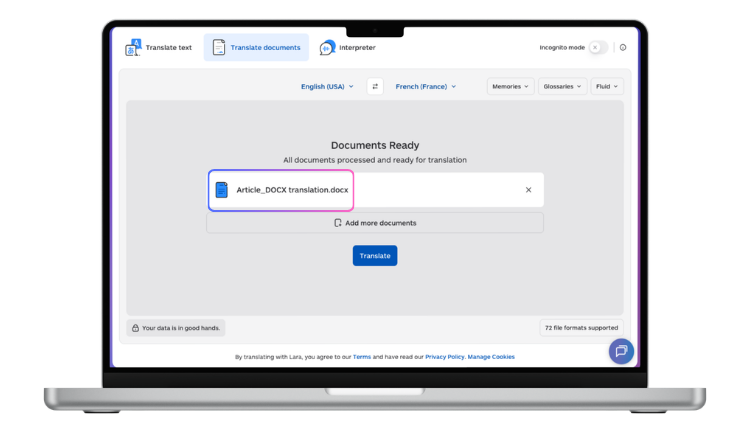
Lara Translate processes Word documents natively, keeping all formatting intact. Here is how to do it:
- Go to laratranslate.com/translate-docx and upload your .docx file.
- Select the source language (or let Lara detect it automatically).
- Choose your target language from 200+ supported options.
- Click Translate — the file is processed in seconds.
- Download the translated .docx, which retains all original styles and structure.
Lara uses adaptive neural machine translation, meaning it learns from your existing translations and glossaries to stay consistent with your preferred terminology across documents.
Method 2: Use Google Translate (Quick, Free, Imperfect)
Google Translate supports .docx uploads directly. Go to translate.google.com, click the document icon, upload your file, and download the translated version. It handles simple formatting reasonably well but struggles with complex tables, multi-column layouts, and documents with tracked changes. For a quick draft or personal use, it works. For professional output, it is not reliable.
Method 3: Microsoft Word’s Built-In Translator
Word for Microsoft 365 has a built-in translation feature under the Review tab. You can translate the entire document or a selection. The output is placed in a new document. Quality is powered by Microsoft Translator, which is solid for major language pairs but lacks customization — you cannot apply a glossary or translation memory to keep company-specific terminology consistent.
Method 4: Translate via API for Bulk or Automated Workflows
If you regularly translate large volumes of Word documents — for example, legal contracts, technical manuals, or multilingual reports — a manual upload-and-download workflow does not scale. Lara’s Adaptive Translation API accepts .docx files programmatically, returning translated files with formatting intact.
This is the right approach for CMS integrations, automated localization pipelines, or any workflow where documents are generated and need to be translated without human intervention at each step.
What to Check After Translation

Even the best automated translation needs a quick review pass. Check these specifically:
- Tables and columns: Cell content may have expanded, pushing text out of view.
- Headers and footers: Some tools do not translate these.
- Text inside images: No translation tool can modify text embedded in images. You will need to handle those manually.
- Proper nouns and brand names: Add a glossary to protect these from being translated.
Ready to try it on your own file?
Upload your .docx to Lara and see how it handles your formatting, tables, and terminology — results in seconds.
FAQ
Can I translate a Word document and keep the original formatting?
Yes — tools like Lara Translate process the DOCX format at the structural level, preserving paragraph styles, fonts, tables, and inline formatting. Free tools like Google Translate handle simple formatting but often break complex layouts.
Is it safe to upload confidential Word documents to online translators?
Check the tool’s data policy before uploading sensitive content. Lara Translate does not store document content after translation. For highly confidential documents, consider using the API with your own secure infrastructure or enabling private-mode processing.
Can I translate a Word document with tracked changes?
Most translation tools work on the accepted version of the document. Accept or reject all tracked changes before uploading if you want predictable output.
How do I translate a Word document into multiple languages at once?
Lara’s API supports parallel translation requests, so you can send one document and receive outputs in five or ten languages simultaneously, rather than running sequential uploads.
This article is about
-
Explaining how to translate a Word document online in 2026 without breaking formatting, tables, headers, or footnotes.
-
Comparing the most reliable DOCX translation methods, from free tools and built-in options to scalable API workflows.
-
Showing why Word document translation is more complex than plain text, especially when layout and document structure matter.
-
Helping readers choose the right method based on their needs: quick draft, professional delivery, or bulk automation.
-
Highlighting how Lara Translate preserves DOCX structure, supports 200 major languages, and keeps styles, tables, hyperlinks, and layout intact during translation.
Ready to Translate Your DOCX?
Upload your Word document to Lara Translate and get a formatted, professional-quality translation in seconds. No reformatting required.
Also in this series: