

The most common complaint when people try to translate a Word document without losing formatting is exactly that — the formatting doesn’t survive. You upload a 30-page document, get the translation back, and the whole thing is a mess: tables split, fonts reset to defaults, headers missing. Here is why it happens and how to avoid it entirely.
|
TL;DR
|
Short answer
To translate a Word document without losing formatting, use a tool that processes the .docx file at the XML level — like Lara Translate — rather than extracting plain text. This preserves paragraph styles, tables, headers, footnotes, and hyperlinks automatically.
Why it matters: A translated document that looks broken costs more time to fix than the translation saved. For client-facing materials, broken layouts erode trust and can delay sign-off. Getting the formatting right the first time is not a nicety — it is a professional baseline.
Translate Word documents — layout preserved
Upload your .docx and get back a translated file with all paragraph styles, tables, and headers intact. Zero reformatting.
Why Translation Breaks Word Formatting
A .docx file is a ZIP archive containing XML files. The text lives in word/document.xml, but the formatting rules — paragraph styles, table definitions, section breaks, font embeddings — live in separate files. A translation tool that extracts only the raw text and re-inserts it will discard all the structural context, breaking the layout.
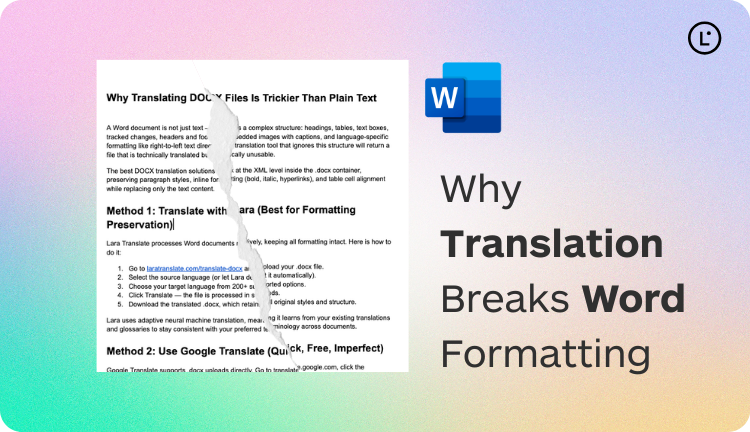
The second cause of formatting loss is text expansion. Translated text is almost always longer than the original in languages like German, Finnish, or French. A cell that held 20 characters of English might need 35 characters in German, overflowing the column and pushing the layout out of shape.
The Right Approach: Format-Aware Translation
Format-preserving translation tools work inside the DOCX XML structure. They identify text runs within paragraphs, translate the text content, and write it back into the same XML nodes — leaving all the surrounding formatting markup untouched. The result is a translated document that looks like the original, because structurally it is the original.
Lara Translate’s DOCX translation works this way. It preserves:
- Paragraph styles (Heading 1, Body Text, Caption, etc.)
- Inline formatting (bold, italic, underline, superscript, hyperlinks)
- Tables, including merged cells and column widths
- Headers, footers, and page numbering
- Text boxes and callouts
- Footnotes and endnotes
- Track changes markup (visible in the translated output)
Step-by-Step: Translate a Word Document with Formatting Intact
- Prepare the file. Accept or reject any tracked changes. Flatten any text in image boxes that you want translated (or note them for manual handling).
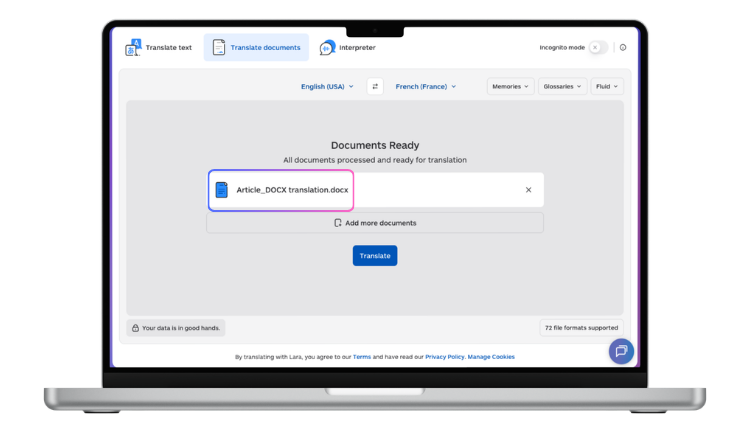
- Upload to Lara. Go to laratranslate.com/translate-docx and upload your .docx.
- Set your language pair. Choose source and target languages. Add a glossary if you have brand terms or technical vocabulary that should not be translated.
- Download the output. The translated file has the same filename with the target language appended. Open it in Word — the styles, tables, and layout should match the original exactly.
- Review text expansion. Scan the document for columns or text boxes that may have overflowed due to longer translated text. Adjust manually where needed.
Tips to Reduce Formatting Problems
Use named styles, not direct formatting. Documents that rely on Word’s built-in paragraph styles (Heading 1, Normal, etc.) translate more cleanly than documents where every paragraph has manual font overrides.
Avoid text in images. Text embedded in a .png or .jpg inside the Word document cannot be automatically translated. Extract it to a caption or text box instead.
Use a glossary for brand terms. Protect product names, company names, and technical terms from being mistranslated by adding them to a glossary before running the translation.
Test with a sample first. For a complex document, translate one representative page and review the output before processing the full file.
Need to translate more Word files?
Lara Translate handles batch .docx translation with full formatting preservation — paragraphs, tables, headers, footnotes, and hyperlinks all survive.
FAQ
Why did my Word document lose all its fonts after translation?
This usually means the translation tool extracted plain text and rebuilt the document from scratch rather than working inside the DOCX structure. Use a format-preserving tool like Lara that operates at the XML level to keep fonts and styles intact.
Can tables survive document translation?
Yes, when using a format-aware tool. Table XML in DOCX is complex but well-structured. Lara preserves table cell boundaries, merged cells, row heights, and column widths. Text expansion in cells may still require manual adjustment.
What about footnotes and endnotes?
Footnotes and endnotes live in separate XML files inside the DOCX container. Lara translates these files alongside the main document body, so they appear correctly in the translated output.
Does translation preserve hyperlinks?
Yes — hyperlinks in DOCX are stored as relationship targets in the XML, separate from the display text. Format-preserving translation replaces the display text while leaving the URL intact.
This article is about
- Explaining why Word document formatting breaks during translation and what causes style, table, and font loss.
- Comparing translation tools by their ability to preserve DOCX structure, from free options to format-aware engines.
- Showing how to translate Word files while keeping tables, paragraph styles, headers, footers, and fonts intact.
- Helping readers identify which document elements are most at risk and how to protect them before translating.
- Highlighting how Lara Translate works at the XML level to preserve all formatting without requiring manual cleanup after translation.
Get a Clean Translation Without the Formatting Headache
Upload your Word document to Lara Translate and receive a translated file that opens exactly like the original — styles, tables, and all.
Also in this series: