

OCR, or optical character recognition, recognizes text in images and turns the words in a scanned page into accessible digital text that people and software can search, copy, edit, store, or process.
That ability is useful anywhere information is trapped inside an image or scan. It can help digitize paper documents, extract details from invoices and forms, make scanned PDFs searchable, and prepare image-based text for further processing. One application is translation: once OCR recognizes and extracts the source text, a translation system can translate it into another language.
In this guide, you will learn how OCR works, the different types of OCR, its common uses and benefits, and what can affect recognition accuracy. We’ll also explain how OCR differs from AI and how it works alongside translation technology to translate text in images and documents.
|
TL;DR
|
What Is OCR (Optical Character Recognition)
OCR is the text-recognition part of a document or image-processing workflow. “Optical” refers to the visual input. “Character recognition” means identifying written symbols, including letters, numbers, and punctuation.
The distinction is between a picture of a word and the word stored as text. An image of “Invoice 204” looks readable to you; its recognized text lets software search for that invoice number. OCR software can run in a desktop application, mobile app, or online service.
What Can OCR Read
Depending on the system and its language support, OCR can recognize text in:
- Scanned documents and image-only PDFs
- Photos and screenshots
- Receipts and invoices
- Forms and printed labels
- Some handwritten documents
Handwriting needs suitable recognition capabilities. Support for printed text does not establish that a tool can read cursive writing reliably.
How Does OCR Work
A typical OCR workflow has four stages. The main implementation varies by tool, but these stages explain how visual text becomes usable data.
1. Image Acquisition
The system receives an image from a scanner, camera, screenshot, or PDF page. OCR scanning usually means scanning a physical document and then applying OCR to recognize the text. The scanner captures the page as an image, while the OCR software identifies the text within that image.
2. Image Preprocessing
Before recognizing the text, OCR software may prepare the image to make characters easier to detect. This can include straightening a tilted page, removing noise or speckles, improving contrast, and separating text from the background.
The system may also analyze the page layout to identify columns, text blocks, and other regions before recognition begins.
3. Text Recognition
The OCR system then identifies the characters or sequences of text in the prepared image. Traditional OCR methods can compare character shapes with stored patterns or analyze features such as lines, curves, intersections, and loops.
Modern OCR systems may also use machine learning and neural networks to recognize characters, words, or text sequences. The exact recognition method depends on the OCR technology being used.
4. Post-Processing
After recognition, the system converts the detected characters into usable machine-readable text. Depending on the OCR tool, post-processing may correct spacing, use language information to improve recognition, reconstruct words and lines, or create a searchable text layer in a PDF.
OCR is not always perfect, so you may still need to review the output when characters look similar, the source image is unclear, or the document has a complex layout.
If the workflow involves translation, the recognized source text can then be passed to a translation system, which translates the extracted text into the selected target language.
What Are the Different Types of OCR
Common explanations group several recognition methods together. The terminology varies, and optical mark recognition is a related form-processing technology rather than character recognition in the strict sense.
1. Simple OCR
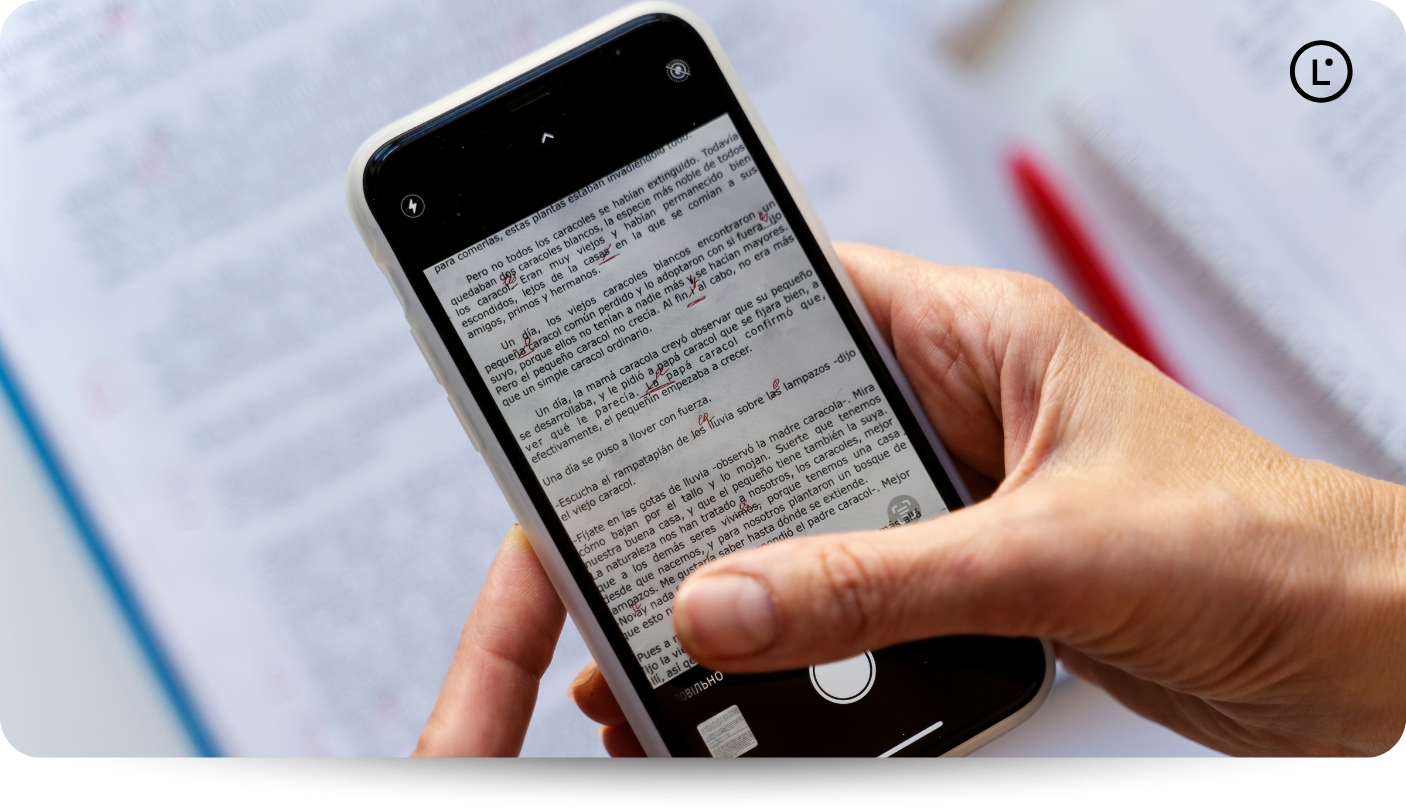
Simple OCR compares printed characters with known patterns. It works best when the source resembles the fonts and character shapes the system expects. Unfamiliar lettering can make matching harder.
2. Intelligent Character Recognition (ICR)
ICR uses learned recognition methods and is often used to read handwritten characters. Its capabilities depend on the model and the writing it was trained to recognize. The name does not imply reliable recognition of every handwriting style.
3. Intelligent Word Recognition (IWR)
IWR considers a whole word image rather than identifying each character independently. This distinction is useful, although real OCR products may combine methods.
4. Optical Mark Recognition (OMR)
OMR detects filled bubbles, ticks, or other marks in designated fields. An exam answer sheet is a familiar example. It establishes whether a choice is marked but does not transcribe a written answer. ABBYY documents OMR specifically as checkmark recognition.
Why Is OCR Important
OCR is important because a document can be digital without the text inside it being usable as digital text. For example, when you scan a paper invoice and save it as an image or image-based PDF, you can see the words on the screen, but software may still treat the page as an image rather than searchable or editable text.
Optical character recognition changes that by identifying the text in the image and converting it into machine-readable data. Once recognized, the text can be searched, copied, edited, analyzed, stored in a database, or passed to other software for further processing. This is why OCR is widely used to bring information from paper documents, scanned files, receipts, forms, and other visual sources into digital workflows.
The value of OCR becomes clearer when you look at what that machine-readable text makes possible.
What Are the Benefits of OCR
The main benefit of OCR is that it makes text trapped inside images and scanned documents usable by people and software. Depending on the OCR system and the quality of the source document, this can reduce repetitive work and make document-based information easier to find and process.
Makes Documents Searchable
A scanned document may look like an ordinary PDF while each page is actually stored as an image. In that case, searching for a person’s name, invoice number, or phrase may not work because the file contains no searchable text.
OCR recognizes the words on those pages and can add machine-readable text, making the document searchable. For example, instead of manually checking hundreds of scanned invoices, an employee can search the digitized collection for a customer name or reference number. AWS lists searchable document archives as a major OCR benefit.
Reduces Manual Data Entry
Without OCR, someone may need to read information from a receipt, application form, or invoice and manually type it into another system.
OCR can recognize that text automatically so it can be used in a digital workflow. More advanced document-processing systems can also identify fields such as names, dates, invoice numbers, or amounts and send the extracted information to databases or business applications.
This does not mean OCR eliminates the need for verification. Important information may still require human review, particularly when the original document is blurry, damaged, handwritten, or unusually formatted.
Makes Text Editable
OCR can turn image-based text into text you can select and edit. For example, if you have only a scanned copy of an old report, OCR can recognize its contents instead of requiring you to retype the entire document.
Supports Workflow Automation
Once OCR converts information into machine-readable text, accounting tools, document management systems, databases, and other applications can use that data in automated workflows.
For example, a company could receive an invoice, use OCR to extract its contents, and then pass relevant information into an accounting or document-processing workflow. OCR is therefore often one part of a larger automation process rather than the system responsible for the entire workflow.
Improves Access to Scanned Content
OCR can make text in scanned documents selectable and searchable, which is an important step toward making previously image-only information easier to access and work with.
OCR can also support accessibility workflows because assistive technologies need access to actual text rather than pixels alone.
Enables Downstream AI Processing
AI systems generally need usable data to analyze document content. If important information exists only as pixels inside a scan, OCR can first convert that visual text into machine-readable content.
You can then use the extracted text in downstream tasks such as document classification, summarization, entity recognition, search, or other natural language processing workflows. In this role, OCR acts as the text-extraction layer rather than performing all of those AI tasks itself.
Makes Image and Scanned-Document Translation Possible
OCR is also useful when the text you want to translate appears inside an image or scanned document.
When visual text needs translation, OCR first makes the source text machine-readable so a translation system can process it. OCR therefore supports translation but does not perform it. It handles recognition, while the translation technology handles the linguistic task of converting the content into another language.
What Is OCR Used For
OCR is used whenever useful information is locked inside an image, scan, or paper document and needs to become digital text. Once optical character recognition has identified that text, people and software can search it, copy it, edit it, extract specific information, or send it to another system for further processing.
Here are some common ways OCR is used in everyday and business workflows.
Scanning Receipts and Invoices
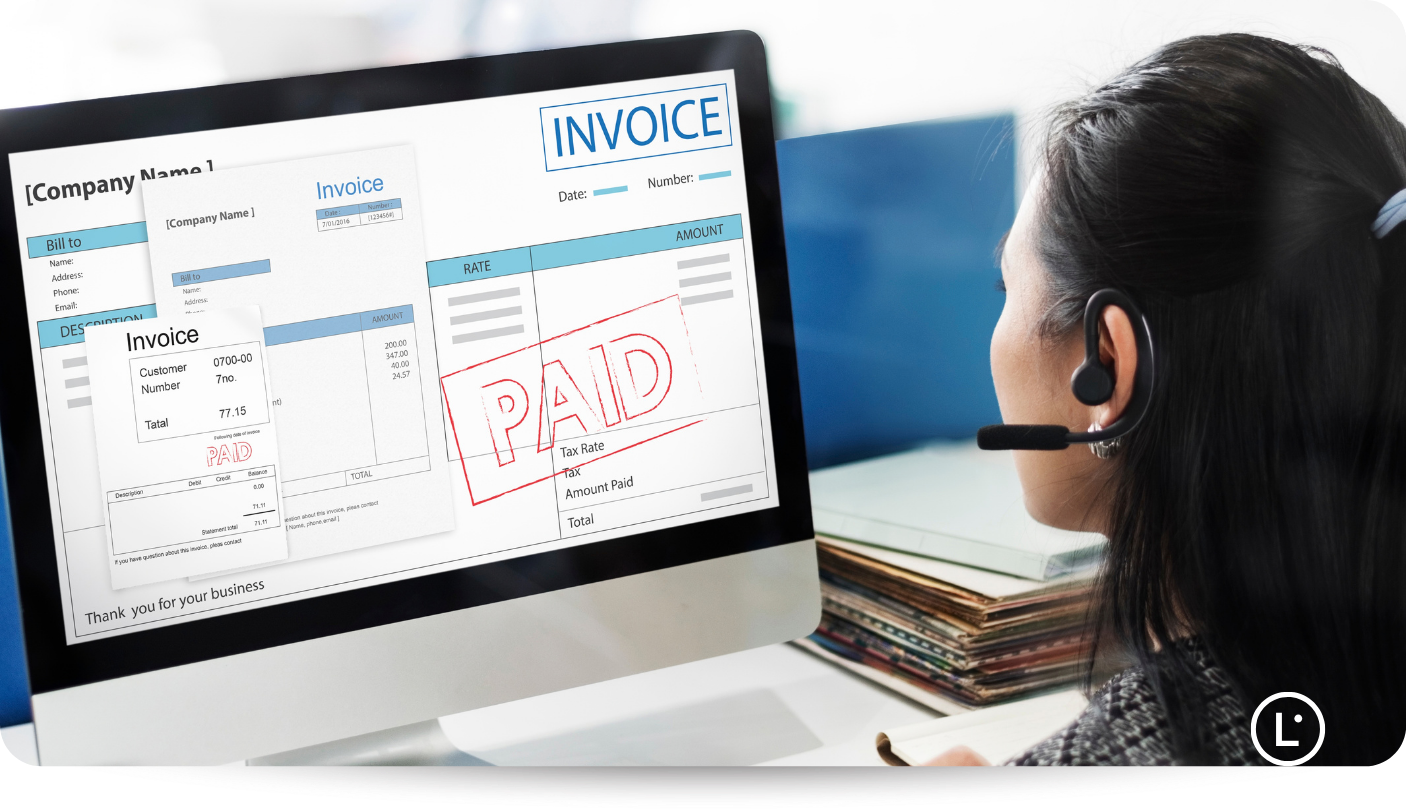
Receipts and invoices often contain information that someone would otherwise have to enter manually, such as invoice numbers, dates, supplier names, totals, and tax amounts.
OCR can recognize this information from a scanned or photographed document and convert it into digital text. More advanced document-processing systems can then identify particular fields and send the relevant data to accounting, expense-management, or other business software.
For example, instead of manually typing the total from every employee receipt into an expense system, OCR can provide the text that the system needs to process.
Digitizing Books and Historical Documents
Libraries, archives, researchers, and publishers can use OCR to make old printed material easier to explore digitally.
Scanning a newspaper or book preserves an image of the original page, but OCR adds another useful layer by converting the printed characters into computer-readable text. You can then search that text for names, dates, phrases, and other information.
Making Scanned PDFs Searchable
When you scan a paper document into a PDF, the resulting pages may initially contain only image data. You can see the words, but you may not be able to select them or search the PDF for a particular phrase.
OCR recognizes the text in those page images and can add a searchable text layer to the PDF. This means someone working with a long scanned report, contract, or archive can search for a name or term instead of reading every page manually.
This is also the practical answer to what OCR is in a PDF: it is the recognition process that makes text stored as an image available as machine-readable text.
Extracting Data From Forms
Forms are another common OCR use case because they often contain information that needs to move into a digital system.
OCR can recognize printed or scanned text in applications, registration forms, questionnaires, and other documents. Depending on the document-processing system, that recognized content can then be reviewed, classified, or entered into another workflow without requiring someone to retype the entire form.
Handwritten forms can be more difficult to process accurately than clean printed text, so important information may still require human verification.
Recognizing Text on IDs and Passports
Organizations may use OCR to extract text from identity documents such as passports, driver’s licenses, and identification cards. This can include information such as names, document numbers, and dates.
The extracted data may then support workflows such as customer onboarding, identity-document processing, or compliance checks. OCR itself only recognizes the text. It does not prove that an identity document is authentic or that the person presenting it is its legitimate owner. Those checks require additional verification systems and processes.
Improving Accessibility and Text-to-Speech
Text contained only in a scanned image can be difficult for assistive technology to use because it may lack underlying digital text to read.
OCR can convert that image-based text into actual text, making it available for further accessibility work and technologies such as text-to-speech.
However, OCR alone does not make a document fully accessible. A PDF may still need correct headings, tags, reading order, alternative text, and other accessibility features.
Translating Images and Scanned Documents
OCR also lets you translate text that isn’t already available as editable digital content.
Suppose you receive a screenshot containing Italian instructions. A translation system cannot simply treat the visible letters as ordinary typed text. OCR first detects and extracts the Italian text from the image. That recognized text can then be passed to a translation system, which translates it into the target language.
OCR and translation therefore perform different jobs. OCR makes the text machine-readable, and the translation system handles the language conversion.
This combination is especially useful when the text you need to translate can’t be copied and pasted because it exists inside a screenshot, scan, photo, or image-based document.
How Does OCR Support Translation
OCR supports translation by turning visual text into language data. In an OCR-based workflow, recognition produces the source-language text, and the translation system then produces the target-language wording. An image-to-image tool adds another step by placing that translation back into the visual.
Let’s understand from an example:
Imagine you upload a photo of a Japanese menu to an image translation tool:
- OCR finds and recognizes Japanese writing.
- The system makes the recognized menu items available as text.
- A translation tool produces English wording.
- If image-to-image output is supported, the software places that wording into the menu image.
- You review the dish names, descriptions, and prices before using the result.
If OCR misreads a price or misses a line, the translation step receives incomplete or incorrect source information. A fluent translation alone cannot prove that the system recognized everything in the image correctly.
How Is OCR Used in Image and Document Translation
When the text you want to translate is part of an image rather than selectable text, the translation system first needs a way to access those words. OCR provides that first step by recognizing text from pixels and converting it into machine-readable text.
What happens next depends on the output you need. You may only want the translated words, or you may need the translated text placed back into the original image or document.
Image-to-Text Translation
Text translation in an image is useful when you need to understand or reuse the words in an image but do not need to preserve the original visual.
For example, you receive a photo of product specifications written in German. OCR first recognizes the German text in the photo. The extracted text can then be translated into English and copied into a document, email, spreadsheet, or another application.
This approach works well for screenshots, signs, menus, scanned paragraphs, product information, and other content where meaning matters more than the original image’s appearance.
Image-to-Image Translation
Sometimes extracting text isn’t enough because the image itself needs to remain usable.
Suppose a team has a screenshot of an app interface in Spanish that needs to be shared with English-speaking colleagues. Receiving the English text as a separate paragraph would remove it from the buttons, labels, and other visual elements that give it context.
Image-to-image translation adds another step:
Image → OCR extracts the text → translation system translates it → translated text is placed back into the image.
With Lara Translate’s translate image workflow, OCR extracts the text, Lara Translate translates it into the selected target language, and the image is reconstructed with the translated text. The output is returned in the same image format, preserving the original positioning and layout as much as possible.
This makes image-to-image translation more useful when you need to share, review, or keep the visual in a workflow, such as screenshots, graphics, scanned images, labels, or visual instructions.
If you are deciding between the two approaches, Lara Translate’s guide on image-to-image vs. OCR text extraction provides a useful rule: choose image-to-text when you only need the content, and image-to-image when you need a usable translated asset.
Translate text inside images with Lara Translate
Need to translate a screenshot, scan, label, or other image? Lara Translate can recognize the text, translate it, and return a translated image without making you rebuild the visual manually.
Scanned PDF Translation
PDFs can contain more than one type of text. Some PDFs contain selectable digital text, while others contain scanned pages or images in which the words exist only as pixels.
This distinction explains what OCR is in a PDF. When the text exists only inside a scanned page or embedded image, OCR detects and converts it into machine-readable text so it can be processed further. Depending on the translation workflow, you can then insert the translated content back into the document.
What Can Affect OCR Accuracy
OCR works best when the characters in an image are clear and easy for the recognition system to distinguish. When letters are blurred, extremely small, tilted, or placed against a complicated background, OCR has less reliable visual information.
The OCR engine also matters, so no single accuracy level applies to every tool or document.
Several factors can make recognition more difficult:
Low Resolution and Blur
Low-resolution images contain less detail, which can make similar characters difficult to distinguish. Blur creates a similar problem because letter edges become less defined.
For example, a blurred 8 could be mistaken for a 3, or an O for a 0. This matters especially when the text includes prices, measurements, product codes, or dates.
Poor Lighting and Low Contrast
OCR needs to distinguish characters from their background. A dark photograph, uneven lighting, glare, shadows, or text with little contrast against the background can make those boundaries less obvious.
For example, light gray text on a patterned gray background may be perfectly understandable to a person while being harder for OCR software to separate accurately.
Using a clearer image with stronger contrast can improve the recognition stage before translation begins.
Skewed, Rotated, or Curved Text
A slightly tilted scanned page can affect how the OCR system identifies text lines and characters. Rotated or curved text can be even harder to read, especially on packaging, posters, labels, and advertisements. Straightening the image before recognition can help.
Decorative Fonts and Handwriting
OCR generally has an easier job with clear, conventional printed characters than with highly stylized lettering.
Decorative fonts may change the normal shapes of letters, while handwriting varies significantly between people. A handwritten r, for example, may look very different from the printed version an OCR model expects.
Modern recognition systems can handle some handwriting, but results depend on the OCR technology, the writing style, and the quality of the source image.
Text on Complex Backgrounds
Text placed over photographs, gradients, textures, shadows, or illustrations gives the OCR system more visual information to separate.
A black sentence on a white page has clear boundaries. The same sentence over a detailed product photograph may contain edges and colors that interfere with character detection.
Small Text
Tiny labels, footnotes, disclaimers, and captions can be easy to miss, particularly in low-resolution screenshots or compressed images.
This can be more than a minor problem in translation. A missed heading may be inconvenient, but a missed warning, dosage, measurement, or disclaimer could change how the translated asset is understood.
When possible, use a higher-resolution source or enlarge the relevant area before recognition.
Multiple Columns and Complex Layouts
OCR doesn’t just need to recognize individual characters. In many documents, it also needs to determine how different text regions relate to one another.
A page with several columns, callout boxes, tables, captions, or floating labels can therefore create reading-order problems. The words may be recognized correctly but returned in the wrong sequence.
This matters for translation because sentence order provides context.
Mixed Languages and Different Scripts
Images sometimes contain more than one language or writing system. A product label, for example, might combine English, Japanese, and numerical product information on the same image.
Recognition quality depends partly on whether the OCR system supports and correctly identifies the languages or scripts involved.
Damaged or Noisy Source Documents
Older scans may contain stains, faded printing, torn areas, speckles, handwritten notes, or marks from repeated photocopying. These details can interfere with the shapes OCR tries to recognize.
Image cleanup techniques such as noise removal, contrast adjustment, and rescaling can improve some source material, but they cannot restore characters that are no longer visible in the original.
For translation workflows, OCR accuracy deserves attention because an error at the recognition stage can carry into the translated result. Before relying on translated image content, check names, numbers, dates, measurements, warnings, and small text against the original.
What Is the History of OCR
Attempts to make machines read visual information began before modern computers. Early twentieth-century devices explored recognizing print or converting its visual patterns into signals. In the 1950s and 1960s, commercial recognition systems were developed for constrained tasks, including document processing in banking and, later, mail sorting in postal operations.
A significant milestone came in 1976 with the announcement of the Kurzweil Reading Machine. It brought together scanning, recognition of printed text in different typefaces, and speech synthesis to read documents aloud for blind users. Kurzweil’s account also describes later applications in databases and word processing.
OCR subsequently became part of desktop scanning and document digitization, then mobile and cloud services. Modern systems increasingly use learned models to handle variation in text appearance and layout.
That progression explains why OCR now appears both as a standalone feature and as one component of a larger application. Reading a page can support many different outcomes, including search, speech, data extraction, and translation.
How Does Lara Translate Use OCR for Image and Document Translation
Lara Translate uses OCR as the recognition step when text is contained inside an image rather than available as regular digital text. OCR first extracts the source text from the image. Lara Translate then translates it into the selected target language.
That distinction is important: OCR identifies the words, and Lara Translate translates their meaning. Lara Translate combines these steps in its image translation workflows, so users don’t have to extract the text manually, copy it into a translator, and then rebuild the visual themselves.
Translate Standalone Images
Lara Translate supports image-to-image translation for screenshots, photos, graphics, scanned images, and other standalone visual files. Image translation is also available in the Lara Translate apps for iOS and Android.
For example, if you upload a product label written in Italian and select English as the target language, OCR first identifies the Italian text. Lara Translate translates the recognized content, then returns an image with the translated text rather than only a block of extracted words.
Lara Translate currently supports common image formats including JPG, JPEG, PNG, WEBP, HEIC, HEIF, TIFF, TIF, AVIF, BMP, and GIF.
Translate Text Inside PDF Images
A PDF can contain ordinary selectable text and images that contain their own text. The second type needs OCR before you can translate the words inside the image.
Lara Translate lets users translate this image-based text as part of a PDF translation. When a PDF contains images, users can enable the Translate images option during upload. Lara Translate then detects text inside those images with OCR and translates it along with the rest of the document.
The option is disabled by default, so you must turn on image translation when needed. If it remains disabled, Lara Translate translates the regular document text but does not translate text contained inside the images. When Translate images is enabled, the characters extracted and translated from each translated image count toward the user’s usage.
This can help with PDFs that contain screenshots, diagrams, scanned sections, product labels, or other visuals with important text. Readers working primarily with PDFs can also explore a document translation workflow for broader file translation.
Preserve the Visual Output
Extracting and translating text is only part of the challenge when you still need to share or use the original image afterward.
With standalone image translation, Lara Translate reconstructs the image with the translated content and preserves the original layout and positioning as much as possible. The goal is to return a usable translated asset rather than leaving the user with detached translated text that has to be placed back manually.
This matters for content such as screenshots, menus, signs, labels, and graphics, where word placement helps the reader understand what they refer to.
However, layout preservation is not the same as guaranteeing an identical visual result. Longer translated phrases, small text areas, complex backgrounds, and OCR errors can still affect the final image.
Apply Translation Controls
OCR determines what text Lara Translate receives from an image, but OCR does not decide how a product name, technical term, or ambiguous phrase should be expressed in another language.
Across its text and document translation workflows, Lara Translate provides additional controls for this part of the process. Lara Translate applies active glossaries to text and document translations so those approved terms remain consistent.
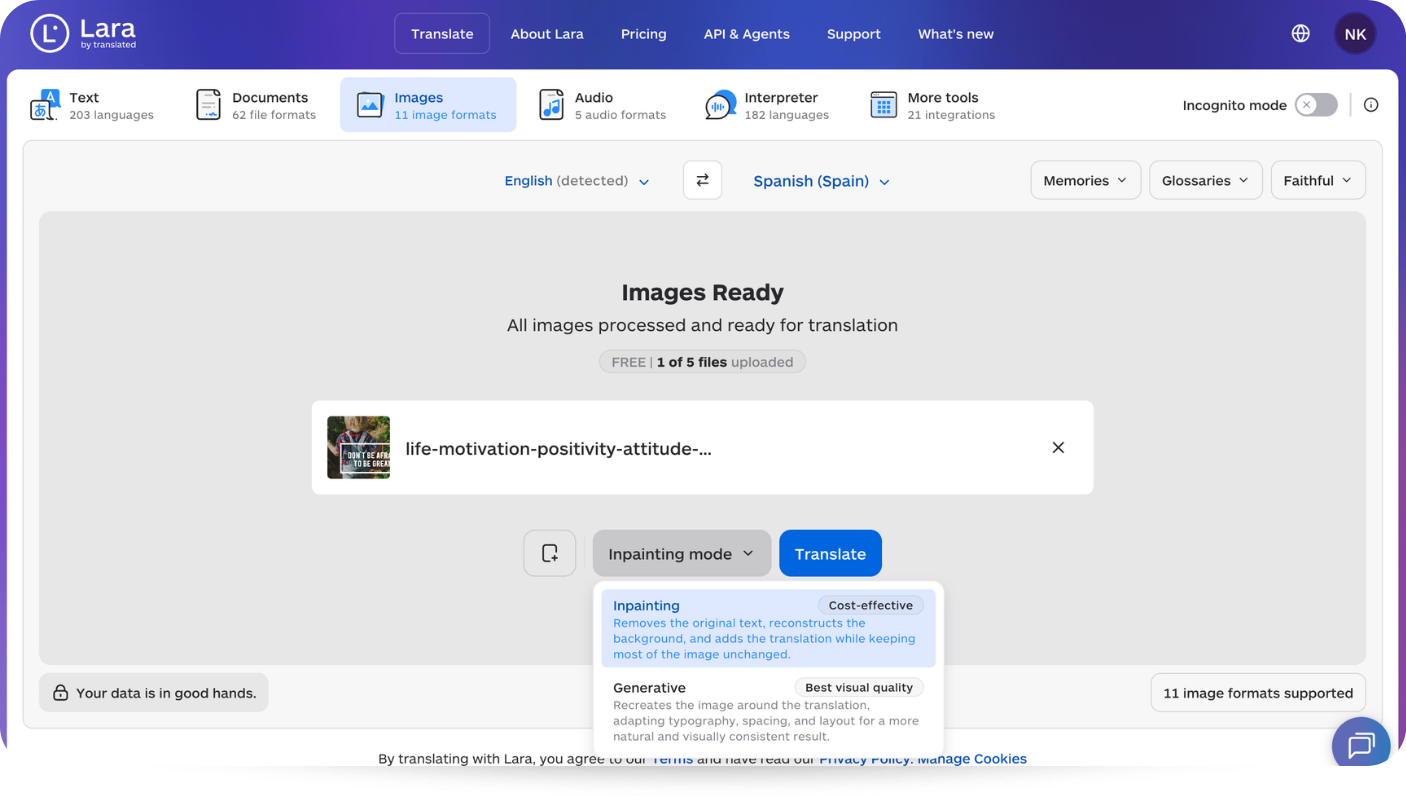
The Lara Translate image translation API can also use translation memories and glossaries to maintain terminology and translation consistency. It supports four output modes: Overlay, which places translated text over the original image; Inpainting, which removes the source text and reconstructs the area before inserting the translation; Generative, which regenerates the image with the translated content; and Image-to-Text, which returns the detected source text and its translation as text rather than a reconstructed image.
For text translation, users can also provide context about the subject, audience, tone, or intended meaning of ambiguous words. For example, telling Lara Translate that a sentence comes from a medical document or marketing campaign gives the translation system more information about how to interpret the text.
The broader point is simple: OCR extracts the words from the visual, and Lara Translate handles what those words mean in the target language. When the chosen workflow offers additional translation controls, they can help manage terminology and context after the recognition step.
How to Translate Text From an Image With Lara Translate
Here is how you can translate text from an image with Lara Translate:
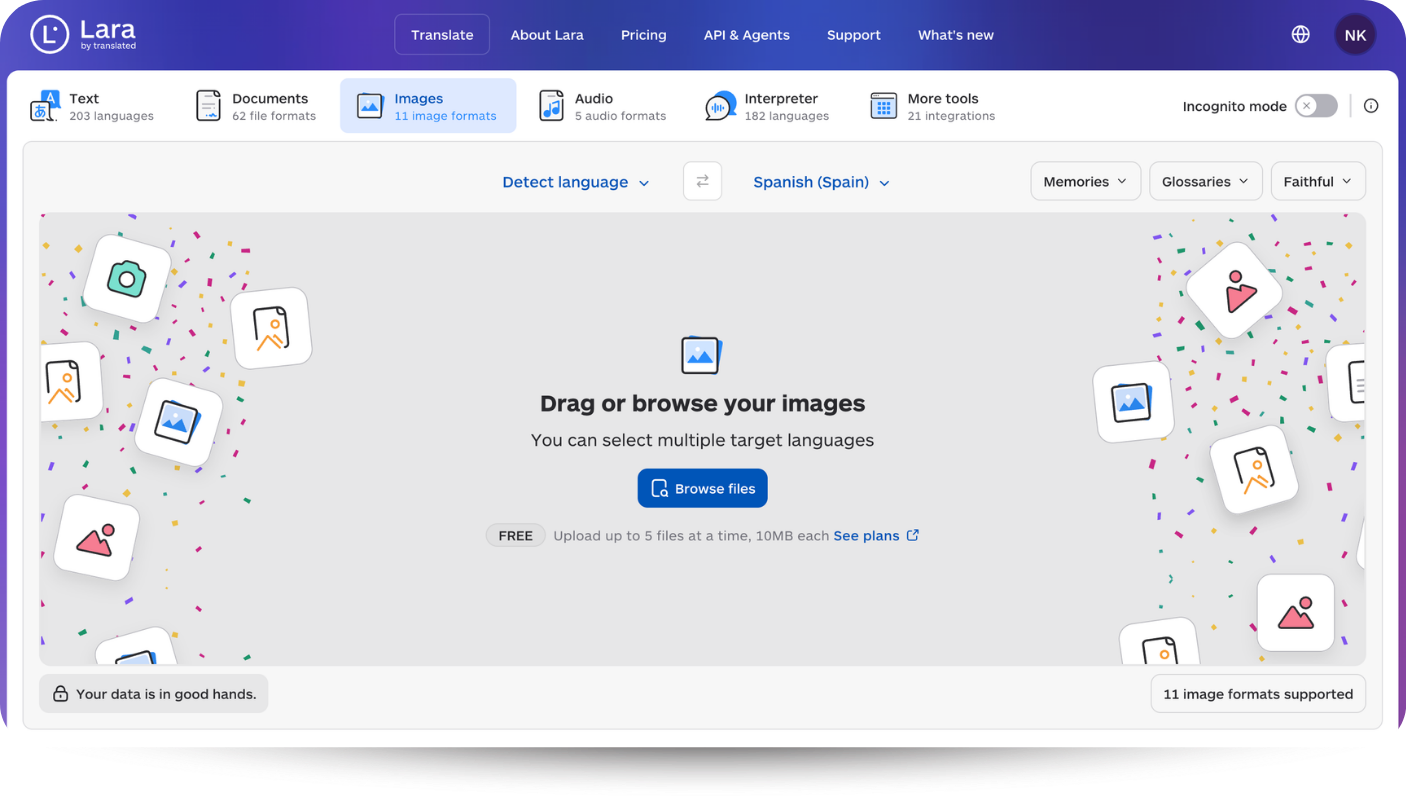
Step 1: Open Lara Translate, go to Images, and upload a supported image file.
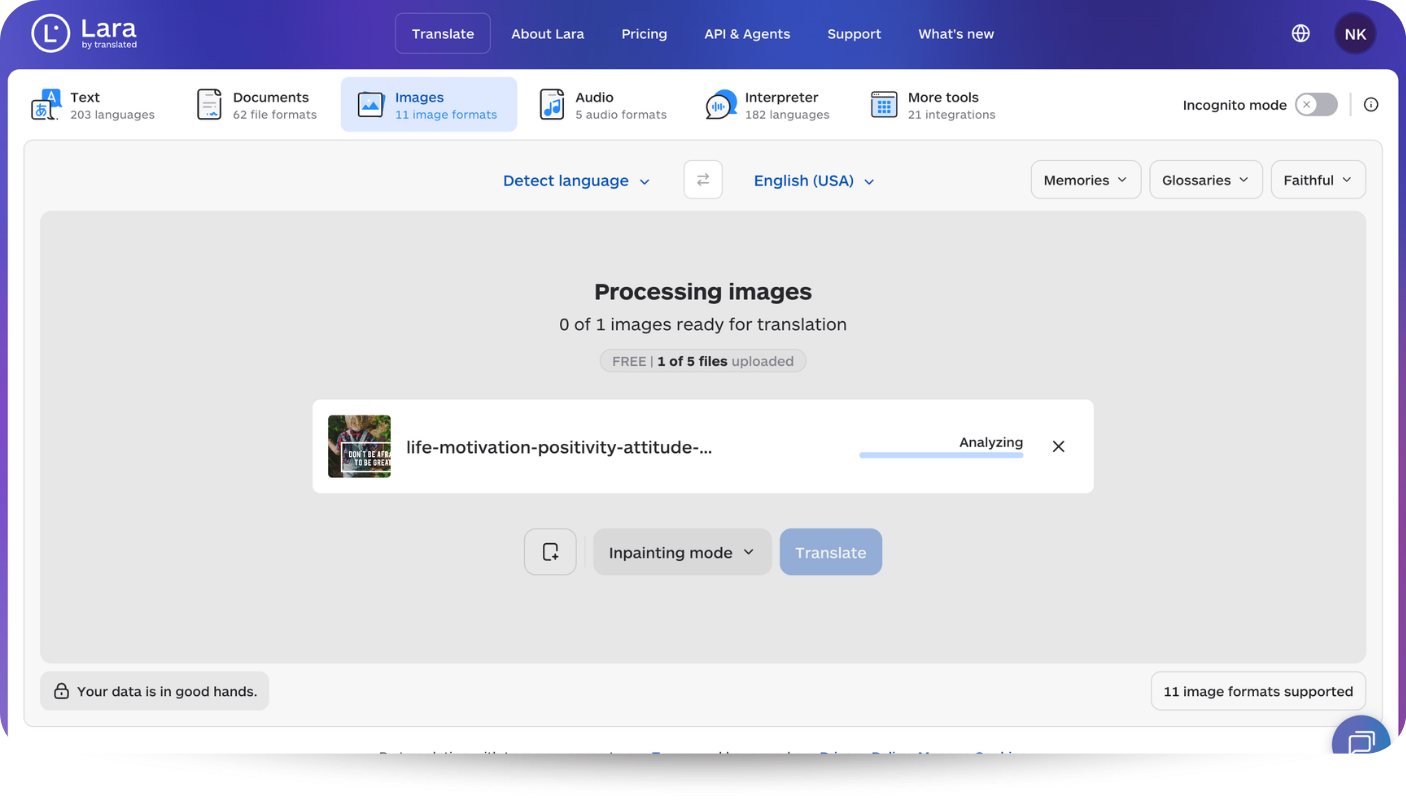
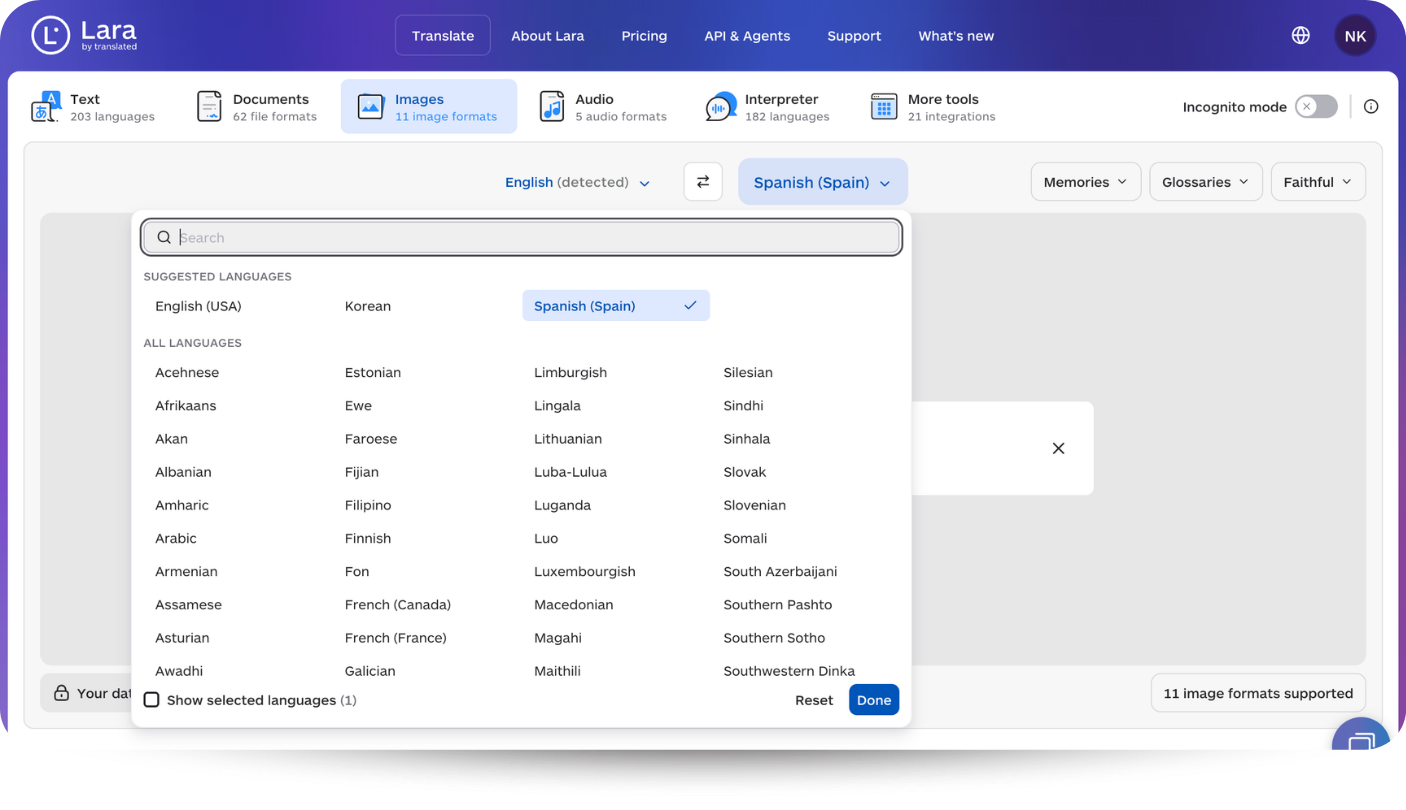
Step 2: Check the source language and select an available target language.
Step 3: Start the translation and download the translated image when it is ready.
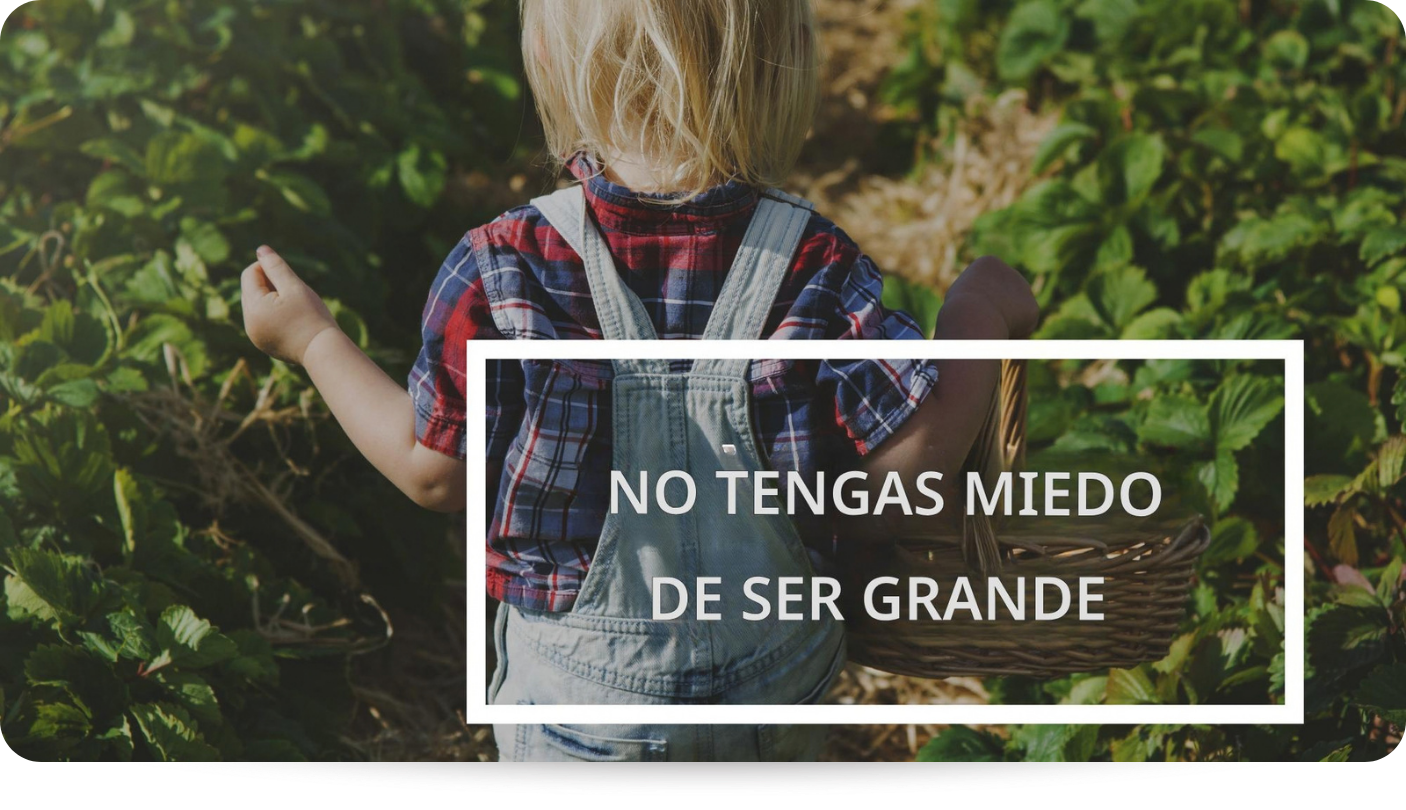
Step 4: Compare it with the original, checking names, numbers, units, small text, and text placement.
For PDFs, use document translation and enable Translate images when the file contains image-based text. The PDF image-translation guide explains this option.
OCR Makes Visual Text Usable Beyond the Image
OCR solves a practical problem: it gives software access to words that would otherwise remain part of an image. That capability matters whenever you work with scanned records, screenshots, image-based PDFs, receipts, signs, or other visual content that contains information you need to reuse.
For multilingual content, Lara Translate combines OCR with its translation technology to handle supported images and text embedded in PDFs. Instead of extracting the source text manually and translating it separately, you can use one workflow to recognize and translate the content while keeping the visual output useful.
If you work with screenshots, scanned documents, product labels, image-based PDFs, or other visual content in multiple languages, you can use Lara Translate to handle both the recognition and translation workflow in one place.
Work with multilingual content using Lara Translate
If you translate documents, scanned content, or visual assets, Lara Translate helps you handle multilingual content in one translation workflow.
FAQs
What is an example of OCR?
A common example of OCR is scanning a paper receipt and extracting information such as the store name, date, items, and total as digital text. Another example is using OCR on a scanned PDF so you can search the document for a name or phrase instead of reading every page manually.
Is OCR the same as AI?
No, OCR and AI are not the same thing. OCR describes the task of recognizing and converting visual text into machine-readable text, while artificial intelligence covers a much broader range of technologies and tasks. Modern OCR systems often use machine learning or neural networks, but OCR can also use more traditional methods such as pattern matching and feature extraction.
Can OCR read handwriting?
Yes, some OCR systems can recognize handwriting, but support and accuracy vary by tool, language, writing style, and image quality. Handwriting is generally more difficult to recognize than clear printed text because letter shapes can vary significantly between writers. For example, Google Cloud Vision documents handwriting detection as one use of its document text detection feature.
Can OCR translate text?
No, OCR itself recognizes and extracts text. It does not translate the meaning into another language. A translation system handles that next step. Some image-translation tools combine both technologies into one workflow. For example, Lara Translate uses OCR to extract text from an image, then translates it into the selected target language.
Can OCR recognize different languages?
Yes, OCR can recognize multiple languages and writing systems, but the exact language support depends on the OCR engine. Some systems can automatically detect supported languages, while others let you specify a language or script to improve recognition. OCR should therefore not be assumed to support every language equally well.
What is the difference between OCR and text recognition?
OCR is a type of text recognition focused on identifying text inside images, scanned pages, photos, and similar visual content and converting it into machine-readable text. The term text recognition is broader and is sometimes used interchangeably with OCR, especially in software documentation.
Can OCR extract text from a PDF?
Yes, OCR can extract text from a PDF when the document contains scanned pages or image-based text. The OCR system recognizes the characters in those page images and converts them into machine-readable text.
What Is the Difference Between OCR and Translation?
OCR extracts text from an image or scanned document and converts it into machine-readable text. Translation converts that text from one language into another. In an image-translation workflow, OCR usually comes first, followed by translation.
The Article Is About
- What OCR means and what OCR stands for
- How Optical Character Recognition works
- The main types of OCR
- Benefits and uses of OCR
- How OCR supports translation
- How OCR works with images and scanned PDFs
- What affects OCR accuracy
- How Lara Translate uses OCR in image and document translation
Sources
- AWS: What Is OCR? – Optical Character Recognition Explained
- ABBYY Support: Checkmark Recognition (Optical Mark Recognition – OMR)
- Google Cloud Vision: Detect Handwriting in Images
- Kurzweil
- Lara Translate Blog: Image Translation: How to Translate Images Without Losing Meaning or Layout
- Lara Translate: Image Translation
- Lara Translate Blog: When to Translate a JPG vs. Extract Text (Image-to-Image vs. OCR)
- Lara Translate: Document Translation
- Lara Translate Developers: Translate Image
- Lara Translate Support: Translating Images Inside PDF Documents
- Lara Translate: AI Translation