

Most XLIFF translation failures don’t happen because of a bad translation. They happen because of a bad tool. A translator who pastes XLIFF content into Google Translate, or a developer who runs it through a general-purpose AI model, will almost always get back a file where the XML tags have been corrupted, moved, or deleted. The translated text might look fine in isolation — but the moment you try to import that file back into Trados, memoQ, Xcode, or your Angular project, it fails. Sometimes with a cryptic XML error, sometimes silently, producing a build where certain strings simply don’t appear.
|
TL;DR
|
Short answer
XLIFF tags break when a translation tool treats the file as plain text instead of XML. The fix is using a tool that parses the document structure, extracts only the human-readable content from <source> elements, and writes translations back into <target> nodes — leaving every inline tag, ID, and attribute completely untouched.
Why it matters: A broken XLIFF tag doesn’t just cause a translation error — it causes a runtime error. A missing placeholder means your app displays “Welcome back, !” to the user. A malformed XML file means a failed CAT tool import. Either way, the localized build is broken and the fix requires going back to square one.
Translate XLIFF files without touching the tags
Lara’s XLIFF processor locks every inline element — <x/>, <g>, <bpt>, <ept> — and only translates the human-readable text. Your file comes back structurally identical, ready to import.
Why XLIFF Tags Break During Translation
In a real-world XLIFF file, source strings rarely contain plain text alone. A string like “Welcome back, {name}!” doesn’t exist as those literal characters. Instead it looks like this:
<trans-unit id="welcome.message">
  <source>Welcome back, <x id="1" equiv-text="{name}"/>!</source>
  <target/>
</trans-unit>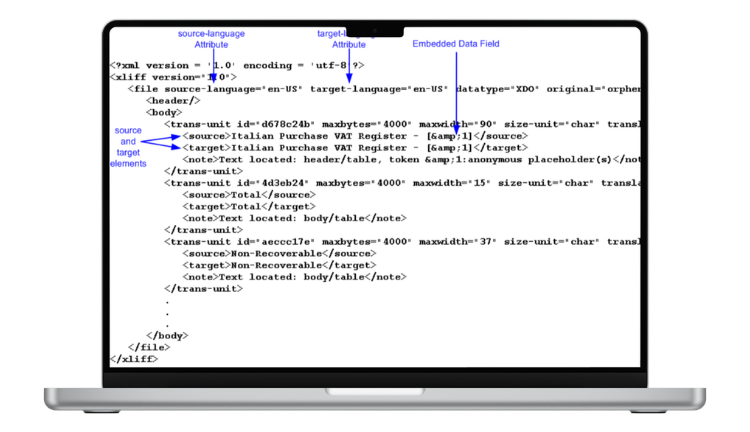
That <x id=”1″/> is a placeholder representing a runtime variable — a user’s name, a count, a date. The translation must preserve it in the correct position relative to the surrounding text. Move it, delete it, or translate its attributes and the string breaks at runtime.
Other inline elements carry equal weight:
- <g id=”n”>…</g> — wraps text with specific formatting: a link, a bold span, a UI label
- <bpt>/<ept> — begin and end paired tags for inline formatting that spans multiple segments
- <it> — isolated tags for formatting that opens or closes outside the current segment
General translation tools treat the entire file as a stream of text. They don’t know that <x id=”1″/> is structural. They may translate “id” as an Italian word, remove the tag because it “isn’t text,” or reorder inline elements based on target language syntax. The output looks valid but is structurally broken.
The Four Most Common XLIFF Tag Failures
1. Missing placeholders
The translator drops an inline <x/> element. At runtime, the variable doesn’t render — your app displays “Welcome back, !” instead of “Welcome back, Anna!”
2. Reordered tags
In some languages, natural word order moves a placeholder to a different position. A tool that adjusts tag positions based on translated syntax will produce a file that puts the variable in the wrong place — or triggers a tag order validation error in the CAT tool.
3. Translated tag content
A naive tool sees <x id=”1″ equiv-text=”{name}”/> and translates “name” into the target language. The variable reference breaks entirely because the app is looking for {name}, not {nombre}.
4. XML malformation
Pasting XLIFF into a tool that doesn’t understand XML introduces encoding issues, unescaped characters, or mismatched tags. The resulting file fails to parse — import produces an error or, in some tools, silently imports zero strings.
What Correct XLIFF Tag Handling Looks Like
A properly translated XLIFF file has an identical set of inline elements in both source and target — same tags, same IDs, same relative positions. Only the human-readable text around them changes:
<trans-unit id="welcome.message">
  <source>Welcome back, <x id="1" equiv-text="{name}"/>!</source>
  <target>Willkommen zurück, <x id="1" equiv-text="{name}"/>!</target>
</trans-unit>
The tag is untouched. The ID is untouched. Only the text has changed.
How Lara Translate Handles XLIFF Tags
Lara’s XLIFF processor treats the file as XML, not text. It parses the document structure, identifies <trans-unit> elements, extracts translatable text from <source> nodes, translates it while treating inline elements as opaque and untouchable, and writes the result into <target> nodes. Nothing else is modified. Trans-unit IDs, file-level metadata, tool notes, inline formatting tags — all preserved exactly as in the source. This works for both XLIFF 1.2 and XLIFF 2.0.
How to Translate XLIFF Without Breaking Tags — Step by Step
- Go to laratranslate.com/translate-xliff
- Upload your .xliff or .xlf file
- Select source and target languages
- Set a glossary for brand names and untranslatable terms
- Choose a translation style and click Translate
- Download the file and run a tag integrity check before re-importing
How to Validate Tag Integrity After Translation
Even with a format-safe tool, run a validation pass before importing.
In Trados or memoQ, use the built-in QA check to compare inline tag counts between source and target segments — both tools flag missing or extra tags automatically.
In a development environment, run the XLIFF file through an XML validator before importing. For Angular projects, running ng build after import will surface any string-level errors immediately.
Key checks: tag count matches between source and target, tag IDs unchanged, no unescaped XML special characters (&, <, >) in the target text.
Stop worrying about broken XLIFF tags
Upload your XLIFF file to Lara and get a structurally valid, tag-safe translation back — ready to import into Trados, Xcode, or Angular without a cleanup step.
FAQ
What happens if an XLIFF tag is missing from the translation?
In most cases, a missing placeholder tag causes the variable to render as empty or literal text at runtime. A missing structural tag may drop formatting. In stricter frameworks like Xcode or Angular, a tag mismatch can cause a build error or import failure.
Can a human translator accidentally break XLIFF tags?
Yes — especially when working in a plain text editor or an environment that doesn’t display inline tags as locked elements. Professional CAT tools protect against this by locking inline elements. Lara applies the same protection automatically in its online processor.
What’s the difference between XLIFF 1.2 and 2.0 tag handling?
XLIFF 1.2 uses <x>, <g>, <bpt>, <ept>, and <it> for inline content. XLIFF 2.0 uses a simpler model with <ph> (placeholder), <pc> (paired content), and <sc>/<ec> (start/end). Both must be preserved with the same care. Lara handles both versions.
Can I use Lara if my XLIFF file has custom namespace extensions?
Yes. Lara preserves all XML content outside of <trans-unit> source/target nodes. Custom namespace attributes and tool-specific extensions in the file header or trans-unit metadata are passed through unchanged.
Is there a way to check XLIFF tag integrity without a CAT tool?
Yes. Any XML validator will confirm whether the file is well-formed. For XLIFF-specific validation, open-source tools like XLIFF Checker by Maxprograms can verify tag correspondence between source and target segments.
This article is about
- Explaining why XLIFF inline tags break when processed by tools that don’t understand XML structure.
- Identifying the four most common XLIFF tag failure modes: missing placeholders, reordered tags, translated tag content, and XML malformation.
- Showing what correct XLIFF tag handling looks like in both source and target trans-unit elements.
- Walking through how Lara Translate preserves inline tags automatically and how to validate output before re-importing.
- Helping developers and localization managers avoid the silent failures that come from broken XLIFF structure.
Translate XLIFF Files with Tag Integrity
Upload your .xliff or .xlf file at laratranslate.com/translate-xliff and get a translation where every tag, ID, and structural element is exactly where it should be.
Also in this series: