

Releasing your app in a single language is leaving users on the table. But app localization workflows are notoriously easy to get wrong — especially when developers and translators are working in different tools, formats, and timezones. XLIFF exists specifically to bridge that gap. It’s the XML-based format that iOS, Angular, and Symfony produce when you extract translatable strings, and what they expect back after translation. Get the workflow right and localization becomes a repeatable, scalable process. Get it wrong and every release cycle breaks.
|
TL;DR
|
Short answer
To localize a mobile or web app using XLIFF: export strings from your framework as .xliff or .xlf, translate the file with a tool that preserves XML structure and inline tags, then re-import the translated file and build for each target locale. Lara Translate handles the translation step with full XLIFF 1.2 and 2.0 support — compatible with Xcode, Angular, and Symfony out of the box.
Why it matters: XLIFF is the translation handshake format used by the most widely deployed app frameworks. When the workflow works, localization is a predictable, non-disruptive part of the release cycle. When it breaks — due to corrupted tags, incompatible file versions, or missing glossaries — the only fix is to rebuild from the source file, costing time and delaying the launch.
Translate your app’s XLIFF strings instantly
Upload the .xliff file exported by Xcode, Angular, or Symfony. Lara translates it with full tag and ID preservation — ready to import directly back into your build.
Why XLIFF Is the Standard for App Localization
App strings aren’t just text. They contain placeholders for dynamic values (a username, a price, a count), they have character limits imposed by UI constraints, and they carry context about where they appear in the interface. XLIFF was designed to carry all of this alongside the translatable text itself.
This is why it became the default format for the major app development frameworks:
- iOS / macOS (Xcode):
NSLocalizedStringreferences in your code get exported as a single .xliff file via Xcode’s “Export for Localization.” After translation, import it back and Xcode distributes strings to the correct .strings files per locale. - Angular: Running
ng extract-i18ngenerates an XLIFF 1.2 (or 2.0) file containing every marked i18n string in your templates. Translated versions compile at build time via angular.json locale configuration. - Symfony (PHP): XLIFF is one of Symfony’s native translation catalog formats — the recommended choice for projects involving external translators or CAT tool workflows.
- Android: Android uses strings.xml natively, but many teams convert to XLIFF for the translation step to take advantage of CAT tool compatibility, then convert back.
The XLIFF App Localization Workflow
Step 1: Extract strings from your codebase
For iOS, Xcode’s “Export for Localization” produces a .xliff file with every localizable string organized by source file. For Angular, ng extract-i18n --output-path src/locale generates the file. For Symfony, use the translation:extract command.
Step 2: Translate the XLIFF file
This is where teams typically make a mistake — emailing the .xliff to a freelance translator who opens it in a text editor, or running it through a general translation tool. Corrupted placeholders and malformed XML are the predictable result.
The correct approach: use a tool that understands XLIFF’s XML structure. Lara processes the file correctly, translates only the human-readable text inside <source> elements, and outputs a valid, importable XLIFF file.
Step 3: Review and validate
Before importing, confirm that all inline tags are intact, trans-unit IDs match the originals, and translated strings aren’t too long for your UI. Lara’s translation memory and glossary keep terminology consistent across app versions.
Step 4: Re-import the translated XLIFF
In Xcode, use “Import Localizations.” In Angular, place the locale-specific XLIFF file in src/locale and reference it in angular.json. In Symfony, drop the translated file into translations/.
Step 5: Build and test per locale
Run a build for each target locale. Check for text overflow, truncation, placeholder rendering, and right-to-left layout issues for Arabic, Hebrew, and Persian.
Common XLIFF Localization Mistakes in App Development
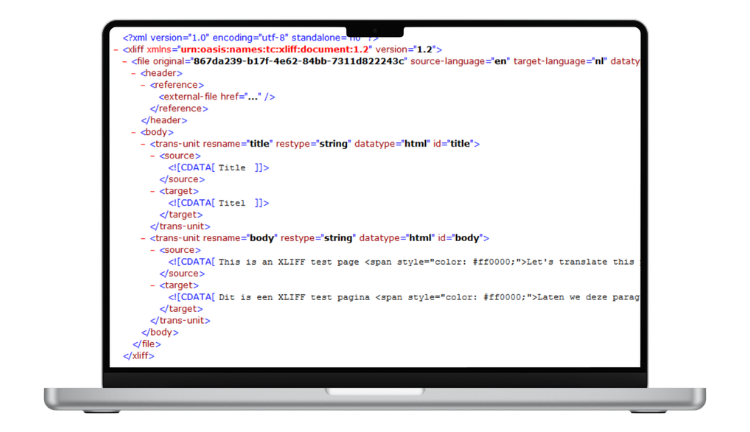
Using a text editor for translation. Opening an XLIFF file in VS Code and editing source strings directly is a reliable way to introduce XML encoding errors, broken placeholder tags, and accidental ID modifications. XLIFF requires a structured editor.
Sending the wrong file version. If your project uses XLIFF 2.0 and your translator’s CAT tool only supports 1.2 (or vice versa), the file imports incorrectly or not at all. Lara handles both, so this doesn’t arise.
Not using a glossary. App strings contain product names, feature labels, and UI terms that must be consistent across all versions and languages. A Lara glossary enforces these rules automatically on every XLIFF translation run.
Strings with no context. “Back” could be a navigation button, a directional label, or a product return interface. Without context, translators guess wrong. Add notes to <trans-unit> elements before sending for translation.
Scaling XLIFF Localization Across Releases
Lara’s translation memory means strings translated in version 1.0 aren’t re-translated in version 1.1 — the system recognizes them and applies the approved translation automatically. Bulk upload lets you process XLIFF files for all target languages in a single session. For enterprise teams, Lara’s human review option provides expert bilingual validation for high-stakes strings before they ship.
Localize your app without the XLIFF headaches
Lara translates XLIFF files exported by Xcode, Angular, and Symfony — preserving every tag, ID, and placeholder. Translation memory keeps consistency across versions. No credit card required.
FAQ
Does Xcode accept XLIFF files translated with Lara?
Yes. Lara preserves the XLIFF structure Xcode expects, including trans-unit IDs that map back to your .strings files and inline tags for format specifiers. The translated file imports directly via Xcode’s “Import Localizations” menu.
Does Lara support the XLIFF format generated by Angular’s i18n tooling?
Yes. ng extract-i18n produces XLIFF 1.2 or 2.0 depending on your configuration. Both are supported. After translation, the output file goes directly into src/locale and is referenced in your Angular build configuration.
How do I protect brand names and untranslatable terms?
Create a glossary in Lara before running the translation. The glossary instructs Lara to leave those strings untouched in every XLIFF file it processes. You can also mark individual <trans-unit> elements with translate="no" in the source file — Lara respects this attribute.
Can Lara handle a large XLIFF file with hundreds of trans-units?
Yes. Lara supports large files and bulk uploads. For a production app with thousands of strings across multiple locales, bulk processing lets you translate all target-language XLIFF files in a single session.
Can I use Lara alongside a CAT tool like Trados or memoQ?
Yes. Use Lara to pre-translate XLIFF files at scale and then pass the output to a CAT tool for review — the best of automated translation and human oversight in the same pipeline.
This article is about
- Explaining why XLIFF is the native localization format for iOS, Angular, and Symfony app development — and what makes it different from document formats.
- Walking through the complete XLIFF app localization workflow: string extraction, translation, validation, re-import, and locale build.
- Identifying the most common mistakes teams make when translating app XLIFF files and how to avoid them.
- Showing how translation memory, glossaries, and bulk processing make XLIFF localization scalable across release cycles.
- Helping developers choose the right translation approach for their app framework and team size.
Localize Your App with XLIFF
Upload your app’s .xliff file at laratranslate.com/translate-xliff and get a tag-safe, import-ready translation for every target locale.
Also in this series: