

You have just published a blog post in WordPress when your content manager asks for Italian, French, and German versions. You can translate the article, but someone still needs to copy the title and body, create three new posts, check the formatting, and send each draft for review. If you are going to publish another article tomorrow, you have the same work waiting again.
Connecting WordPress, n8n, and Lara Translate lets you automate much of that process. WordPress supplies the article, n8n passes the content between tools, and Lara Translate translates it. The automated translation workflow creates drafts for an editor to review before publishing.
We tested this workflow on n8n Cloud with an English WordPress article and Italian as the target language. It retrieved the post, translated the title and HTML body, and created a separate WordPress draft.
|
TL;DR
|
What is an Automated Blog Translation Pipeline?
An automated blog translation pipeline retrieves source content, sends it for translation, and saves the result for review. You configure the steps once and reuse them for later posts.
| Component | Responsibility |
|---|---|
| WordPress | Supplies the original article and stores the translated draft |
| n8n | Runs the workflow and maps fields between tools |
| Lara Translate | Translates the selected content |
| Editor | Reviews language, layout, and publication settings |
You can also automate WordPress translation through Claude using Lara Translate’s MCP server. Our guide on how to automate blog translation with Claude, Lara Translate, and WordPress explains that setup, including saving translated posts as drafts for human review.
What Do You Need to Automate WordPress Translation?
Before building the automated WordPress translation workflow with n8n and Lara Translate, make sure you have:
- A WordPress account that can read the original posts and create drafts through the REST API, the interface external tools use to work with your site.
- An n8n instance where you can install the Lara Translate verified community node.
- A Lara Translate account with API credentials and an available usage allowance or billing arrangement.
- One source article and one target language for the initial setup.
- A multilingual plugin or equivalent site setup if readers need linked language versions.
How Do You Connect WordPress and Lara Translate to n8n?
You will build and manage the complete automated translation workflow inside n8n. First, connect your WordPress site so n8n can retrieve articles and create drafts. Then connect Lara Translate so n8n can send content for translation and receive the result.
You do not need to set up a separate connection between Lara Translate and WordPress for this workflow because n8n passes the content between them.
Step 1: Connect Your WordPress Site to n8n
On a self-hosted WordPress site with Application Passwords enabled, open your user profile and find Application Passwords. Create one with a recognizable name, such as “n8n blog translation.” Click Add Application Password and copy the generated password before leaving the page.
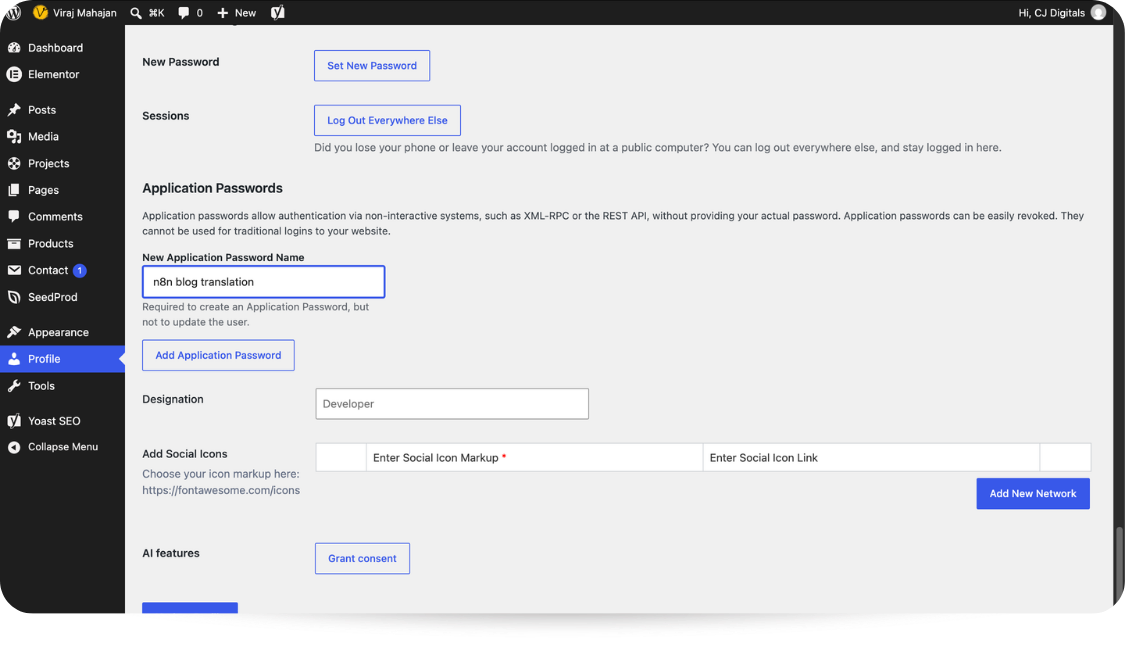
The application password has your WordPress account’s permissions and can be revoked separately from your login password. If the option is missing, ask your site administrator to check whether the feature is enabled. Follow WordPress’s application-password guide for the setup.
In n8n, create a WordPress credential, select Basic Auth, and enter:
- Your WordPress site URL.
- Your WordPress username.
- The application password you just created.
Click Save. Reuse this credential in both WordPress nodes. Keep Ignore SSL Issues switched off for a site with a valid HTTPS certificate.
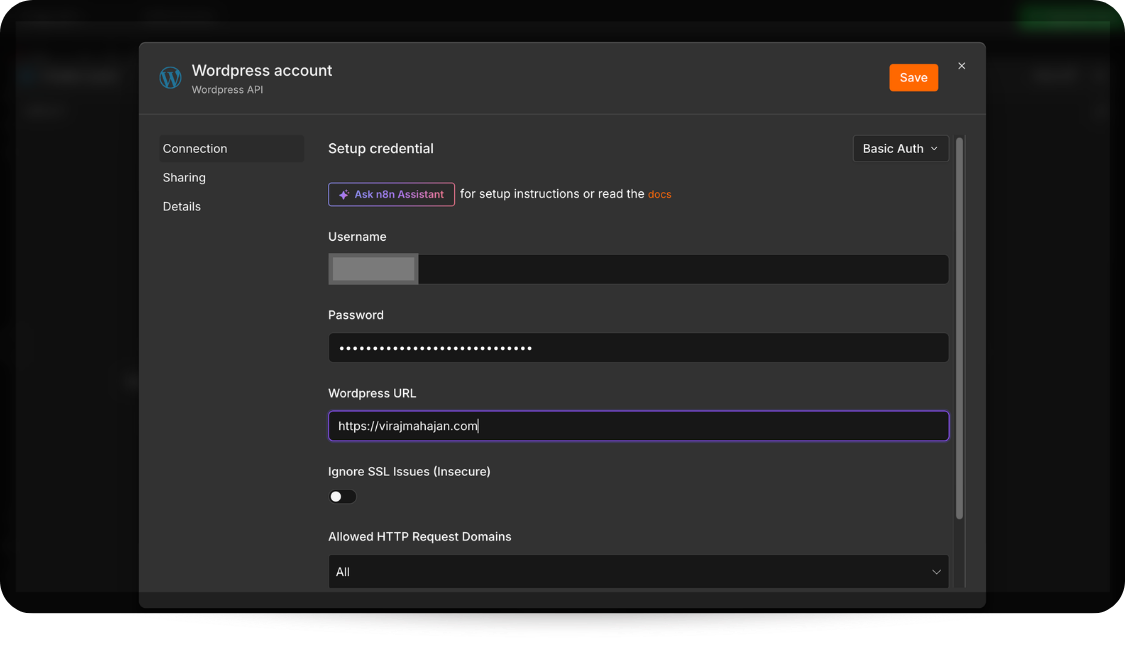
If your site is hosted on WordPress.com, follow the applicable authentication instructions in the n8n credentials guide.
Step 2: Connect Lara Translate to n8n
In n8n Cloud, open the workflow’s node picker, search for Lara Translate, and install the verified community node.
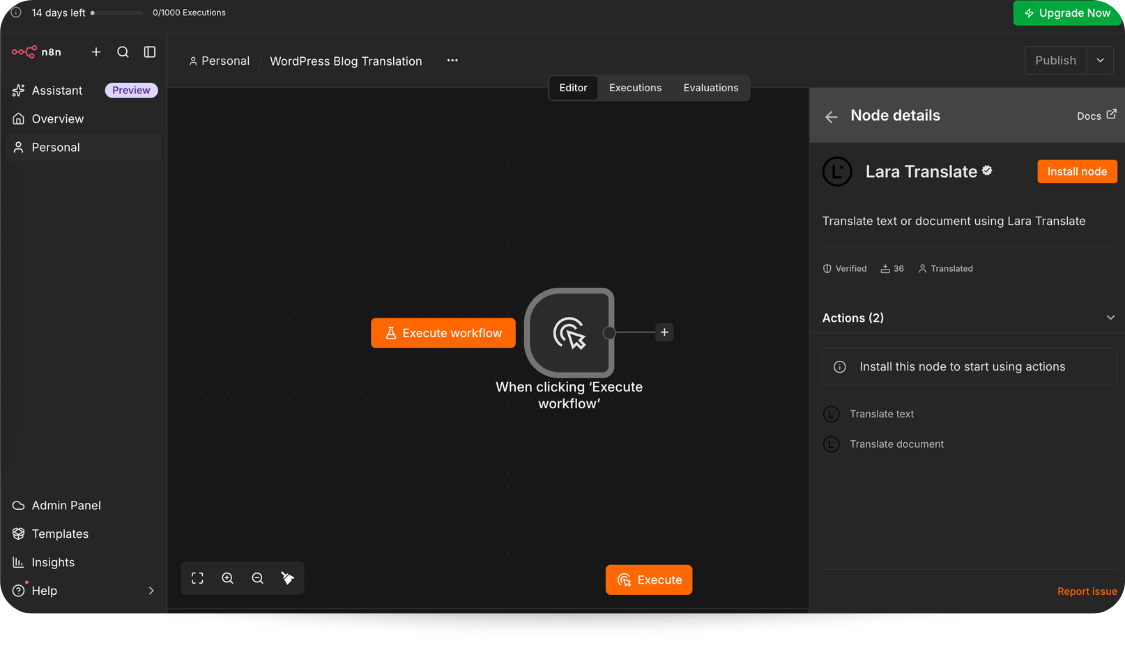
For a supported self-hosted instance, follow n8n’s community-node installation instructions and use the package n8n-nodes-lara-translate.
Create your Access Key ID and Access Key Secret using Lara Translate’s API key guide. In n8n, add a Lara Translate node and create its credentials. Enter both keys and click Save. Reuse this credential for title and document translation.
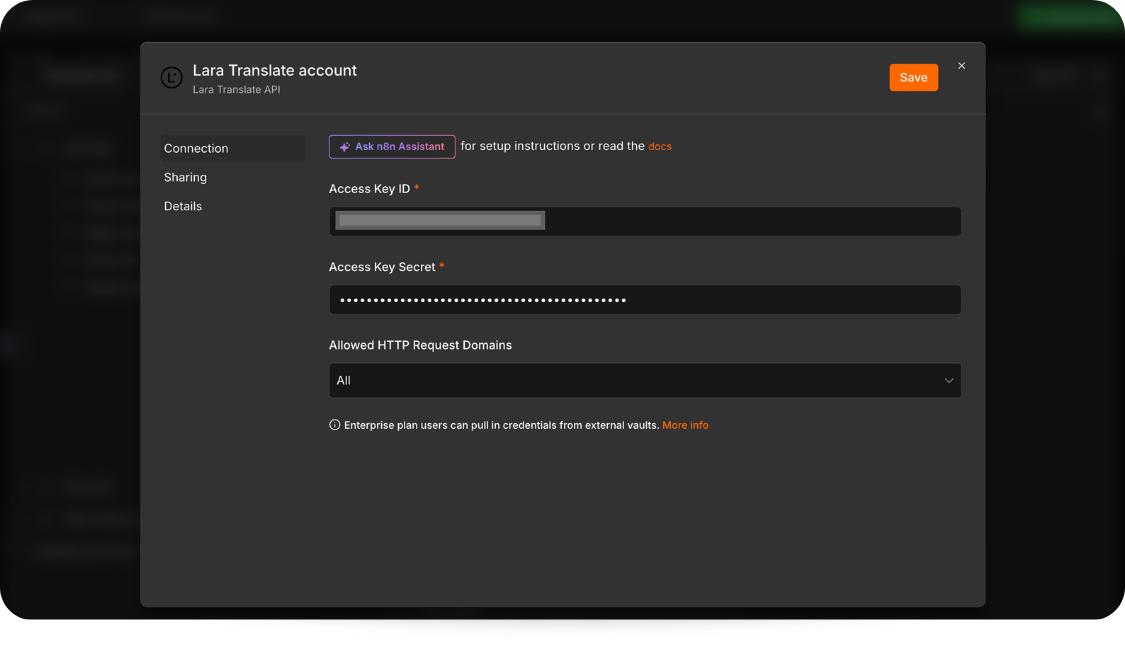
Once both credentials are configured, you can build the steps that retrieve, translate, and save your article. Lara Translate’s n8n integration guide explains the supported operations and credential setup.
How Do You Build the Automated WordPress Translation Workflow?
To build the automated WordPress translation workflow, start with one article and one target language. Choose a post with the headings, links, images, and any page-builder blocks you normally publish. Keep the first run manual. This gives you a chance to inspect the content at each stage before allowing the workflow to process posts on a schedule.
Step 3: Retrieve the Article You Want to Translate
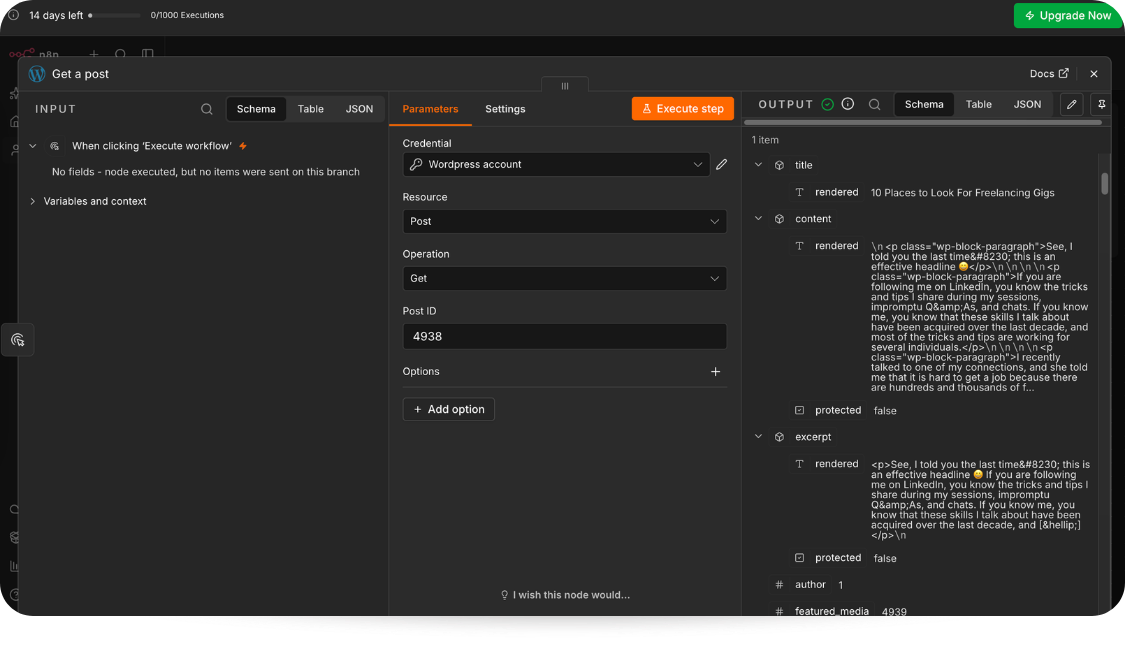
Create a new workflow and add a Manual Trigger, followed by a WordPress node. Select your saved credential, Resource: Post, and Operation: Get. Enter your source post ID.
Execute the node and inspect title.rendered and content.rendered. WordPress can include HTML entities in title.rendered, such as ’ for an apostrophe or & for an ampersand. Check the source title before translation and review the translated title for any entity codes that remain visible.
Step 4: Prepare the Article’s Fields
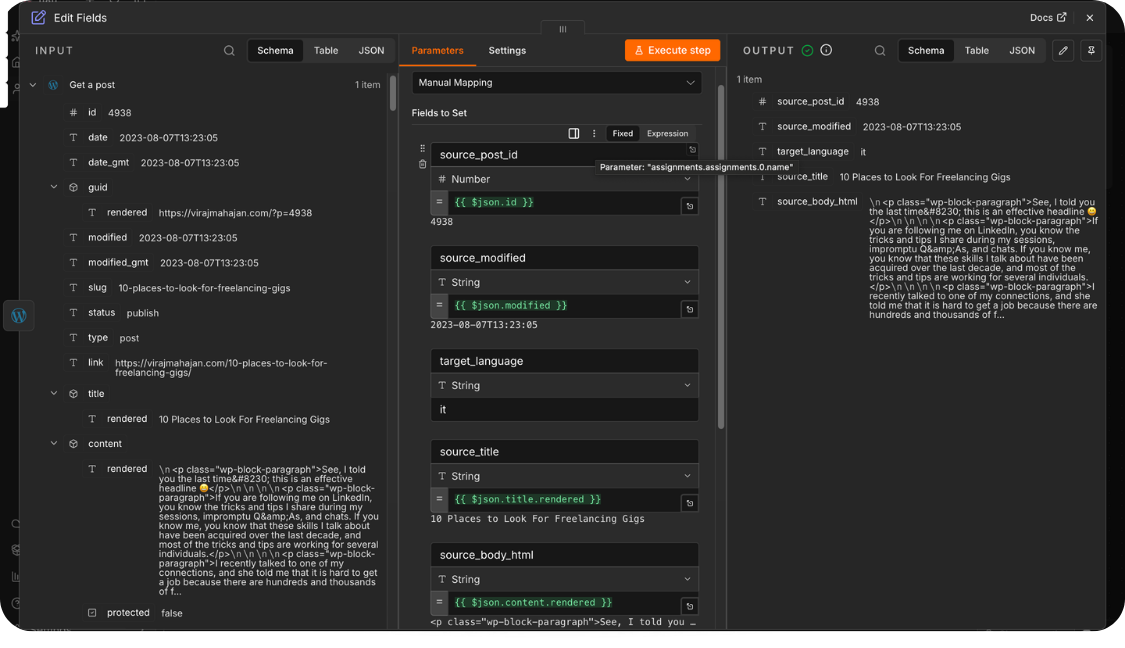
Add Edit Fields (Set) directly after Get a post. Select Manual Mapping and create the five fields below. Keep field names in Fixed mode and use Expression mode for the values containing {{ … }}.
| Field / type | Value (Expression unless marked Fixed) |
|---|---|
| source_post_id / Number | {{ $json.id }} |
| source_modified / String | {{ $json.modified }} |
| target_language / String | it (Fixed) |
| source_title / String | {{ $json.title.rendered }} |
| source_body_html / String | {{ $json.content.rendered }} |
This workflow uses content.rendered, which contains the article’s rendered HTML rather than its original Gutenberg block structure. The translated draft will usually open as a single Classic block. Keeping HTML tags and classes does not preserve the original editable blocks.
The source post ID and modification time remain available in Edit Fields, but the translation branches do not pass them into Merge. This example processes one article at a time.
Step 5: Translate the Title and HTML Body
Create two branches from Edit Fields. Connect one to Lara Translate → Translate Text and the other to Convert to File.
In Translate Text, select your Lara credential, Resource: Translation, Operation: Translate Text, Source Language: English, and Target Language: Italian. Set Text to Translate to the expression {{ $json.source_title }}. Under Additional Options For Translate Text, add Content Type and select Plain Text. Execute the title node.
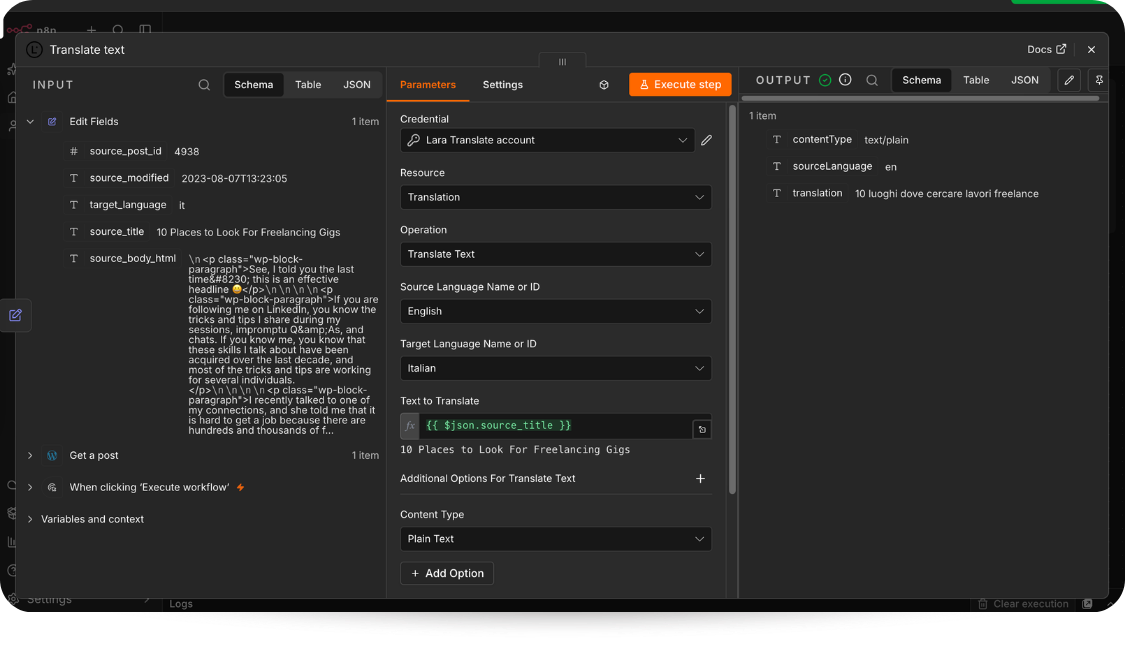
The node also exposes glossary, translation memory, instructions, and style options. You can use your team’s approved resources when configuring terminology controls.
Translate the Body as HTML
The Translate Text operation in the n8n node we tested accepts Plain Text and XLIFF but not HTML. Use Translate Document for the article body, so Lara Translate can process it as an HTML file.
Document translation costs: Paid API document translation has a minimum charge of 20,000 characters per document, even when the file contains fewer characters. Short blog posts can still be translated, but each document request is billed for at least 20,000 characters.
- On the second branch from Edit Fields, add Convert to File. Keep the title node on its separate branch: its output does not contain source_body_html.
- Select Convert to Text File. Set Text Input Field to the fixed field name source_body_html. Set Put Output File in Field to data. Under Options, set Encoding to utf8 and File Name to source.html. Execute the node.
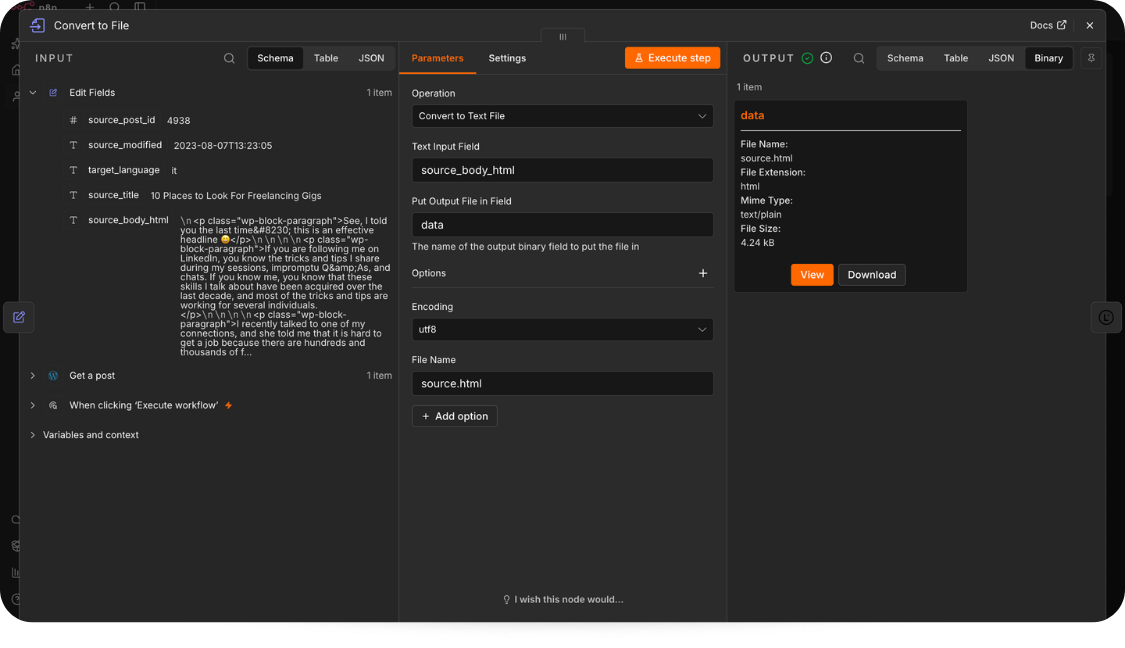
- Connect Lara Translate → Translate Document after Convert to File. Select your Lara credential, Resource: Translation, Operation: Translate Document, Source Language: English, and Target Language: Italian. Set Input Binary Field to data and Document Name to source.html.
- Leave Output Format unset and execute the node.
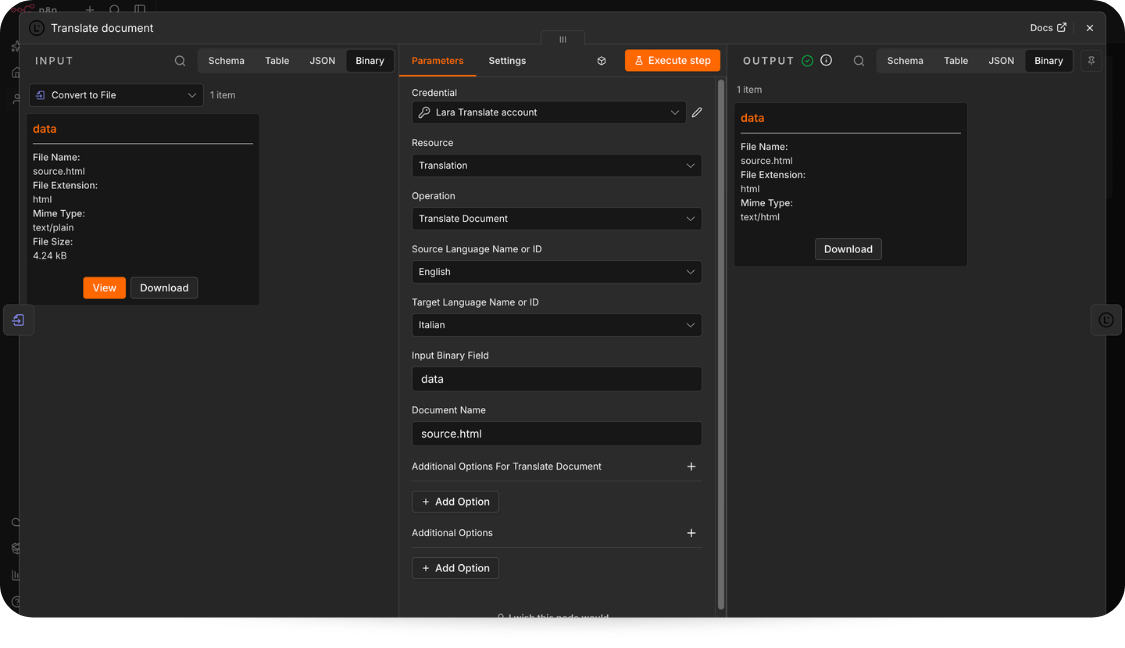
- Add Extract from File after Translate Document and choose Extract From Text File. Set Input Binary Field to data, Destination Output Field to translated_body_html, and File Encoding to utf8. Execute this node.
- The output will contain Italian paragraphs in translated_body_html. The visible HTML retains paragraph tags and wp-block-paragraph classes.
This workflow sends the existing body HTML without adding an outer document wrapper. If your setup adds <html>, <head>, or <body> elements, use only the article content inside <body> when creating the WordPress draft.
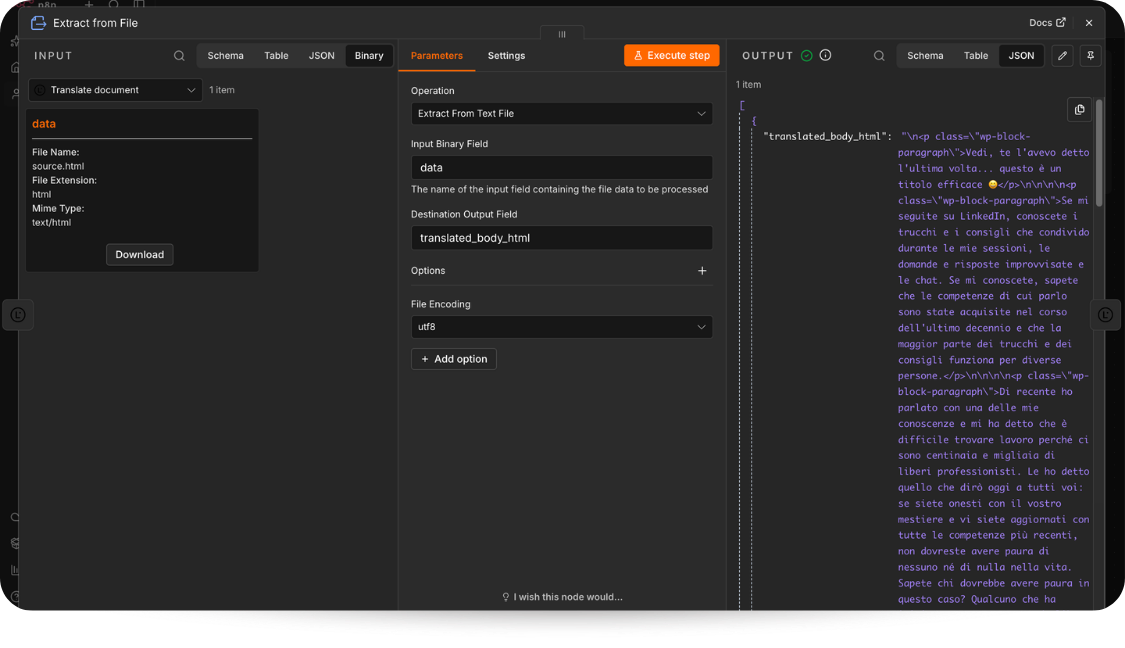
Keep these branches separate until Merge. Connecting Translate Text after Extract from File makes {{ $json.source_title }} empty because that input only contains the extracted body.
Turn every new post into a review-ready draft in another language
Integrate Lara Translate with n8n and choose the translation operation that matches your blog content to automate the translation process.
Step 6: Merge the Results and Create a WordPress Draft
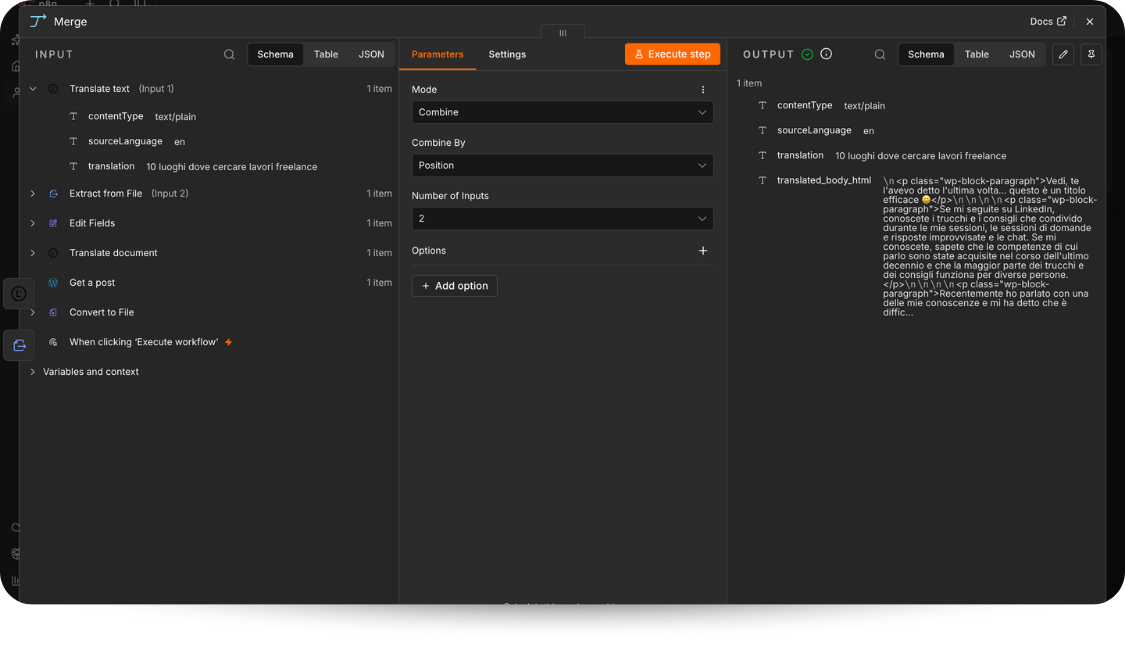
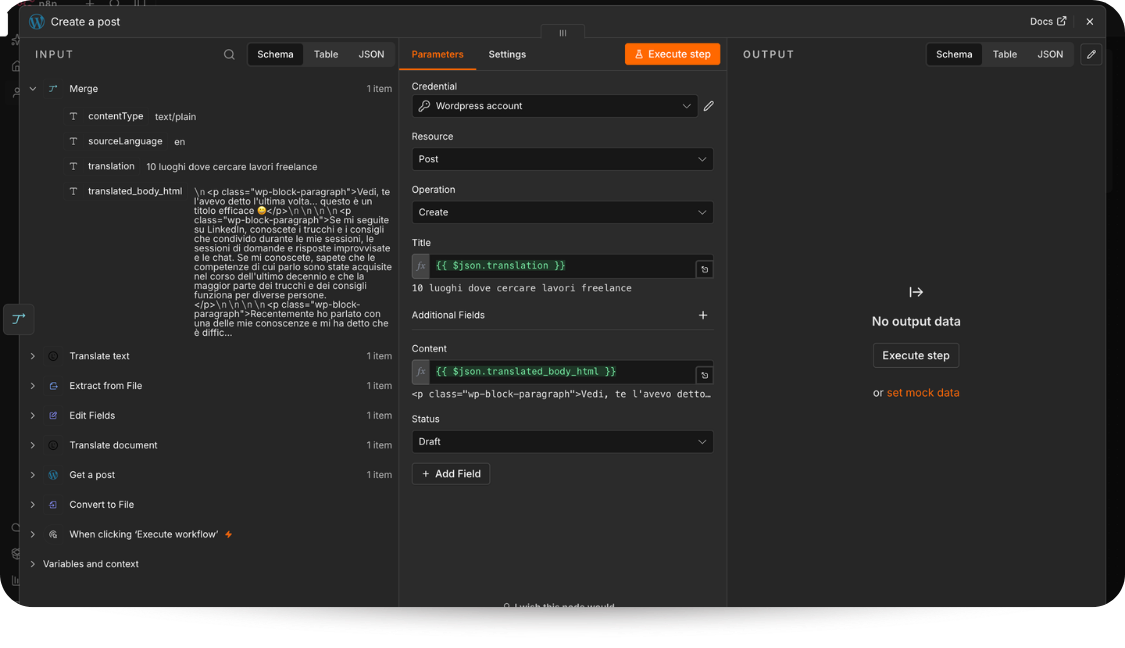
Add a Merge node. Connect Translate Text to Input 1 and Extract from File to Input 2. Select Mode: Combine, Combine By: Position, and Number of Inputs: 2. Run the workflow and inspect Merge.
The output should contain one item with translation and translated_body_html. Position combines items by their order.
Add a WordPress node directly after Merge. Select your saved WordPress credential, Resource: Post, and Operation: Create.
Map the fields below using Expression mode for Title and Content. Under Additional Fields, add Content and Status, then choose Draft.
| WordPress Field | What to Supply |
|---|---|
| Title | {{ $json.translation }} |
| Content | {{ $json.translated_body_html }} |
| Status | Draft (Fixed) |
Click Execute step once. Operation: Create makes a separate post. Repeating this step will create another draft.
WordPress lists the available fields in its Posts REST API reference.
Optional: Assign the Language and Link the Translation
Creating an Italian draft does not automatically tell your website which English article it belongs to. Configure that relationship through the multilingual system your site already uses.
For example, Polylang Pro’s REST API supports assigning a language with lang and linking posts through translations. Those fields require Polylang Pro and are not standard WordPress parameters.
If your site uses WPML or another system, follow its integration method. You may need an authenticated HTTP Request node where the built-in WordPress node does not expose the required operation.
Match the translation language to the language configured on your site. Also check localized URLs, internal links, SEO titles, meta descriptions, and hreflang output.
Step 7: Review the Draft in WordPress
Open Posts → All Posts → Drafts and find the translated title. In the image below, the editor shows “10 luoghi dove cercare lavori freelance” with Italian body text and Draft status. This confirms that retrieval, translation, and draft creation worked together.
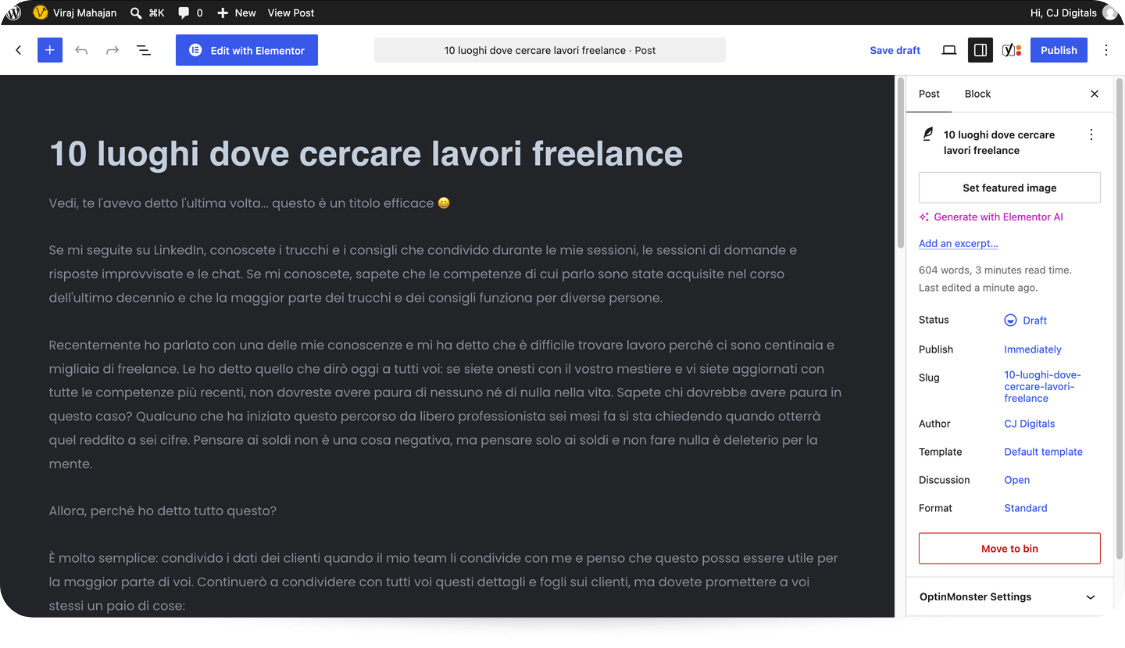
Compare the translation with the original, then preview the page to check headings, links, lists, and spacing. Because this workflow sends rendered HTML back to WordPress, the body will usually appear as a single Classic block. Select the Classic block and choose Convert to blocks if you want separate editable blocks, then review the result again. Conversion may not recreate custom blocks or page-builder layouts.
Images containing English text also need attention. Decide whether to replace them, translate them separately, or explain the information in a caption.
Publish after the editor has checked the translation, layout, and language settings.
Step 8: Add Scheduling and Duplicate Checks (Optional)
Once the manual draft passes review, add a Schedule Trigger and set its frequency and timezone. Save and publish the workflow to enable scheduled execution. Publishing the n8n workflow enables the schedule. The WordPress post remains a draft because its creation status is set to Draft.
Replace the fixed post selection with rules for eligible articles. For example, retrieve published English posts in a selected category that still need an Italian translation. Exclude translated posts so the workflow does not pick up its own output.
Keep a translation log in n8n Data tables or a database. Record the original post ID, target language, source modification time, translated draft ID, and processing status.
Before translating any post into Italian or another language, check that combination in the log. If its draft already exists and the original has not changed, skip it. If the original has changed, flag it for your update process rather than overwriting an editor’s corrections.
Account for overlapping runs and partial failures, too. Make sure two runs cannot process the same job at once. If WordPress creates a draft but the log update fails, recover that draft before repeating the creation step.
How Do You Keep Terminology Consistent Across Translated Posts?
Suppose your product has a feature called “Workspace.” One article keeps that name in English, while the next uses an Italian translation. Both may read well, but readers now have two names for the same feature.
Lara Translate supports glossaries for preferred terms and translation memories for previous translations. You can import a translation memory as a TMX file through its interface. Select the relevant resources in your workflow rather than assuming a choice in the web app applies to every API request.
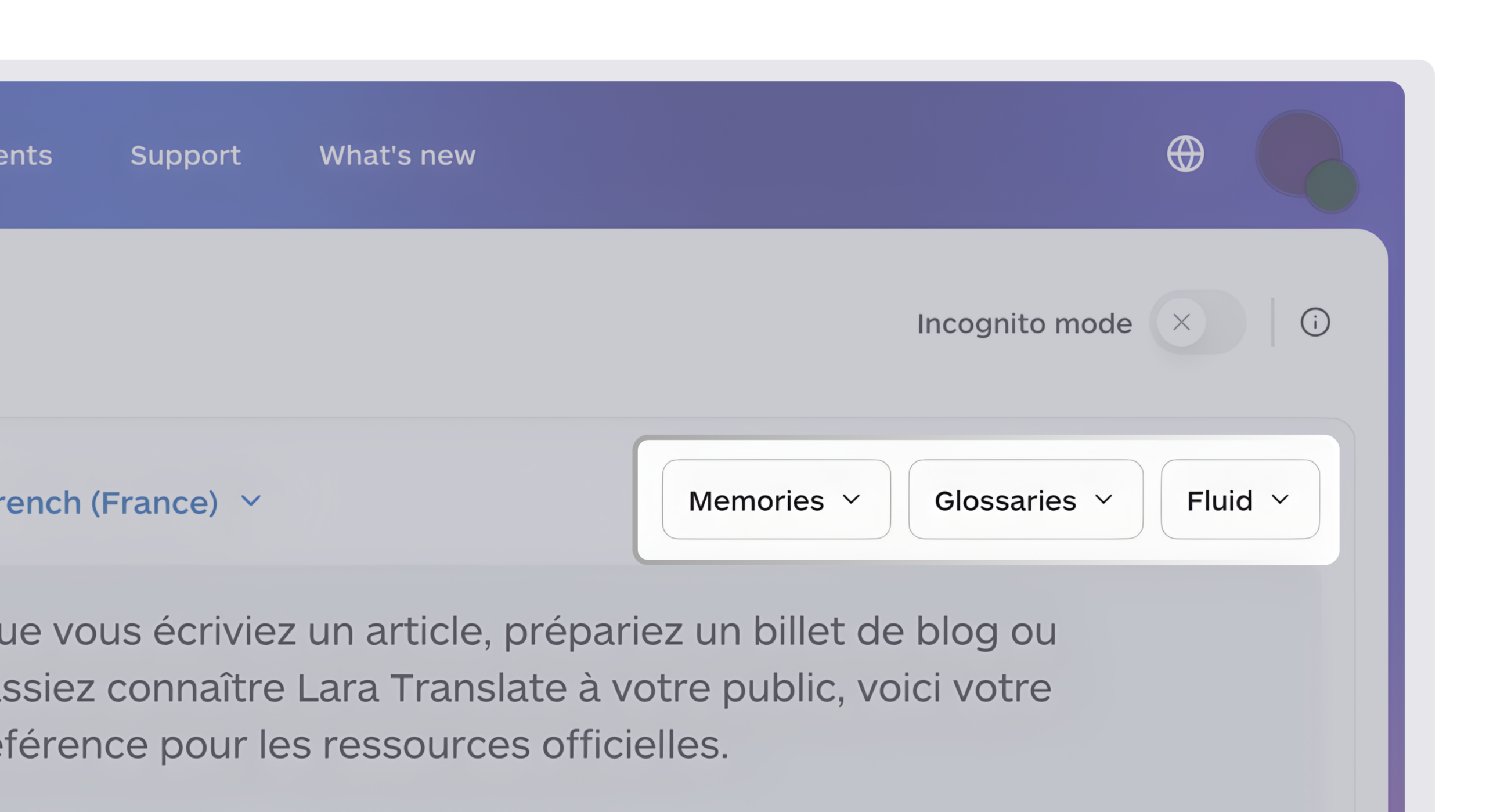
Give the reviewer your approved product names and phrases, so they can check the article against the same reference.
When an editor corrects a phrase in WordPress, decide how that approved change will reach your translation memory. Editing the post alone does not create that connection. A separate update process lets you reuse approved wording without treating every unreviewed draft as reference material.
What Should You Check If The Workflow Fails?
If the WordPress translation pipeline fails, open the execution and inspect the node that failed before starting again. A translation request that stopped and a WordPress request that created a draft need different next steps.
| Problem | What to check first |
|---|---|
| WordPress cannot connect | Site URL, credentials, account permissions, and REST API access |
| Lara Translate node is missing | Installation permissions, package installation, and hosting support |
| Translation request fails | API credentials, usage allowance, languages, input format, and error message |
| Draft is empty or incomplete | The fields sent into translation and mapped back into WordPress |
| Formatting has changed | Raw versus rendered content, HTML conversion, and editor compatibility |
| Duplicate drafts appear | Translation log, overlapping runs, and recovery after a partial failure |
| Text to translate cannot be empty | Connect Translate Text directly to Edit Fields; check source_title in its input |
Conclusion
Once the automated WordPress translation workflow is configured, a new article can move from WordPress through translation and return as a draft for review. The editor can focus on the actual language and page layout, with fewer fields to copy between tools.
Lara Translate translates the title and article body within your n8n workflow, so you can create a WordPress draft without copying content between tools. Start with one post and review the result. Before scheduling regular runs, add checks to avoid duplicate drafts and protect an editor’s changes when the original article is updated.
Start your blog translation workflow with Lara Translate
Connect Lara Translate to n8n and prepare your first translated draft using the terminology and publishing rules your team already follows.
Frequently Asked Questions
Can you automate WordPress blog translation with n8n?
Yes, you can automate WordPress translation with n8n. n8n supports retrieving and creating WordPress posts, and Lara Translate supplies a translation node. Connect those operations, map the content fields, and configure scheduling and tracking for ongoing processing.
Do you need coding skills to connect Lara Translate to n8n?
The verified community node supports a visual setup for credentials, languages, and input mapping. HTML preparation, custom WordPress fields, and plugin-specific linking can require technical help, depending on the site.
Does a paid Lara Translate plan include API usage?
No. API usage, including the n8n integration, is billed separately from the character quota in Pro and Team plans. A free account is enough to start. Check your API allowance before turning on scheduled runs.
Can Lara Translate translate HTML blog content?
Yes. Lara Translate supports HTML files through the Translate Document node in n8n. You can convert the blog body’s HTML into a file, translate it, and extract the translated HTML to create a WordPress draft. Review the page’s formatting before publishing.
Do you need WPML or Polylang for this workflow?
You can create a translated draft without either plugin. A multilingual site still needs a way to assign languages and connect translations. You should follow the site’s existing plugin or equivalent architecture.
Can translated posts be saved as drafts instead of published automatically?
Yes, translated posts can be saved as drafts instead of being published automatically. You should set the WordPress creation status to draft in the workflow, so an editor can review and publish it later.
Have a valuable tool, resource, or insight that could enhance one of our articles?
Send us an email at press@laratranslate.com
We’ll be happy to review it and consider it for inclusion to enrich our content for our readers! ✍️
This article is about
- Connecting WordPress, n8n, and Lara Translate for automated translation.
- Translating post fields and handling HTML content.
- Reviewing drafts and keeping terminology consistent.
- Scheduling translations, avoiding duplicates, and linking language versions.
Sources
- Lara Translate: n8n integration overview
- Lara Translate: official n8n setup guide
- Lara Translate: n8n integration reference
- Lara Translate: Translate Text SDK reference
- Lara Translate: API credentials guide
- Lara Translate: glossaries
- Lara Translate: translation memories
- Lara API: Document Translation
- n8n: WordPress node reference
- n8n: community-node installation
- n8n: Convert to File
- n8n: Extract From File
- n8n: Schedule Trigger
- n8n: Data tables
- n8n: Merge
- WordPress: application passwords
- WordPress Classic block
- n8n WordPress credentials
- WordPress: Posts REST API
- Polylang Pro: REST API
- Lara Translate Pricing
- Lara Translate Character Pool: Extra Usage and Additional Costs