

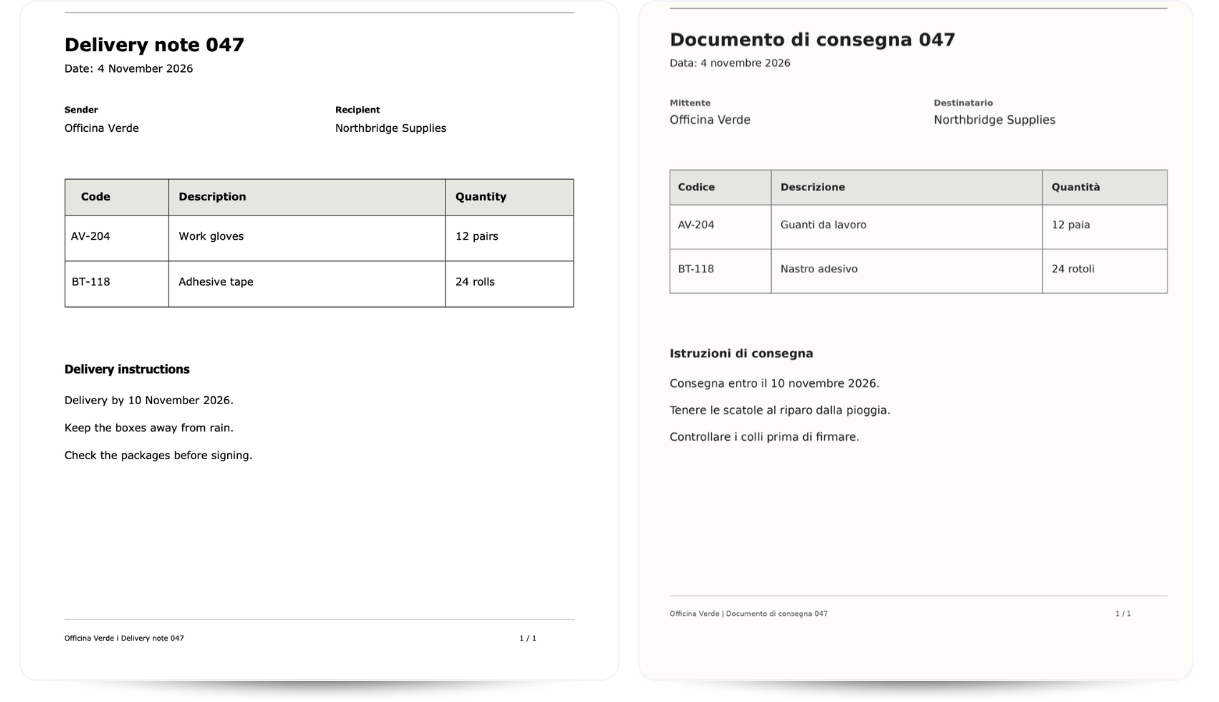
A supplier emails you a delivery note in Italian, and your warehouse team needs an English copy before the shipment arrives. You open the document and try to select a product description, but the text does not highlight. That’s because the page is a scan, and you cannot copy the words into a translator.
To translate scanned documents and images, you need a tool that can recognize the printed text before translating it. This guide walks through Lara Translate’s PDF and image workflows, using a delivery note and an instruction sheet to show which settings to choose and what to check in the downloaded files.
|
TL;DR
|
How Does Scanned Document Translation Work?
Scanned document translation uses optical character recognition (OCR) to identify printed text in an image, translates that text into another language, and reconstructs the output file. You can translate scanned documents without typing out each page, but you still need to check that recognition, translation, and layout processing worked correctly.
Check which type of file you have before choosing a workflow.
| File type | What it contains | Translation approach |
|---|---|---|
| Scanned PDF | Pages stored as images, sometimes with an OCR text layer | Include image-text translation and check every page |
| JPG or PNG document | A scan, photograph, or screenshot | Use image-to-image translation |
| Mixed PDF | Selectable text alongside screenshots or scanned sections | Translate both the text and the image content |
Try selecting a sentence in your PDF. If you cannot, the page may be image-based. If you can, still check the rest of the file: a selectable paragraph does not mean a screenshot on the next page has selectable text.
For more information, you can check our guide to what OCR is and how it helps with translation.
How to Prepare Your Scanned Document Before Translation
Before you translate scanned documents, make sure every page is complete and readable. Check that the tool supports your file and language pair, keep an untouched original, and confirm you can upload the content under your organization’s rules.
Improve Image Clarity and Page Orientation
Open the file and zoom in on the smallest text you need translated. If you struggle to read it, start by improving the source. For a photograph, place the page flat, keep the camera parallel to it, and avoid shadows or reflections across the words. Include the full page so headings, footnotes, and final lines remain visible.
Rotate sideways pages and straighten tilted scans. Keep the clearest original available. Repeated compression can make thin letters and decimal points harder to recognize. Enlarging a blurry image will not restore missing detail. If you have the paper document, a new scan or photograph may be more useful.
Check File Support, Languages, and Upload Requirements
Check the exact file extension and target language before starting. Lara Translate supports JPG, JPEG, PNG, TIFF, and other image formats. You can check the image-to-image support guide for the languages available in this workflow before uploading your file.
If the original editable document is available, consider translating that instead of its scan. A source Word file gives the tool text and document structure directly. Use the scanned-file workflow when the scan or image is the version you have.
Check the file size, page, and usage limits shown in your account before uploading a batch. Document and image translation use your character allowance differently.
For a standalone image, Lara Translate consumes a fixed amount of 1,500 characters per translated image, regardless of how much text the image contains. For images inside a PDF, usage is based on the number of characters extracted from and translated in each image.
Review Lara Translate’s usage guidance before processing several files.
Keep the Original and Check Confidentiality Requirements
Save the source separately from the translated output. Use filenames that identify the document and language, such as delivery-note-original.pdf and delivery-note-en.pdf. This makes comparison easier and prevents someone from mistaking the translation for the source.
Before uploading business records, confirm that the service and account settings meet your organization’s requirements. An invoice or delivery note may contain customer addresses, account details, or commercially sensitive information.
How to Translate a Scanned Document with Lara Translate
To translate a scanned document with Lara Translate, upload it in the Documents tab, confirm the languages, and start the translation. Download the document file translation result and compare it with the original, checking that product descriptions, quantities, and instructions remain complete and correctly positioned.
Step 1: Upload Your Scanned Document
Open Lara Translate and go to Documents. Drag your PDF into the upload area or use Browse files to select it.
Wait for the upload and analysis to finish. Check that you selected the right document and review the detected source language. If the file has several pages, open the original separately and confirm that it contains the complete delivery note.
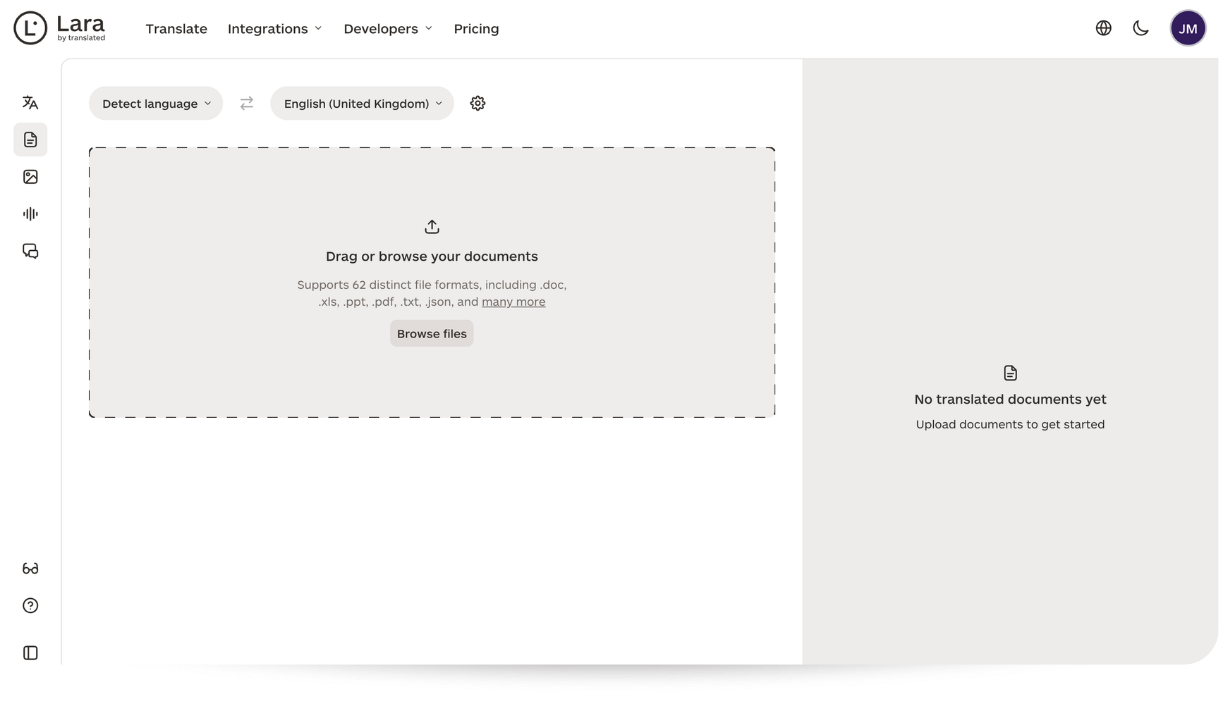
Step 2: Enable Translate Images and Choose the Target Language
Confirm the source and target languages before submitting the file, particularly if the scan contains little text or several languages.
If you are translating several files, check the filenames before starting the run. A revised delivery note may look almost identical to the previous version while containing a different quantity or delivery date.
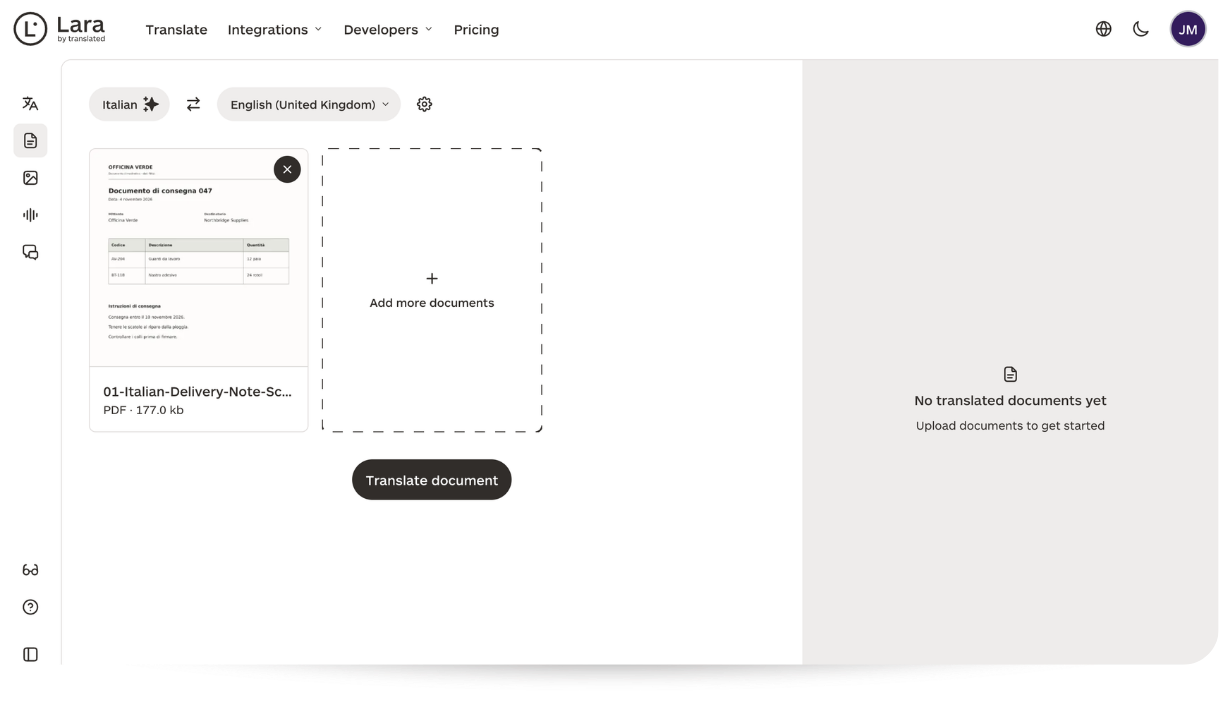
The same setting also matters for a PDF containing ordinary text and embedded screenshots. Our guide to translating images inside PDFs covers those mixed documents in more detail.
Step 3: Translate and Download the File
Start the translation and wait for processing to complete. Use the Download icon to save the translated result, then open the file on your computer.
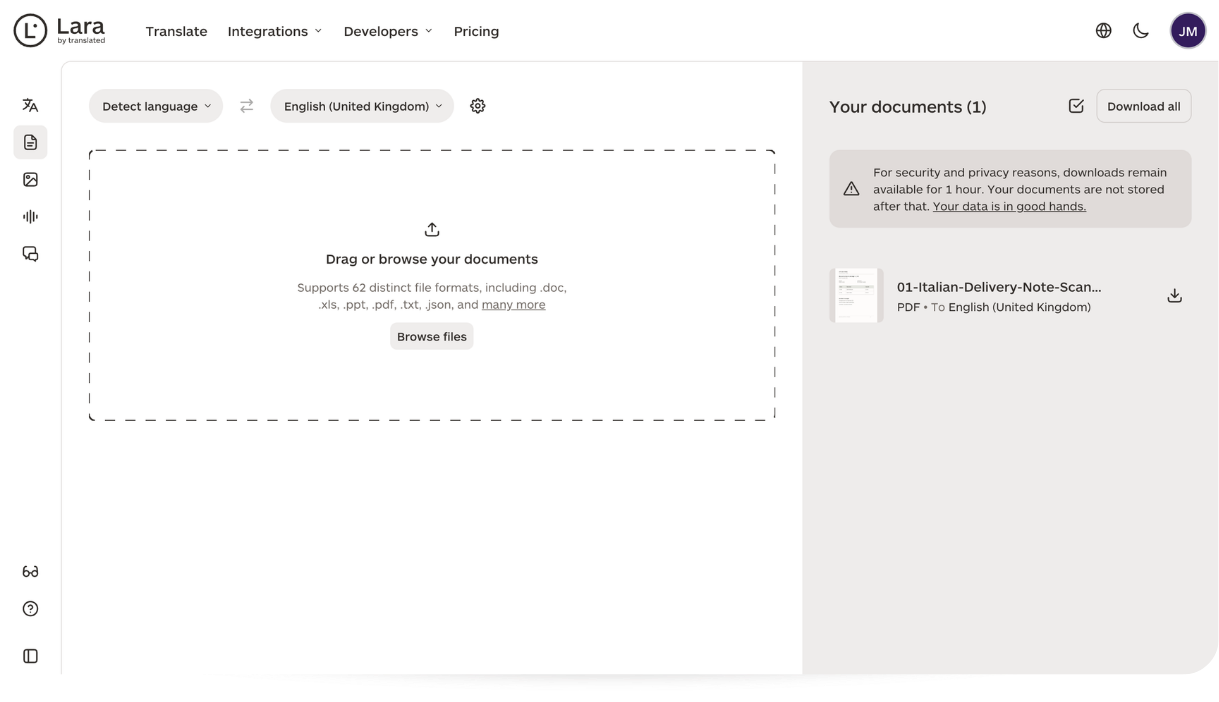
Check the output format and page count. For the delivery note, compare the product rows, quantities, and instructions before sending it to the receiving team. Do not treat a completed download as confirmation that every detail is correct.
Translate scanned documents with Lara Translate
Upload your scanned PDF, enable image translation, and download a translated copy without retyping the document.
How to Translate an Image Document with Lara Translate
To translate a JPG or PNG document with Lara Translate, upload the image, choose the target language, and start image translation. Download the translated image in its original format and compare the wording and text placement with the source. You do not need to convert the image into a PDF first.
Step 1: Upload Your Scanned Image or Photograph
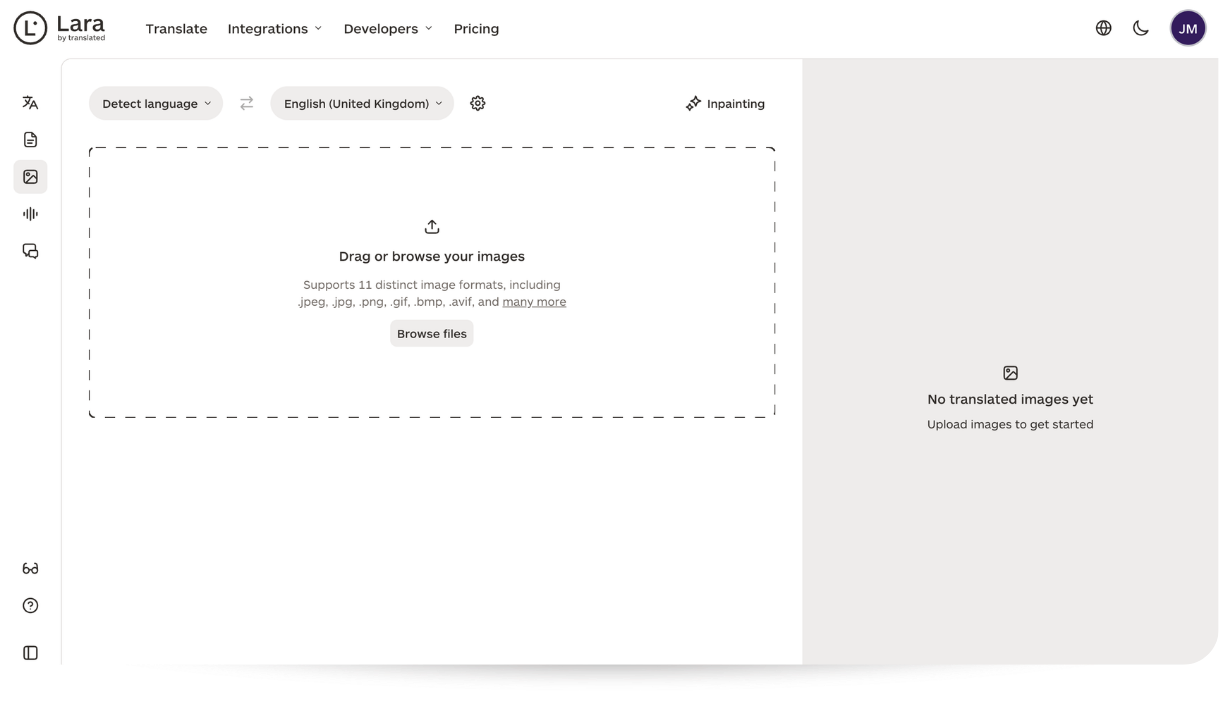
Visit the Lara Translate image translation page. Upload the JPG or PNG you want to translate.
Check that the image contains the complete instruction sheet. Look especially at text near the edges, small labels, and any warnings printed below the main instructions. If these are cut off or unreadable, correct the source before translating.
Step 2: Choose the Target Language and Start Translation
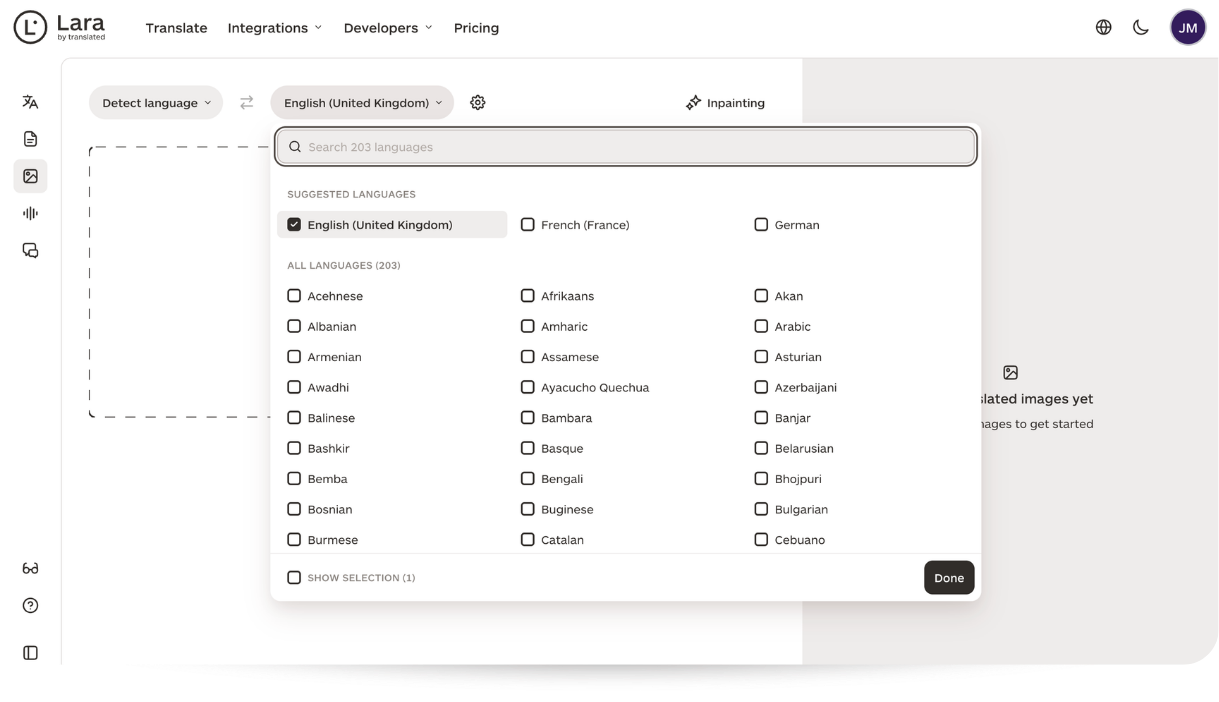
Choose the target language and confirm the source language. Start the translation.
Lara Translate recognizes the text, translates it, and reconstructs the image with the translated wording. The placement and layout are preserved as much as possible, but the result still needs checking, especially around small text and crowded sections.
Step 3: Download the Translated Image
Save the translated output and open it beside the original. Lara Translate provides same-format output for standalone images, such as JPG to JPG and PNG to PNG.
A translated image is not automatically an editable Word document. If you need to revise the wording extensively or reuse it in another design, plan that editing step separately.
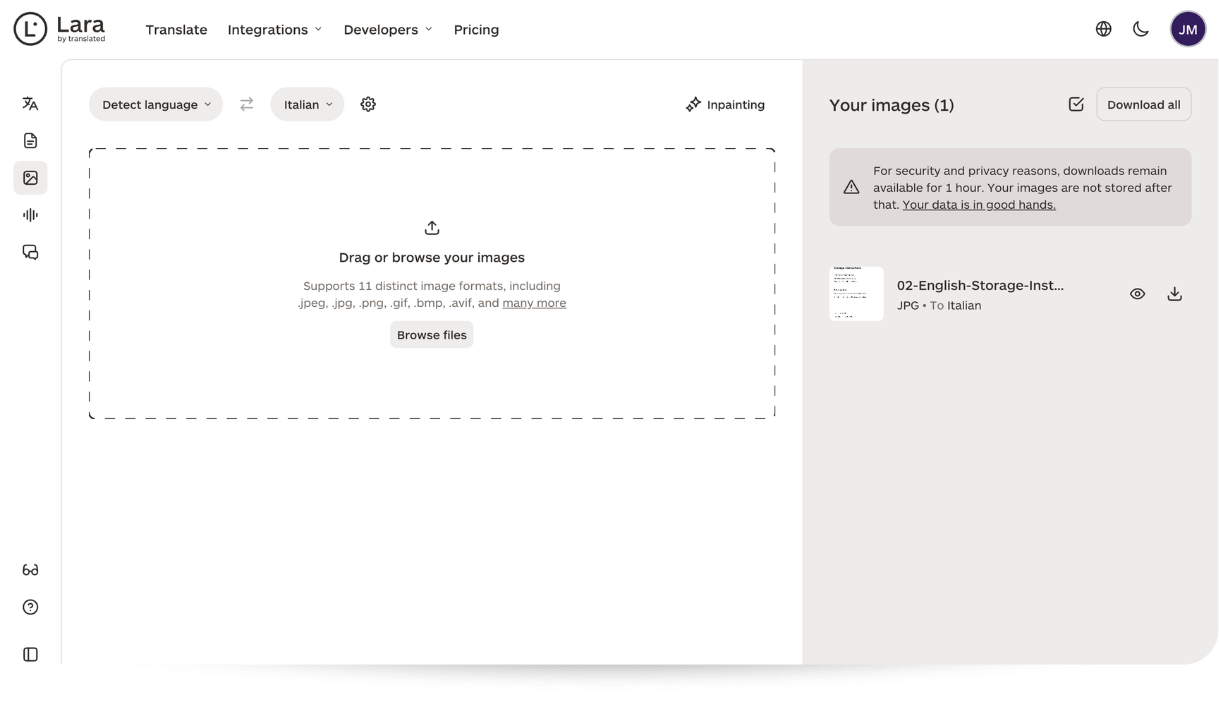
Read the translated instructions in order. Check that each heading still belongs to the correct paragraph and that warnings remain easy to find.
For example, if the sheet says to store a product between 5°C and 25°C, check both numbers and the unit. Then read any instruction beginning with “do not” against the source. A missing negative can change what someone does, even when the surrounding text sounds natural.
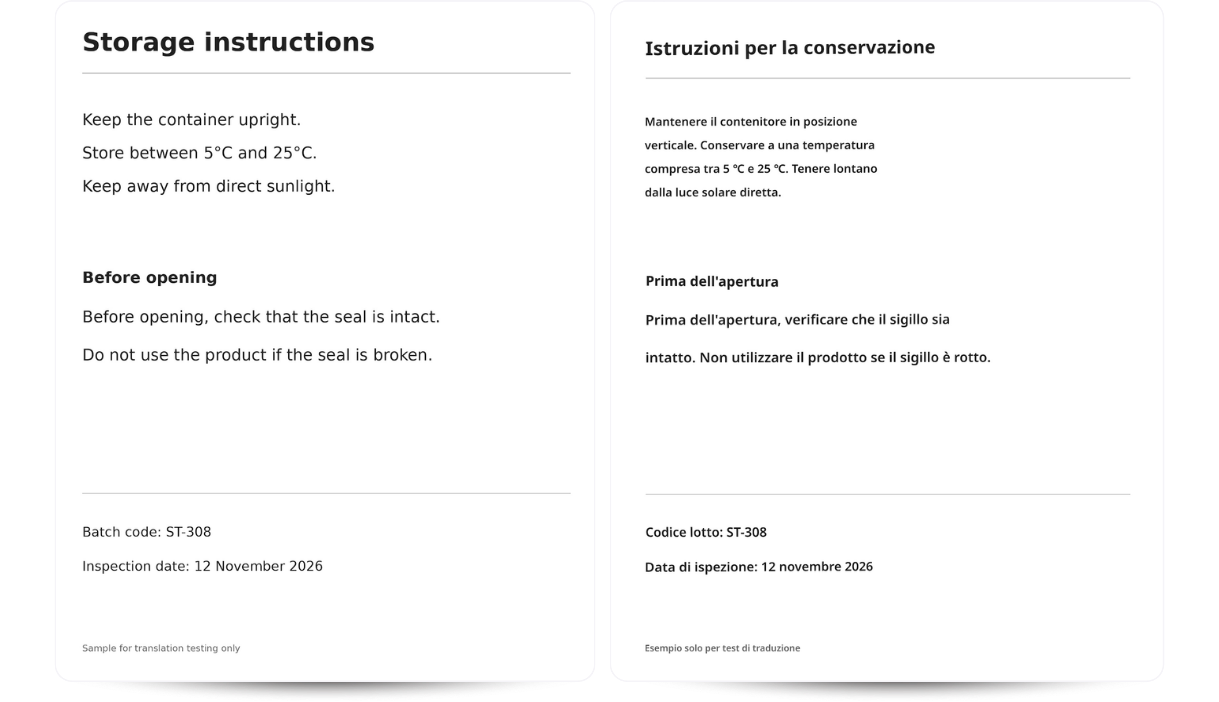
Translate text inside your images
Upload a JPG or PNG, choose your target language, and download the translated image without converting it to another format.
How to Check the Translated Document Before Sharing
You can check a translated scan by comparing it with the original page by page. Verify names, codes, numbers, dates, and instructions first, then inspect tables, reading order, and text placement. Ask a qualified reviewer to check content where a mistake could affect a decision, obligation, or safety instruction.
Verify Names, Numbers, Dates, and Terminology
Compare details that must remain accurate: company names, product codes, quantities, currencies, measurements, and dates. OCR can confuse similar characters, so check codes against the source rather than relying on whether they look plausible.
For the delivery note, read across each row. Confirm that the product description still matches its quantity and unit. Check decimal separators and date formats for the target audience, too. A translated document should not introduce uncertainty about how much was delivered or when.
Review recurring terms consistently. If the same component has two different names in the translation, resolve the wording before circulating the file.
Compare Tables, Reading Order, and Text Placement
Look at the whole page, then inspect individual sections. Check that columns remain separate, table entries align with the right headings, and translated paragraphs do not cover nearby content.
Small print needs its own check. Footnotes, labels, and instructions at the bottom of a page can be missed when you focus only on the main paragraphs. Longer translated wording may also wrap differently or become harder to read.
Arrange Additional Review Where Needed
Choose the review level according to what people will do with the translation. A document used to understand a routine message needs a different approval process from a safety instruction, signed agreement, or official submission.
Ask a reviewer who understands the language and subject to check consequential content. If the recipient requires a certified translation, confirm those requirements before submitting an AI-translated file.
For sensitive or business-critical documents, Lara Translate’s AI + Human translation service offers review by a professional linguist from Translated. For certified, sworn, or official submissions, confirm that the requested service meets the recipient’s requirements.
Common Scanned Document Translation Problems and How to Fix Them
If a scanned document translates incorrectly, check the source image, the image translation setting, and the affected layout before trying again.
| Problem | What to check | What to do next |
|---|---|---|
| Text inside a PDF image remains untranslated | Whether the image text was recognized during document processing | Enable it and translate again; also check that the text is legible |
| Letters or numbers are incorrect | Blur, low contrast, or similar-looking characters | Rescan where possible and verify critical details manually |
| Text overlaps or becomes too small | Long translations in narrow spaces | Adjust the output in a suitable editor or use the editable source |
| Table entries appear in the wrong order | Column boundaries and row alignment | Check every affected row; repair the structure before sharing |
| A heading or footnote is missing | Cropped edges or very small text | Use a complete, clearer scan and compare the new output |
Conclusion
The practical way to translate scanned documents or images is to start with one representative file, use the workflow that matches its format, and review the downloaded result before processing the rest. Enable image translation for a scanned PDF and use the image workflow for a standalone JPG or PNG.
Lara Translate brings text recognition and translation into the same process, so you can translate scanned documents without extracting and pasting the words into another tool. Start with a clear scan, select the appropriate settings, and check the downloaded file against the original before sharing it.
Translate your next scanned document
Choose a scanned PDF or image, select your target language, and prepare a translated copy for review.
Frequently Asked Questions
How do you translate scanned PDFs?
To translate scanned PDFs, use a tool with OCR to recognize the printed text before translating it. In Lara Translate, open Documents, upload your PDF and select the target language. Click Translate, download the result, and check the wording, numbers, and layout against the original.
How much quota does Lara Translate use for image translation?
Lara Translate uses a fixed allowance of 1,500 characters for each standalone image, regardless of how much text the image contains. For images inside a PDF, usage depends on the number of characters extracted from and translated in each image. The PDF’s total usage includes both its regular text and translated image text. Check your remaining character allowance before translating multiple images or PDFs.
How do you translate a PDF file from French to English?
To translate a PDF file from French to English, upload the PDF to Lara Translate’s Documents tab, confirm French as the source language, and select English as the target. Start the translation, download the file, and compare important details with the French original.
Can Google Translate translate a scanned document?
Google Translate’s Documents feature does not translate text inside images or scanned PDF pages. According to Google’s Help documentation, this text may appear in the output document but remains untranslated. If you have a scanned PDF, use an OCR tool to extract its text before translating it, or use an image translation tool for individual page images.
How do you translate a PDF on Mac?
To translate selected text in a PDF on Mac, open the file in Preview, select a sentence or paragraph, then right-click and choose Translate [text]. Select your target language to read the translation, or click Copy Translation to use it elsewhere. This requires selectable text. An image-only scan may need text recognition first.
Have a valuable tool, resource, or insight that could enhance one of our articles?
Send us an email at press@laratranslate.com
We’ll be happy to review it and consider it for inclusion to enrich our content for our readers! ✍️
This article is about
- Using OCR to translate scanned documents without retyping the text.
- Translating scanned PDFs and standalone JPG or PNG images with Lara Translate.
- Preparing readable source files and selecting the appropriate translation settings.
- Reviewing translated text, numbers, tables, and formatting before sharing.
- Troubleshooting missing text, recognition errors, and layout changes.
Sources
- Lara Translate: How to Translate Documents
- Lara Translate: Translating Images Inside PDF Documents
- Lara Translate: Image-to-Image Translation
- Lara Translate: What Is OCR?
- Lara Translate: AI + Human Translation
- Lara Translate: Character Pool, Extra Usage and Additional Costs
- Microsoft Support: Translate Text into a Different Language
- Apple Support: Interact With Text in a Photo Using Live Text in Preview on Mac
- Google Translate Help: Translate Documents and Websites
- Google Translate Help: Translate Images