

A supplier calls, and you realize, thirty seconds in, that you do not share a language. You do not have to hang up and hunt for an app. You can translate a live phone call right now, and the only real decision is which of three routes fits the call in front of you: an on-device feature built into your phone, a service baked into your carrier’s network, or a third-party cloud app.
Yes, you can translate spoken conversation during a phone call today, using three distinct approaches: on-device operating system features, carrier network services, or third-party cloud apps. Which one fits depends on what you’re optimizing for. For a private one-on-one call, Apple’s Live Translation runs entirely on device, and Samsung’s Call Assist handles it inside Galaxy AI. If you want zero setup on a supported carrier, a network-based service can translate calls with nothing to install. If you need the widest language coverage, a third-party cloud app can bridge the call, at the cost of routing your audio to a server. A quick note up front, since we make a translation product: Lara Translate does not translate live phone calls. It covers the language work around them, and more on that at the end.
TL;DR
|
Before picking a route, know the guardrails that apply across almost all of them:
- Most solutions only work for one-on-one voice calls, not group or conference calls.
- Emergency numbers and voicemail are excluded from live translation on every major platform.
- On-device features cover fewer languages than cloud services, which often support 80 or more.
- Some methods require both callers to have compatible devices, apps, or carrier plans.
Key Takeaways
Phone call translation works today through on-device OS features, carrier network services, and cloud apps, and the right choice depends on privacy needs, language coverage, and call type.
| Point | Details |
|---|---|
| Privacy-first calls | Apple Live Translation processes calls entirely on device. Samsung Call Assist runs in Galaxy AI, though some languages need a connection. |
| Zero-setup convenience | T-Mobile’s *87* dial code works on any phone on its network with no app or account, currently in beta. |
| Wider language needs | Cloud services typically cover far more languages than on-device tools, which stay limited to a short list. |
| Watch the exclusions | Emergency numbers, voicemail, and most conference calls are unsupported across nearly every method. |
| Around the call, not on it | Lara Translate does not translate live phone calls, but its live interpreter, audio translation, and API cover related language needs in 182+ languages. |
How to Use Live Translation on iPhone for Phone Calls
Apple built Live Translation directly into the Phone app, Messages, and FaceTime, and it runs on-device using Apple Intelligence rather than routing your voice through a server. That distinction matters for anyone who wants translation without their conversation leaving their phone.

Before you start, confirm three things: your iPhone supports Apple Intelligence, you’re running a compatible iOS version, and you’ve downloaded the language pack you need. Apple’s documentation covers phone call translation, and the currently supported languages for calls include English (UK and US), French, German, Italian, Portuguese (Brazil), Spanish (Spain), Chinese (Simplified and Traditional), Japanese, and Korean.
Here’s how to turn it on during an active call:
- Answer or place your call as usual through the Phone app.
- During the call, tap More, then tap Live Translation. If you are not on speaker or headphones, the call switches to speaker automatically.
- If your language is not already selected, tap Choose Language and pick the language to translate from. It downloads the first time, which can take a few minutes.
- Tap Start Translation. Both parties are alerted that the call is being translated.
- As you speak, the other person hears a spoken translation, and their reply is translated back. You can also read an on-screen transcription.
FaceTime and Messages use the same underlying on-device translation engine, which is why Apple can promise that personal conversations stay local instead of getting processed on a remote server.
| Requirement | Detail |
|---|---|
| Device | iPhone compatible with Apple Intelligence |
| OS version | Current iOS with Apple Intelligence enabled |
| Processing | On-device (no cloud upload) |
| Supported call languages | English (UK/US), French, German, Italian, Portuguese (Brazil), Spanish (Spain), Chinese Simplified/Traditional, Japanese, Korean |
| Apps covered | Phone, Messages, FaceTime |
How to Use Call Assist Live Translate on Samsung Galaxy Phones
Samsung’s answer to live call translation lives inside Galaxy AI, and it works through the phone’s default dialer. It runs on Galaxy devices with Android 14 and One UI 6.1 or later. Setup happens once, and the toggle lives right where you need it during a call.
To get it running:
- Open Settings, then go to Galaxy AI and select Call assist.
- Tap Live translate and turn on the switch, then download the language packs for the languages you’ll need (English and Spanish come pre-installed).
- Place or answer a call using the standard Phone app.
- Once you are both speaking, tap Call assist, then select Live translate to activate real-time interpretation.
- Choose your speaking language and the language you want translated, then let the call continue as normal.
Samsung is specific about one operational detail worth remembering: only one person on the call should have Live Translate running at a time. If both callers activate their own translation layer, the overlapping audio tends to produce garbled or mistranslated output, according to Samsung’s own support documentation. Mute your own microphone briefly if you need to sort out a language mismatch, and confirm your One UI version supports Galaxy AI before troubleshooting further. Call Assist works in the native dialer, and Samsung also offers Live translate in several third-party apps, including WhatsApp, Facebook Messenger, Instagram, Signal, Telegram, WeChat, Line, and KakaoTalk, through the “Live translate in other apps” setting.
Carrier Network Translation: How It Works and Where It Falls Short
Network-based translation skips the app store entirely. Instead of running on your device, the translation happens inside the carrier’s network infrastructure, which is why it works on virtually any phone, including older models with no smart features at all.
T-Mobile’s version is the clearest example, and it is currently rolling out in beta to T-Mobile members. Once your call connects, enter *87* and wait for the voice confirmation, and the network translates the audio in real time, no download, no account setup, no compatible handset required, according to T-Mobile’s own program details. It’s about as close to zero-friction as phone call translation gets.
That convenience comes with real restrictions:
- It excludes emergency numbers (911 and 988) and voicemail entirely.
- Certain apps and call types, including conference calls, FaceTime, and WhatsApp, aren’t supported.
- At least one participant needs to be on the carrier’s own network, connected via 4G LTE or 5G.
- Language coverage tends to be narrower than what cloud apps offer, since the service prioritizes broad availability over depth.
Pick network translation when you want something that works instantly on any phone for a straightforward conversation. Skip it when you’re handling a legally sensitive negotiation, need a language outside its supported list, or care about exactly where your voice data gets processed, since network-level systems process audio off the device by design, according to reporting on T-Mobile’s network-level AI approach.
Third-Party Apps for Translating Phone and VoIP Calls
Cloud-based translation apps take a different route into your call. Some bridge a regular phone number so you dial through the app instead of your native dialer. Others integrate directly with VoIP calling, translating audio as it passes through their servers. An app like EzDubs illustrates the bridge model: you place the call through the app, and it handles the interpretation layer in the background.
The tradeoff for that flexibility is where your audio travels. Cloud apps typically support a far wider language list than on-device tools, sometimes well over 100 languages, but that breadth requires routing your voice to external servers for processing rather than keeping it local, a distinction explored in comparisons of online versus offline translation tools. Latency can also creep up slightly compared to on-device processing, since the audio has to travel to a server and back.
Before you route a sensitive call through any third-party service, check its privacy policy for how long audio is retained and whether it’s used to train other systems.
- Cloud apps generally offer a wide range of supported languages, far beyond most on-device tools.
- Costs range from free tiers with limits to paid plans built for frequent or business use.
- Setup usually requires linking a phone number, granting call permissions, or installing a VoIP dialer.
Pro Tip: Test any third-party translation app on a low-stakes call with a friend before you rely on it for something important. Accents, background noise, and connection quality all affect real-time accuracy in ways a feature list won’t tell you.
Talking in person, not on a call?
Lara Translate’s live interpreter covers 182 languages for face-to-face conversations and meetings, not phone calls, but useful when the other person is in the room.
On-Device vs. Cloud Translation: Which Should You Trust?
The core tradeoff in phone call translation comes down to where the processing happens. On-device systems like Apple’s Live Translation keep your voice data local, which limits exposure but also limits language selection. Cloud and network systems send audio to servers for processing, which unlocks far more languages and often better accuracy for less common language pairs, but introduces a data-handling question every user should weigh.
| Factor | On-device (OS features) | Carrier/network translation | Cloud/third-party services |
|---|---|---|---|
| Where audio is processed | On the device (Apple); Samsung may use a connection for some languages | Processed within carrier network | Sent to external servers |
| Typical language coverage | Limited (roughly 10 languages for calls) | Moderate, carrier-dependent (T-Mobile lists 80+) | Broad, often 80 to 200+ languages |
| Setup required | App/OS update, language download | Dial code only, no install | Account, app link, or number bridge |
| Best for | Privacy-sensitive one-on-one calls | Any phone, zero-setup conversations | High language diversity, business use |
| Enterprise/API options | Not available | Not available | Available on select platforms |
The gap in language coverage is the detail most people underestimate. On-device tools stay narrow by design, since running large translation models locally is computationally expensive, while network-level and cloud architectures can lean on server-side processing power to support dozens of additional languages. If your work or family calls span more than a handful of common languages, that difference decides which category you should even be looking at.
Tips to Improve Accuracy and Fix Common Problems
Live translation quality depends heavily on conditions you control before you even dial. A strong, stable connection matters more than people expect, since dropped packets or spotty Wi-Fi are the most common cause of garbled translation output, not the translation engine itself.
Before an important call, download the language packs you’ll need instead of relying on a live download mid-call, and confirm both the OS and any relevant app have microphone and network permissions. Speaking clearly, pausing briefly between sentences, and avoiding crosstalk all give the translation engine cleaner audio to work with. Use a headset over speakerphone in noisy environments. It reduces the background noise the system has to filter out.
If translation fails or freezes mid-call, work through this quick checklist:
- Toggle translation off and back on rather than restarting the entire call.
- Re-select the source and target languages in case they defaulted incorrectly.
- Confirm the call type is supported (one-on-one voice, not a conference bridge or unsupported app).
- Re-download the language pack if it appears corrupted or incomplete.
- For carrier codes like
*87*, hang up and redial the code fresh rather than repeating it mid-call.
Pro Tip: For a high-stakes call, like a legal consultation or a business negotiation, do a five-minute test run with the other party beforehand using the exact setup you plan to use live. It surfaces language pack issues or permission problems while there’s still time to fix them.
When I’d Choose Each Phone Call Translation Method
Not every call deserves the same tool, and treating phone call translation as a one-size-fits-all decision is where most people go wrong. A quick call with a relative who speaks a different language calls for the lightest option available: Apple’s Live Translation or Samsung’s Call Assist, both free, both fast enough for a casual conversation.
Travel changes the calculus slightly. If you’re navigating a hotel booking issue or a taxi dispute abroad and your carrier supports network-based translation, dialing a code like T-Mobile’s *87* beats hunting for an app with no signal and low battery. It asks nothing of you except a phone that can dial.
Confidential or legally sensitive calls are where I get more particular. A business negotiation, a medical consultation, or a legal call is not the place to route audio through a third-party server with an unclear retention policy. On-device translation or a vetted enterprise platform with clear data-handling commitments is the safer lane here, even if it means sacrificing some language breadth.
For the live call itself, that points you to an on-device feature or a carrier service. But a lot of the language problem around calls happens off the call: a recorded voicemail you need to understand, a meeting where the other person is in the room, or a support desk that has to field a dozen languages. That is where a platform like Lara Translate fits. It does not translate a live phone call the way Apple or T-Mobile do, but its interpreter handles in-person conversations, its audio translation turns a foreign-language voicemail or recording into your language, and its API, with an option for human validation on high-stakes content, lets a business build translation into its own call or support systems.
Where Lara Translate Fits, and Where It Doesn’t
Let’s be direct, since we build a translation product: Lara Translate does not translate a live phone call. It does not sit in your dialer or your carrier’s network the way Apple’s Live Translation, Samsung’s Call Assist, or T-Mobile’s *87* do. If your goal is to translate a call while it’s happening, use one of those.
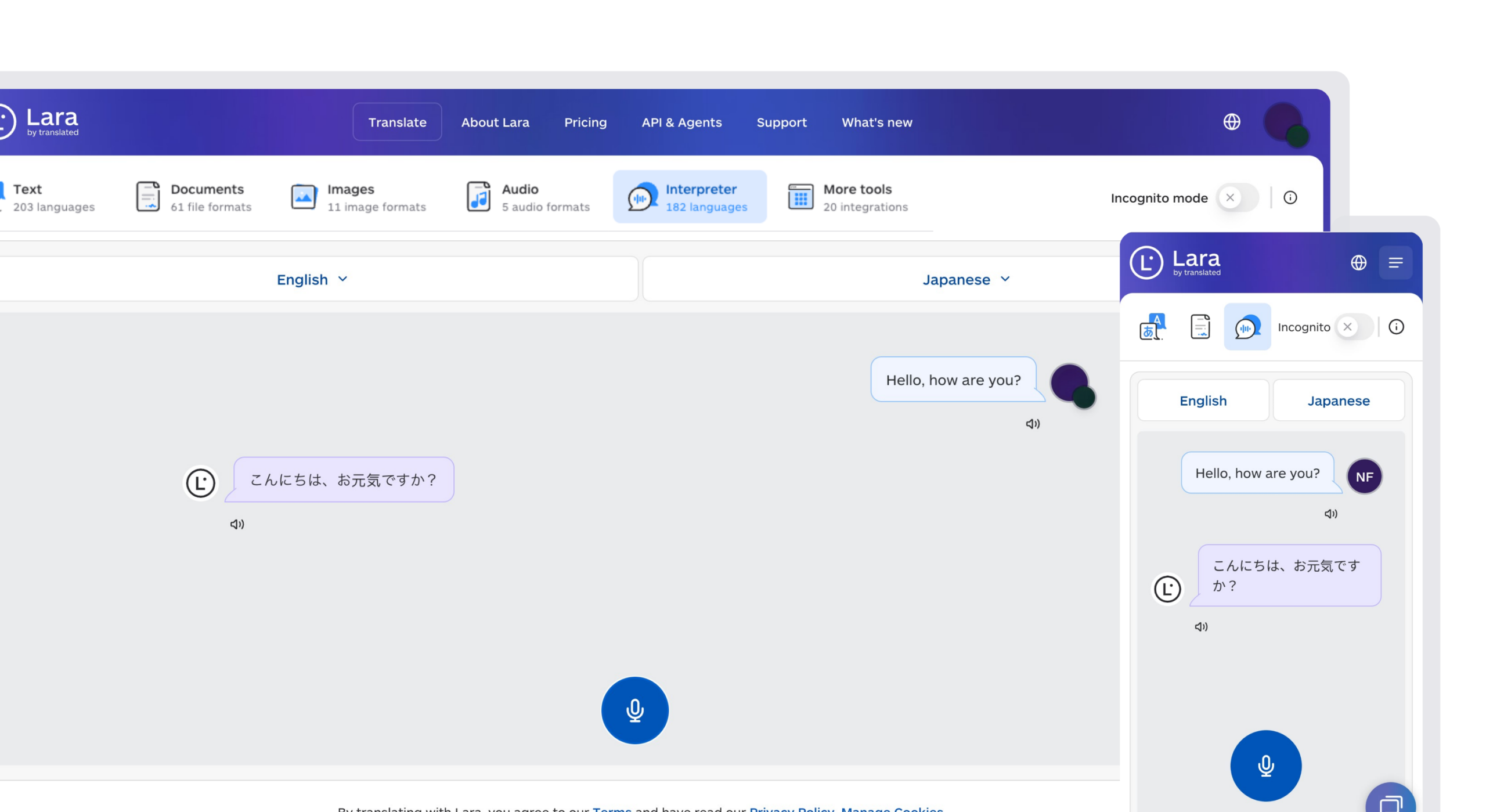
What Lara Translate does cover is the language work around calls, in far more languages than any phone’s OS. Its live AI interpreter handles in-person conversations and meetings across 182 languages. Its audio translation turns a foreign-language voicemail or a recorded call into your language after the fact. And for teams, the API, with an optional human validation layer for high-stakes content, lets you build translation into your own call-center, support, or voice workflows across 200+ languages total.
So if you’re a freelancer meeting international clients, a support team working through voicemails and recordings in a dozen languages, or a business embedding translation into its own call flows, try Lara Translate’s translation tools for the parts of the job your phone’s built-in features can’t reach.
For everything around the call
Interpret in-person conversations, translate voicemails and recordings, or build translation into your own systems, across 200+ languages. Not live phone calls, everything else.
Have a valuable tool, resource, or insight that could enhance one of our articles?
Send us an email at press@laratranslate.com
We’ll be happy to review it and consider it for inclusion to enrich our content for our readers! ✍️
Sources
- Use Live Translation on iPhone
- Call assist: Live translate calls on your Galaxy phone
- T-Mobile Live Translation: Beta Sign Up, No App Needed
- T-Mobile US wields network-level AI to break down language barriers
FAQ
Is There a Way to Translate During a Phone Call?
Yes. Built-in features like Apple’s Live Translation and Samsung’s Call Assist, carrier services like T-Mobile’s dial-code system, and third-party apps all support live phone call translation today.
Is There a Way to Translate Phone Calls on iPhone?
Yes, through Apple’s Live Translation feature in the Phone app, which requires Apple Intelligence and currently supports languages including English, French, German, Italian, Spanish, Portuguese, Chinese, Japanese, and Korean.
How Do I Turn On Translation on My Phone?
On iPhone, tap More during a call, then Live Translation, and select Start Translation. On Samsung Galaxy phones, enable Call Assist Live Translate in Settings first, then tap Call assist during the call to activate it.
Is There a Phone Call Translator That Translates Voice Calls in Real Time?
Yes. For the live call itself, on-device features (Apple, Samsung) and carrier services (T-Mobile) translate voice calls in real time, and some third-party apps bridge a call through their servers. Lara Translate is not a live phone-call translator, but it covers related needs, like interpreting in-person conversations and translating voicemails and recordings, in 182+ languages.
Can Phone Call Translation Handle Emergency Calls or Voicemail?
No. Every major method, including Apple’s Live Translation, Samsung’s Call Assist, and T-Mobile’s network service, explicitly excludes emergency numbers and voicemail from live translation.
This article is about
How to translate phone calls in real time using three routes: on-device OS features (Apple Live Translation, Samsung Call Assist), carrier network services (T-Mobile’s *87*), and cloud apps, with step-by-step setup, the privacy and language-coverage tradeoffs, accuracy tips, and where Lara Translate fits: not live phone-call translation, but interpreting in-person conversations, translating voicemails and recordings, and an API for building translation into call systems.
Recommended
- AI Interpreter: Live Voice Translation | Lara Translate
- Audio Translation | Lara Translate
- Lara Translate AI: Reliable, Fast, Free
- Translate to and from English with Lara Translate