

Most teams that need to translate in Google Sheets are not “doing translation work”. They are shipping catalogs, UI strings, CRM exports, support macros, and campaign variants.
And if your multilingual work lives in spreadsheets, translating outside the sheet is where things break: rows drift, IDs misalign, approvals get lost, and someone pastes into the wrong range.
Lara Translate for Google Sheets is built for one simple idea: keep translation inside the workflow that already controls your data.
|
TL;DR
|
Translate in Google Sheets, without copy paste
Keep IDs aligned, add context for short strings, reuse approved wording, and quality-check translations directly in your spreadsheet.
How do you translate in Google Sheets?
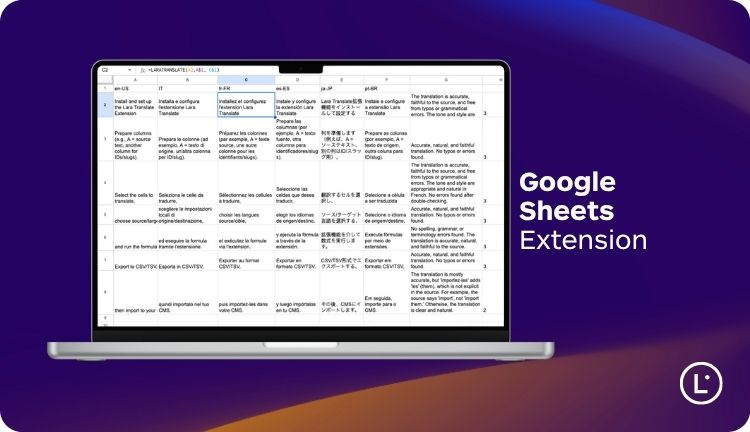
If you want to translate in Google Sheets without breaking alignment, keep it simple: one source column, one target column, an optional context column, and an evaluation score you can filter.
- Install Lara Translate for Google Sheets from the Extensions menu.
- Set your languages (source → target) in the Lara sidebar.
- Translate cells directly in the target column (no copy paste).
- Evaluate quality with an in-sheet score, then filter to review only risky rows.
- Lock consistency with Translation Memories and glossaries when wording must stay stable.
Example formulas (adjust ranges to your sheet):
=LARATRANSLATE(A2,"en","fr")to translate the text in A2.=LARAEVAL(A2,B2,"en","fr")to evaluate the translation quality of B2 vs the source.
Note: Using Lara Translate functions in Google Sheets requires an active plan.
Try Lara Translate in your own workflow
Paste a real sheet snippet or a short set of UI strings and see how Lara Translate handles context, terminology, and tone.
The real reason teams translate in Sheets: alignment
Translation is rarely the only thing happening in a sheet. Someone is also:
- mapping SKUs to product names
- keeping internal IDs stable
- marking rows as approved, blocked, or ready to publish
- tracking owners and deadlines
- joining data from other sources
When you translate outside the sheet, you introduce a new failure mode: misalignment. Rows shift. Columns drift. Someone pastes into the wrong range. The translation is “fine”, but it is attached to the wrong item.
Translating inside Google Sheets keeps structure intact. Your IDs stay mapped to the right text, and approvals remain traceable.
Speed matters, but rework hurts more
Many teams do not lose time on translation itself. They lose time on the cleanup:
- the same term translated three different ways across tabs
- short UI strings that come out ambiguous
- marketing lines that sound correct but feel off-brand
- reviewers forced to check everything because risk is unknown
Lara Translate reduces rework by keeping context, consistency, and quality signals close to the content.
Context is the difference between usable and “technically correct”
Spreadsheets are full of short, context-poor strings. Think: “Free”, “Charge”, “Apply”, “Support”, “Draft”, “Lead”. Without context, a translation can be accurate in isolation and wrong in the product.
In Sheets, context can be a dedicated column. Even one extra cell of information can prevent ambiguity and fix tone.
What to put in a context column (pick what applies):
- Where it appears: screen name, page type, modal, checkout, settings
- What it is: button label, error message, tooltip, headline, meta title
- Intended action: “confirm purchase”, “start trial”, “save settings”
- Audience: consumer vs admin vs legal
- Formality/tone: friendly vs formal, concise vs explanatory
- Do-not-translate list: product names, feature names, acronyms
This is especially valuable for:
- UI and app strings where one word can change user behavior
- support macros where tone affects escalation and trust
- marketing variants where “correct” is not enough
Make short strings translate like they belong
Add a context column in Sheets and translate with intent, not guesswork. It is the fastest way to fix ambiguity and tone.
Consistency at scale: the hidden cost of spreadsheet translation
If you translate 500 rows, you will repeat concepts. Features, pricing terms, button labels, product attributes, compliance statements. If these change across rows, you create user confusion and internal review churn.
Lara Translate supports Translation Memories, so once your team approves a phrasing, you can reuse it across future sheets and exports. This is how you get consistency without turning every spreadsheet into a manual style policing exercise.
Practical example: If you decide that “Start free trial” must always be translated the same way across product UI, emails, and ads, Translation Memories help you keep that decision stable at scale.
Stop re-approving the same wording
Reuse approved phrasing across sheets with Translation Memories, so product, marketing, and support stay consistent.
Quality checks in-sheet: review the 10% that matters
Most teams do not have time to review every translated cell. They end up doing one of two bad options:
- review everything, which slows releases
- review nothing, which increases risk
The better option is triage. Use LARAEVAL to add a translation quality score per row, then filter your sheet to review only the lowest-scoring outputs first.
A simple triage setup:
- Column A: ID
- Column B: Source (EN)
- Column C: Target (FR) with
=LARATRANSLATE(B2,"en","fr") - Column D: Score with
=LARAEVAL(B2,C2,"en","fr") - Filter Column D (lowest first) and review only what looks risky
This is useful when:
- you ship frequent updates and need a fast sanity check
- you translate user-facing content where mistakes are visible
- you want a repeatable workflow that junior team members can run safely
Review only what looks risky
Add an evaluation score in Sheets, filter low results first, and focus human review where it actually matters.
Who benefits most from translating in Google Sheets?
 Marketing teams
- campaign copy variants across languages
- SEO metadata exports (titles, descriptions, snippets)
- social captions and ad headlines at scale
Product teams
- UI strings and microcopy with context columns
- release notes and feature explanations
- in-app prompts that must stay consistent
 Ops and support teams
- support macros and help center snippets
- process docs and internal playbooks
- vendor and partner communications
Localization teams
- lightweight string workflows before XLIFF handoff
- terminology-driven consistency checks
- quick validation passes before publication
Common mistakes that Sheets-native translation avoids
| Mistake | What it causes | Why Sheets-native helps |
|---|---|---|
| Copy paste into a translator | lost rows, mismatched IDs | translation stays tied to the exact cell |
| No context for short strings | ambiguous, awkward output | context columns clarify meaning and tone |
| Inconsistent terminology | rework, brand inconsistency | Translation Memories help reuse approved phrasing |
| No quality signal | either review everything or ship blind | LARAEVAL enables triage and filtering |
Quick checklist to make Sheets translation actually work
- Add an ID column if you do not already have one.
- Add a context column for short or ambiguous strings.
- Separate source and target columns clearly (include language in headers).
- Add an evaluation score column so you can filter and triage.
- Reuse approved wording with Translation Memories for consistency.
FAQ
Can I translate thousands of cells in Google Sheets?
Yes. A Sheets-native workflow is designed for large ranges, and it keeps alignment intact while you scale.
Do I need context if the text is “simple”?
If it is a short string (UI labels, buttons, statuses), context prevents ambiguity and makes tone consistent.
How do I know what needs review?
Add an evaluation score per row, sort or filter lowest-first, and review only the risky outputs.
Will it keep my IDs and approvals aligned?
Yes. Translating directly in-sheet keeps the translation attached to the right row and column.
Do I need a plan to use Lara Translate in Sheets?
Yes. Using Lara Translate functions in Google Sheets requires an active plan.
Learn more
- How to install Lara Translate extension for Google Sheets
- How to use Lara Translate extension in Google Sheets (LARATRANSLATE and LARAEVAL)
- Add Context: common use cases and practical examples
- How glossaries work in Lara Translate
If your content starts in Sheets, translate in Sheets
Keep structure and approvals intact, add context, stay consistent, and review only what matters with Lara Translate for Google Sheets.
Why it matters
Teams do not miss launches because translation is slow. They miss them because spreadsheet workflows break: IDs drift, rows get mis-pasted, and reviewers cannot tell what is risky. Translating and evaluating directly in Google Sheets keeps the workflow stable, so you ship multilingual updates with less rework and more confidence.
This article is about:
- Why spreadsheets are the real translation workflow for many teams
- How translating in Google Sheets prevents alignment and copy paste failures
- Why context and terminology consistency reduce rework
- How in-sheet evaluation helps you triage reviews
- Which teams get the most value from Google Sheets translation