

When to translate a JPG vs extract text is the question behind most “translation requests” at work. The source is usually not a document. It’s a screenshot from a customer, a photo from the field, a scan from a supplier, or a chart pasted into a slide.
Once you pick the right output (a shareable translated image vs extracted translated text), you stop rebuilding assets and you keep decisions accurate.
TL;DR
|
Why it matters
If you translate images the wrong way, you create avoidable rework. You end up copying text into chats, rebuilding graphics, or sending rough translations that mislead decisions. A repeatable JPG workflow keeps you fast and safe.
Short answer
JPG translation is useful whenever information is trapped in screenshots, photos, and scans. Choose image-to-image when you must share a translated asset, and image-to-text when you only need the words (copy, search, paste).
What is JPG translation?
JPG translation means translating text that is inside an image file (like a screenshot, photo, or scan). It usually combines OCR to read the text and a translation model to translate it. The key choice is your output: a translated image you can share (image-to-image) or extracted translated text (image-to-text).
The real reason JPG translation shows up everywhere
Work is visual. Teams share information as screenshots because it is faster than explaining what happened. Suppliers send photos. Customers report issues with images. Compliance often requires scans and proofs.
So JPG translation becomes part of daily workflows in places like:
- Support tickets and bug reports
- Sales enablement and competitive intelligence
- Operations and logistics
- HR and internal communications
- Marketing and social content
When you should translate the image itself (image-to-image)
Translate the image itself when the output must be shareable and usable without rebuilding anything:
- Support: share translated screenshots with engineering
- Product: review translated UI flows with stakeholders
- Ops: circulate translated photos of instructions and safety signs
- Marketing: review or adapt visual creatives for new markets
In these cases, you do not want a paragraph of translated text. You want the same image with the text replaced where it belongs.
When image-to-text is enough
Sometimes you only need to understand the message or copy content into another tool. Image-to-text is often enough for:
- Quick understanding of a menu, sign, or short message
- Extracting a paragraph from a scan to paste into a doc
- Capturing product specs or a list from a photo
Decision table: translate the image vs extract text
| Your goal | Best output | What to QA |
|---|---|---|
| Share in a ticket, slide, or review thread | Image-to-image | Labels, UI strings, numbers, small text |
| Copy into a doc, spreadsheet, or prompt | Image-to-text | Missing lines, units, punctuation, names |
| Verify compliance content (labels, warnings) | Image-to-text then verify | Warnings, dates, IDs, footnotes, disclaimers |
A simple workflow you can apply in any team
- Classify the image: screenshot, photo, scan, graphic, or form.
- Choose output type:
- Image-to-image if you need a usable, shareable asset.
- Image-to-text if you only need the content.
- Add context when it matters: what is this for, who will read it, and what tone is expected?
- Pick style and privacy: Faithful for technical and precise content, Fluid for natural readability, Creative for marketing. Use Incognito Mode for sensitive screenshots and scans.
- Run a fast QA pass: numbers, names, units, warnings, and small text.
- Share the result where work happens: ticketing, docs, chat, or design review.
How to do it in Lara Translate
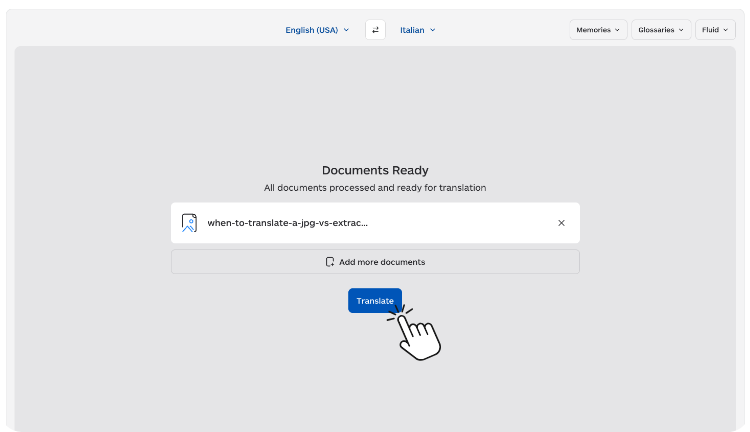
Lara Translate makes JPG translation practical because you can choose the output that matches the job: a shareable translated image (image-to-image) or extracted translated text when you only need the words.
Add context when it matters, pick a style (Faithful, Fluid, Creative), and use Incognito Mode for sensitive screenshots or scans.
-
- Open the JPG translator: upload your JPG (or similar formats like PNG, HEIC, WEBP, or TIFF).
- Select languages: choose source and target languages.
- Choose the right output:
- Image-to-image to get a translated image you can share.
- Image-to-text to extract and translate the text for copy and paste.
- Add context and controls: set the style (Faithful, Fluid, Creative). If terminology must not drift, add glossaries or translation memories when available in your workspace.
- QA and share: verify numbers, names, and small text, then drop the output back into the ticket, doc, or review thread.
Turn screenshots into shareable translations
Translate a JPG and get a usable image output for tickets, reviews, and decisions.
High-impact use cases (with what “good” looks like)
Support: screenshots from users
Good output: a translated image that keeps button labels, errors, and UI structure intact so engineering can reproduce the issue.
Sales: competitor screenshots
Good output: a translated image with readable headings and pricing blocks, plus a short notes layer if needed.
Ops: labels, packaging, instructions
Good output: a translated image where warnings, ingredients, and quantities are correct and easy to verify.
Marketing: creatives and banners
Good output: a translated image that stays on brand, stays readable, and does not require rebuilding the graphic for early testing.
Common mistakes that create rework
- Sharing rough translations without checking numbers, names, and units.
- Translating without context when tone or domain matters (support, legal, medical, finance).
- Using text-only output when stakeholders actually need a shareable image.
- Ignoring small text like disclaimers, footnotes, and labels.
FAQ
Is JPG translation only for travelers?
No. It shows up in business workflows constantly because screenshots and photos are how teams move information quickly.
What is the best output for team collaboration?
If you need to share or review the result, image-to-image output is usually the most practical.
Can I translate other image formats too?
Yes. Workflows often include PNG screenshots, HEIC mobile photos, WEBP web images, and TIFF scans.
This article is about:
- When JPG translation actually helps in real workflows
- How to choose between image-to-image and image-to-text
- A simple repeatable process for teams