

PPTX translation is not “just translation.” It is translation plus layout survival.
If you need to translate PPTX without losing formatting, your biggest risk is text overflow: translated strings expand, wrap, and push key elements out of place.
A PowerPoint slide is a tight container: fixed text boxes, tables, charts, and carefully balanced spacing. When you translate into languages that expand or change word order, the content often stops fitting. That is where the redesign time comes from.
|
TL;DR
|
Why it matters
If a translated deck needs hours of manual slide repair, you lose the main benefit of automation. A layout-safe workflow cuts rework, keeps slides presentation-ready, and makes scaling to multiple languages realistic.
What does “translate PPTX without losing formatting” actually mean?
Short answer
It means your translated PPTX stays presentation-ready with minimal touch-ups: text stays inside placeholders and text boxes (no clipping), masters and spacing stay stable, and you do quick fixes instead of rebuilding slides.
It means you keep the deck presentation-ready after translation:
- Text remains inside placeholders and text boxes (no overflow, no clipped lines).
- Masters, fonts, spacing, and slide structure stay stable.
- Animations usually keep working when slide structure stays intact (always QA dense slides).
- You only do small touch-ups, not a full slide rebuild.
The key is combining a bit of slide hygiene with a PPTX-aware translation workflow.
Why PPTX translation breaks layouts
If you have ever translated a deck by copy-pasting text into another language, you already know the problem. PPTX layouts break for predictable reasons:
- Text expansion: many languages need more characters to say the same thing.
- Hard constraints: titles and tables are often “designed to the pixel.” There is no slack.
- Manual line breaks: they look fine in one language and become harmful in another.
- Font and character differences: glyph widths, punctuation, and special characters change spacing.
- Mixed content: charts, speaker notes, and screenshots can hide text in places your workflow misses.
The good news: you can prevent most of this with a simple pre-flight check and a focused QA pass after translation.
Step 1: Pre-flight checklist (before you translate)
Think of this as “making the deck translation-friendly.” You do it once and it pays back every time you ship a new language version.
Pre-flight checklist
- Clean master slides: unify fonts, placeholder styles, and spacing rules across layouts.
- Prefer placeholders over floating text boxes: placeholders behave more predictably across slides.
- Remove forced line breaks unless they are essential for design.
- Reduce “tight” tables: add a bit of width where possible, especially for headers.
- Mark text-in-images: if your deck uses screenshots with labels, plan for image translation or redesign those labels as editable text.
- Stabilize terminology: decide brand terms, feature names, and do-not-translate items before exporting translations (use glossaries).
If your deck is already finalized and you cannot change layout, do not panic. You can still translate, but the QA pass becomes more important.
Step 2: Translate the PPTX without losing formatting with Lara Translate
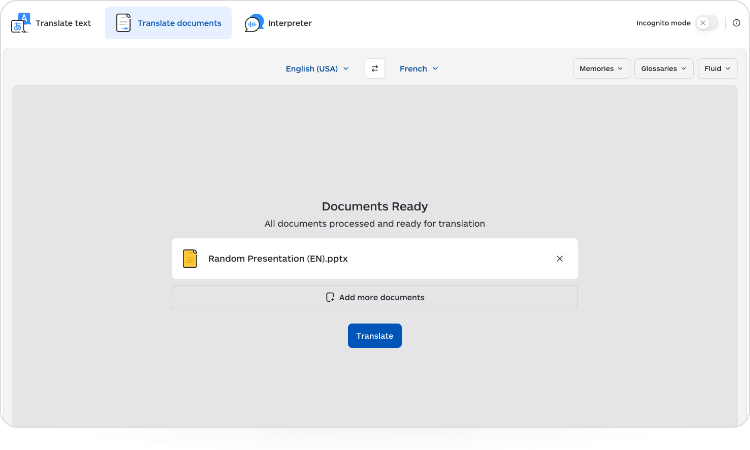
For PPTX translation without redesign, you want a tool that is aware of presentation constraints. Lara Translate is built to translate full PowerPoint (PPTX) files while adapting text boxes to fit the new language and keeping slide structure stable.
- Open the PPTX translation page: https://laratranslate.com/translate-pptx
- Upload your PPTX.
- Select your target language (or multiple languages if you need many versions).
- Translate and download the exported PPTX file(s).
Tip: If you translate decks frequently, lock consistency early:
- Pick a translation tone using translation styles (useful when you translate both marketing slides and technical slides).
- Stabilize product names and recurring terms with glossaries.
- Add audience and intent using the context feature.
- If you export many decks at once, use multiple document translation.
Try Lara Translate on a real PPTX deck
Upload your presentation and see how Lara Translate handles layout constraints, terminology, and multi-language export.
Step 3: The 7-minute post-translation QA (what to check first)
Most slide issues cluster in a few places. Instead of reviewing every slide with the same intensity, do a fast “risk-first” pass.
| Check this | Why it breaks | Fast fix |
|---|---|---|
| Slide titles | Big fonts + tight width | Shorten phrasing, adjust font size slightly, or widen the placeholder |
| Bullets | Extra lines appear after translation | Reduce bullet density or split into two bullets |
| Tables | Headers wrap, columns get cramped | Widen critical columns, shorten headers, or move detail to speaker notes |
| Footnotes and disclaimers | Small text blocks overflow easily | Allow one extra line or reduce font size by a step |
| Charts | Labels overlap or truncate | Shorten labels or increase chart area |
If you only have time to check three slides, pick the densest ones: the slide with the biggest table, the slide with the most bullets, and the slide with the most “small text.” Fixing those usually removes the worst issues across the deck.
Common layout problems (and how to fix them fast)
This section is designed to be practical. If you see an issue, you should know what to try next.
- Text overflow in a placeholder
Try: shorten the sentence, replace phrases with shorter equivalents, split into two lines intentionally, or reduce font size slightly. - Awkward line breaks
Try: remove manual line breaks in the source, or rewrite to avoid breaking between article + noun or preposition + object. - Table headers wrapping
Try: abbreviate headers, move detail into the first row, or widen the column. Tables are often the #1 redesign culprit. - Misalignment across slides
Try: check masters and layout variants. If one slide uses a different layout, it will drift after translation. - Text inside screenshots did not translate
Try: replace screenshot labels with editable text where possible, or plan an image translation workflow for those assets.
Decision guide: translate text, translate images, or use human review?
“No redesign” is easier when you choose the right method for each slide element.
| If your slide has… | Best approach | Why |
|---|---|---|
| Editable text boxes, placeholders, notes | PPTX translation | Fast, keeps structure, easy to QA |
| Screenshots with text labels | Image translation workflow | Text is baked in, PPTX tools cannot reliably edit it |
| Legal claims, pricing, regulated statements | Human review (final pass) | Risk is high, wording precision matters |
When to use human review (trigger list)
- Pricing and commercial terms: numbers, units, discounts, renewals, SLAs, cancellation terms.
- Legal or regulated claims: compliance statements, safety instructions, medical/finance content, warranties.
- Brand-critical messaging: homepage tagline slides, campaign headlines, executive quotes.
- High-stakes ambiguity: “may/must,” “guarantee/estimate,” limitations, risk language, edge-case definitions.
- External publication: decks used in press, partner pitches, investor comms, or public webinars.
If you want a formal AI + human workflow, you can request it via human review on top of AI translations.
How to reduce redesign work over time (the “repeatable deck” system)
If you translate decks every month, the fastest team is not the one that translates faster. It is the one that repairs less.
- Create a stable slide system: reuse the same layouts for the same content types (problem, solution, proof, pricing, roadmap).
- Standardize a terminology set: keep product terms, feature names, and key phrases consistent using glossaries and translation memories.
- Choose the right tone: keep your deck’s intent consistent using translation styles.
- Build language-friendly templates: avoid ultra-tight titles and tables in the source deck, especially if you know you will localize.
- Localize the hardest slides first: if the “tight slides” survive translation, the rest usually will.
Try Lara Translate in your own workflow
Test Lara Translate on a real PPTX and see how it handles terminology, context, and slide formatting.
FAQ
Can I translate a PowerPoint and keep animations?
Usually, yes. If the slide structure stays intact, animations and transitions typically keep working after translation. Always QA slides with dense content and custom animation sequences.
How do I translate PPTX into multiple languages at once?
Use a workflow that supports multi-language export from a single upload. You typically receive one translated PPTX file per target language.
Why do tables cause the most redesign work?
Tables have hard column constraints and limited room for text expansion. After translation, headers and long strings wrap or overflow first. A small source change, like wider header columns or shorter labels, prevents repeated fixes later.
What should I check first after translating a PPTX?
Start with slide titles, tables, small-footnote blocks, and chart labels. These are the most likely elements to overflow or become hard to read after translation.
What if my deck has screenshots with text?
Text inside screenshots is not the same as editable text boxes in PPTX. Plan an image translation workflow for those assets, or redesign the slide to use editable text where possible.
This article is about:
- How to translate PPTX presentations without spending hours fixing slides
- A pre-flight checklist that prevents the most common layout breaks
- A fast post-translation QA method that catches overflow and formatting issues early
- How to build a repeatable, scalable “no redesign” workflow for multilingual decks
Want the basic step-by-step guide too? If you just need the quick “how to translate a PowerPoint” walkthrough, start here: How to translate a PowerPoint presentation (PPT/PPTX).