

Most teams translate a deck once and call it done. Then the same deck needs to go to France, Germany, and Brazil, and suddenly “translate the PPTX” becomes three separate projects, three rounds of review, and three rounds of fixing text that overflowed the slide. There has to be a better way to do this.
There is. The problem is not translation quality: it’s workflow. Most tools are designed to handle one file, one language, one output at a time. When you need to scale the same deck across multiple markets, that model breaks fast. This guide covers how to translate a PPTX into multiple languages without rebuilding the deck each time, how to keep terminology consistent across versions, and what to review before each version ships.
|
TL;DR
|
Short Answer
Upload your PPTX once to Lara Translate, select multiple target languages in one step, then download a separate translated version for each market. Layout, text boxes, and slide structure are preserved across all outputs. Use glossaries and translation memory to keep terminology consistent across every language version.
Why it matters: A deck that ships with inconsistent terminology across markets looks unpolished even if the translation quality is fine. And rebuilding slides manually for each language version is the kind of hidden cost that quietly inflates localization budgets. Getting the workflow right once means every future deck rollout is faster and cleaner.
Why per-language translation creates compounding problems
The obvious way to translate a deck into multiple languages is to do them one at a time. Upload the PPTX for French, download the French version. Upload again for German, download the German version. Repeat for each market. It works — once. The second time you do it, the problems start accumulating.
The first problem is terminology drift. When you translate the same deck three times across three sessions, there is no guarantee the same product name, feature term, or CTA phrase gets handled consistently. “Free trial” might become one thing in German and something slightly different the next time you touch the German deck. Multiply that across a 40-slide deck and five markets, and inconsistency is almost guaranteed.
The second problem is rework volume. Text expands when you translate from English. German typically runs 20 to 30 percent longer. Finnish can run even longer than that. A text box that fits an English headline perfectly will overflow in several European languages. If you are translating one language at a time, you are fixing that overflow five separate times. That is five rounds of manual slide editing for what is fundamentally the same problem.
The third problem is version control. With per-language one-at-a-time translation, you end up with multiple translated files at different stages of review. The French version has been approved but the German version has not. The Spanish version uses a newer template. Keeping track of which version is current across five markets is friction that compounds every time the source deck changes.
How to translate one PPTX into multiple languages at once
The cleaner approach is a single-upload multilingual workflow: upload the source deck once, select all the target languages you need, translate, and download each version. You touch the source file once per update, not once per market.
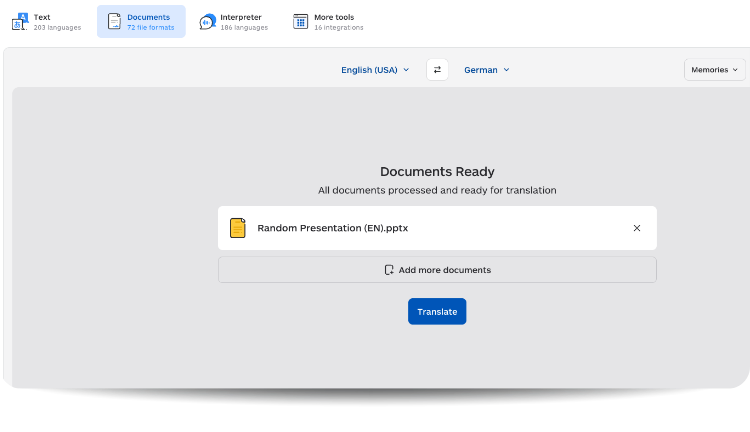
Here is how that workflow runs in Lara Translate:
- Go to Lara Translate and open the document translation section.
- Upload your source PPTX file. Lara detects the source language automatically.
- Select all target languages in one step. You can add as many as you need — French, German, Spanish, Italian, Brazilian Portuguese, Japanese, whatever the rollout requires.
- Apply your glossary if you have one (product names, brand terms, do-not-translate strings). Apply your translation memory to reuse previously approved phrasing.
- Choose a translation style: Faithful for technical or data-heavy slides, Fluid for general training or product decks, Creative for marketing or sales materials where voice and tone carry weight.
- Click Translate. Lara processes all language versions from the same source file.
- Download each translated PPTX. Each file has the same layout and slide structure as the original — text boxes, bullet indentation, and visual hierarchy are preserved.
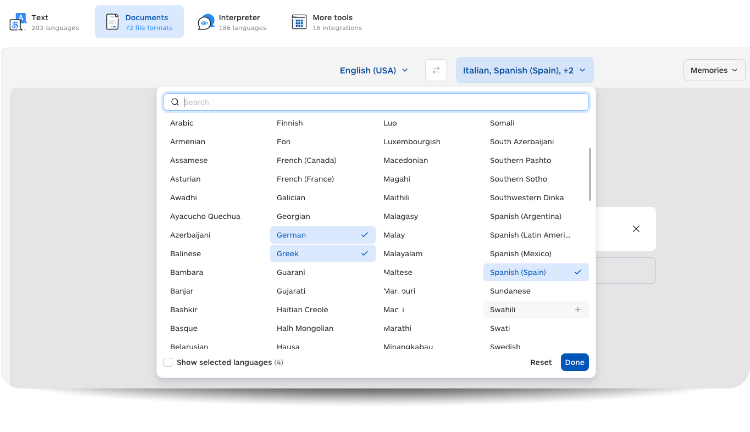
The output of step 7 is a set of presentation-ready files. Not raw text that needs to be pasted back into slides. Not a broken layout that needs reformatting. Editable PPTX files with the deck structure intact, ready for a QA pass and then distribution.
For step-by-step instructions on the upload flow itself, the Lara Translate PowerPoint support page has the full walkthrough.
Translate your PPTX into multiple languages in one step
Upload your deck, select all target languages, and download a formatted version for each market. No rebuilding slides, no per-language repeat uploads.
How to keep terminology consistent across all language versions
Translation quality is table stakes. The harder problem in multi-market deck rollouts is consistency — making sure the same term reads the same way in every language version, across every slide, every time. That is what glossaries and translation memory are for.
Glossaries: lock the terms that cannot drift
A glossary is a list of source terms paired with their approved translations (or flagged as do-not-translate). For a PPTX rollout, the glossary should cover product names, feature labels, legal disclaimers, pricing terminology, and any brand-specific phrasing that should not be interpreted differently across markets.
Without a glossary, a product feature called “Smart Scheduling” might become three different things across three languages, depending on what each translation run produces. With a glossary, that term is locked. Every slide that contains it will use the same approved translation, and that approved translation will be identical across every future version of the deck.
Glossaries apply at translation time, not post-edit. That means you are not finding and replacing drift after the fact — you are preventing it from happening in the first place.
Translation memory: reuse approved phrasing automatically
 Translation memory stores pairs of source segments and their approved translations. When the same sentence or phrase appears again — in a future version of the deck, in a related deck, or repeated across slides within the same deck — the memory surfaces the approved translation automatically.
For decks that get updated regularly — quarterly business reviews, product update decks, recurring investor presentations — translation memory is the single biggest time saver. Slides that did not change between versions do not need to be re-translated from scratch. They pull from the approved memory. Only new or changed content goes through fresh translation. That cuts both translation time and consistency risk.
The combination of glossary plus translation memory means that version 2 of a deck benefits from all the QA work that went into version 1, automatically. You are not starting from zero every quarter.
Context instructions: adapt tone per deck type
Beyond glossaries and memory, Lara Translate accepts context instructions that shape how translation handles tone, audience, and domain. For a deck going to a technical audience in Germany, you might specify that language should be formal and precise. For a sales deck targeting SMBs in Spain, you might specify informal register and energetic tone. These instructions apply across the whole deck and influence how ambiguous terms and stylistic choices are resolved.
How to handle text expansion across languages
Text expansion is the most predictable problem in PPTX translation, and the one that teams consistently underestimate. English is compact. Most other languages are not. Here is a rough reference for common target languages relative to an English source:
| Target language | Typical expansion | Risk level for slide titles |
|---|---|---|
| German | +20 to +35% | High — compound nouns inflate heading length |
| French | +15 to +25% | Medium — articles and prepositions add length |
| Spanish | +15 to +25% | Medium — similar pattern to French |
| Italian | +10 to +25% | Medium — varies by content type |
| Japanese | -10 to +10% | Low for length, but font rendering needs checking |
| Arabic / Hebrew | RTL layout required | High — right-to-left text direction affects all slide elements |
The practical implication is that your English deck should be designed with expansion headroom in mind if you know it will be translated. Short, punchy slide titles are a gift to every downstream translator. A heading that barely fits in English will overflow in German almost every time.
For decks that already exist and cannot be redesigned, the approach is to do your QA pass on high-expansion languages first. Fix overflow in the German version, and you have likely also caught the slides that will cause problems in French and Spanish. RTL languages like Arabic and Hebrew need a separate check for text direction, since slide elements may need manual adjustment that no translation tool can fully automate.
What to QA after bulk translation — and which slides to prioritize
The instinct after receiving 6 translated PPTX files is to review every slide in every language. That is not realistic, and it is not necessary. Most slides in a business deck are low-risk — body copy, agenda items, supporting bullets. The slides that actually need review are a small subset.
High-priority slides for every language version
These slides carry the most consequence if something is wrong, and they are the ones most likely to have translation choices that need a human eye:
- Title slide: The deck’s first impression. Any awkward phrasing here sets a poor tone before the presentation starts.
- Problem / opportunity slide: This is usually the most rhetorically crafted slide in the deck. Literal translation often flattens it. Check that the tension or urgency reads correctly in each language.
- Pricing or terms slides: Any numbers, currency formatting, or contractual language. Factual accuracy is non-negotiable here. Apply a glossary to protect these terms before translation.
- CTA or close slide: The action you want the audience to take. Like a headline, the CTA needs to feel native and direct — not translated.
- Any slide with text inside images or diagrams: Translation tools work on text elements within the PPTX structure. Text baked into images or embedded graphics is not translated automatically. You will need to handle those manually or replace the image with a localized version.
Formatting checks to run on every version
Beyond language quality, run these structural checks on each translated file before it leaves your hands:
- Text overflow in title boxes and call-out shapes — German and French are the most common offenders
- Bullet indentation — some translation tools flatten nested bullets into flat lists
- Speaker notes — check whether notes were translated and whether that was the right call for your workflow
- Font rendering — non-Latin scripts sometimes fall back to a generic system font if the slide font does not include those characters
- Slide numbers and section breaks — confirm they are intact across all versions
When to update all versions at once
The real advantage of a single-source multilingual workflow becomes obvious when the source deck changes. A product launch deck gets updated before the US rollout. Three weeks later, the same deck needs to go to four European markets. With a per-language one-at-a-time workflow, that means four separate translation runs with no connection to what was approved before.
With translation memory in place, you re-upload the updated source deck and run the full multilingual translation again. Slides that did not change pull their content from the memory — already approved, already consistent. Only the new or updated slides go through fresh translation. The QA pass shrinks from the whole deck to just the delta. That is where the time savings compound over a long rollout calendar.
For teams managing multiple decks across multiple markets on a recurring basis, this is the difference between localization as a constant overhead and localization as a repeatable, mostly-automated step.
Thank you for reading 💜
As a thank you, here’s a special coupon just for you: IREADLARA26.
Redeem it and get 10% off Lara PRO for 6 months.
If you already have a Lara account, log in here to apply your coupon. If you are new to Lara Translate, sign up here and activate your discount.
FAQs
Can I translate a PPTX into multiple languages at the same time?
Yes. In Lara Translate, you upload your source PPTX once and select multiple target languages before running the translation. Each language produces a separate output file with the original slide layout preserved. This is faster and more consistent than running a separate translation job per language, because all versions share the same source, the same glossary, and the same translation memory settings from a single workflow.
How do I prevent terminology from drifting across language versions of the same deck?
Use a glossary to lock the terms that cannot drift: product names, feature labels, legal language, brand-specific phrases. Apply the glossary at translation time so that every language version uses the same approved translation for each term automatically. Add a translation memory to capture approved phrasing from past translations, so recurring content is reused rather than retranslated from scratch. Together, these two tools eliminate most consistency problems before they reach the QA stage.
What happens to text expansion when translating from English into European languages?
Most European languages run longer than English. German can expand by 20 to 35 percent, French and Spanish by 15 to 25 percent. That means a text box that fits an English headline comfortably will often overflow when the same slide is translated into German. The best mitigation is to build expansion headroom into the source deck design. For existing decks, run your post-translation QA on the longest-expanding language first — if German fits, the other European versions likely will too. Slide titles, call-out shapes, and narrow text columns are the most common overflow points.
Do translation tools translate text inside images or diagrams on slides?
No. Translation tools work on text elements within the PPTX file structure. Text that is embedded inside an image or rendered as part of a diagram graphic is not accessible to the translator and will not be touched. For slides with image-embedded text, you have two options: recreate those images with editable text layers before translation, or plan a manual replacement of those images with localized versions after translation. This is worth auditing in your source deck before starting a multilingual rollout.
Which translation style should I use for a PPTX with mixed content types?
Most business decks contain a mix of content types, and the right style depends on what each section is doing. Faithful works for data slides, technical specs, pricing tables, and compliance language where word-for-word accuracy matters. Fluid works for narrative slides, training content, and general product explanations where readability is the priority. Creative works for headline slides, CTAs, and marketing copy where tone and persuasion carry the message. If your deck mixes all three, choose the style that fits the majority of slides, then flag the outlier slides for a manual review pass. For a deeper look at when to use each style, see translation styles in Lara Translate.
This article covers
- Why per-language one-at-a-time PPTX translation creates terminology drift and rework that compounds across every market you add
- How to run a single-upload multilingual PPTX workflow that outputs all language versions at once with layout preserved
- How glossaries and translation memory keep terminology consistent across languages and across recurring versions of the same deck
- How to handle text expansion from English into languages like German, French, and Spanish without manually resizing every text box
- What to QA after bulk translation and which slides carry the most risk across any language version
Have a valuable tool, resource, or insight that could enhance one of our articles? Submit your suggestion
We’ll be happy to review it and consider it for inclusion to enrich our content for our readers! ✍️
Useful articles
- How to translate a PowerPoint presentation (PPT/PPTX)
- How to translate a PPTX without losing formatting
- How to translate a marketing deck (PPTX)