

If you have ever managed a multilingual product catalog, a localization tracker, or a content spreadsheet where different columns needed different terminology, you know the problem. Global settings work until they do not. The marketing column should use brand-approved terms. The legal column should be word-for-word faithful. The UX copy column needs natural, fluid language. One setting cannot do all three.
Lara Translate for Google Sheets now lets you control exactly this. The updated add-on ships with a new sidebar for connecting your Translation Memories and Glossaries directly from your Lara account, plus three new formula parameters that let you override global settings on a per-cell basis. Here is what changed and how to use it.
|
TL;DR
|
Short Answer
Lara Translate for Google Sheets now lets you sync Translation Memories and Glossaries from your Lara account via a dedicated sidebar, and override them per cell using the new memories, glossaries, and style parameters in the LARATRANSLATE formula.
Why it matters: Spreadsheets used for translation work rarely contain just one type of content. Product names, legal disclaimers, and marketing copy all live in the same file but need different handling. Until now, you could only set one global terminology configuration per sheet. Now you can set it per column, per row, or per cell.
What changed: the new sidebar
The Lara Translate sidebar now has two dedicated panels: one for Translation Memories and one for Glossaries. Both pull directly from your Lara account. Hit the refresh icon in either panel to sync the latest versions of your assets without leaving the spreadsheet.
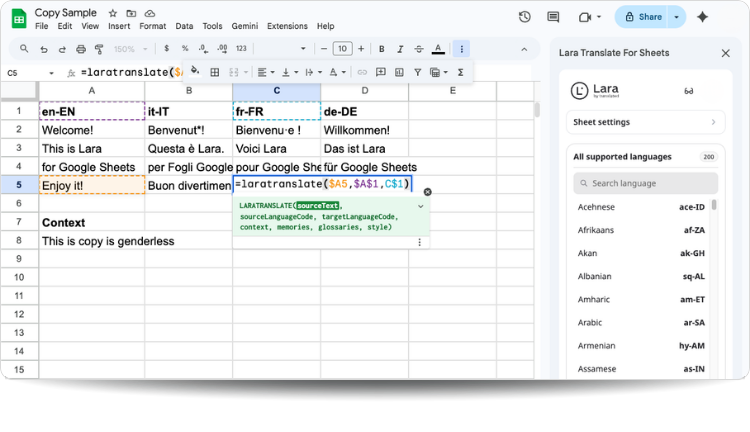
What you select in the sidebar becomes the global default for all LARATRANSLATE calls in the sheet. That is the right setup for most use cases: pick your glossary once, it applies everywhere. But when a cell needs different handling, the formula parameters override the global setting. More on that below.
What changed: three new formula parameters
The full LARATRANSLATE formula now looks like this:
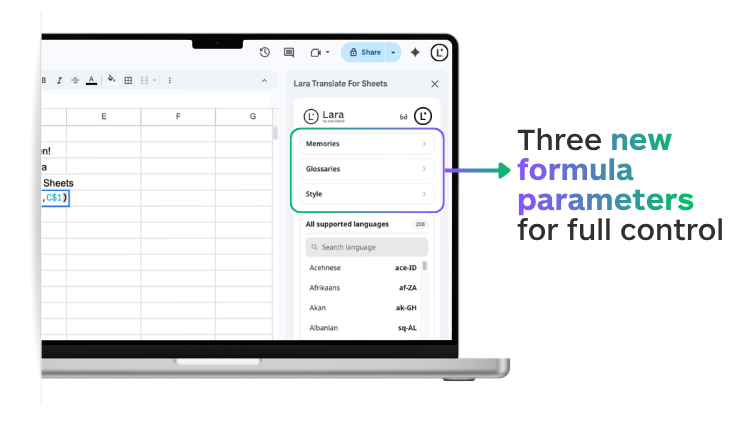
The three new optional parameters are:
memories— one or more Translation Memory IDs from your Lara accountglossaries— one or more Glossary IDs from your Lara accountstyle— translation style:"faithful","fluid", or"creative"
Any value passed in these parameters overrides the global sidebar setting for that specific cell. Everything else in the sheet is unaffected.
Three real scenarios where this matters
1. Product catalog with brand terms in one column, legal copy in another
You are localizing a product catalog. Column B contains product names and feature descriptions that must use your brand glossary. Column D contains regulatory disclaimers that need to be translated faithfully, word-for-word, with no creative license. Column F has short marketing taglines that should read naturally in the target language.
In Column B, the formula uses your brand glossary:
In Column D, no glossary, faithful style:
In Column F, creative style for the taglines:
Three columns, three different behaviours. One sheet. No manual switching.
2. Localization tracker for a software product
Your sheet tracks UI strings: button labels, error messages, onboarding copy, and in-app tooltips. Button labels and error messages need to match the approved UI glossary exactly. Onboarding copy should read naturally. Tooltips can be more flexible.
The approved UI glossary applies globally via the sidebar. For the onboarding rows, you add "fluid" as the style parameter. For tooltip rows that are going to a market without an approved memory yet, you pass a different memory ID in the formula. The rest of the sheet stays on the global setting.
Result: one sheet, one translation run, and every row gets the right controls applied automatically.
3. Multilingual content review with LARAEVAL
You receive translated content from an external vendor and need to quality-check it before publishing. Column A has the English source. Column B has the vendor translations. You add Column C with:
Lara scores each row from 1 to 3: 1 means major errors (missing content, wrong meaning, tone problems), 2 means minor or stylistic issues, 3 means the translation is good. You filter for rows scoring 1 or 2 and send only those back for revision. The rows scoring 3 go straight to publishing.
What used to be a manual spot-check across dozens of rows becomes a one-column formula run in seconds.
Translate and evaluate directly inside Google Sheets
Install Lara Translate for Sheets from the Google Workspace Marketplace and bring glossaries, translation memory, and per-cell style control into your spreadsheets.
How to get started
If you do not have the add-on yet, install it from the Google Workspace Marketplace. You need an active Lara Translate Pro or Team plan to use the translation and evaluation functions.
Once installed, open it from Extensions > Lara Translate > Open. Sign in to your Lara account if prompted. The sidebar gives you the Translation Memory and Glossary panels. Sync your assets using the refresh icon in each panel, select what you want to apply globally, and you are ready to use LARATRANSLATE in any cell.
The full syntax reference, parameter details, and pricing are on the Lara Translate for Sheets support page.
Pricing reference
| Function | Pro plan | Team plan |
|---|---|---|
LARATRANSLATE |
€20 per 1M input characters | €15 per 1M input characters |
LARAEVAL |
€100 per 1M input characters | €75 per 1M input characters |
Thank you for reading 💜
As a thank you, here’s a special coupon just for you: IREADLARA26.
Redeem it and get 10% off Lara PRO for 6 months.
If you already have a Lara account, log in here to apply your coupon. If you are new to Lara Translate, sign up here and activate your discount.
FAQs
Do the new formula parameters override the sidebar settings?
Yes. Any value you pass in the memories, glossaries, or style parameters of the LARATRANSLATE formula overrides the global setting configured in the sidebar for that specific cell. Cells without those parameters in the formula continue to use the sidebar’s global settings. This means you can mix global and per-cell configurations in the same sheet without conflict.
How do I find my Translation Memory and Glossary IDs?
The easiest way is to sync them via the sidebar. Open Extensions > Lara Translate > Open, then use the refresh icon in the Translation Memories or Glossaries panel. Your Lara account assets will appear and you can select them. If you need the IDs directly for use in formulas, they are available in your Lara account settings. The support page has the full reference.
Can I share the sheet with teammates and have them use their own Lara accounts?
Yes. If you share the sheet with someone who has editing access, any LARATRANSLATE or LARAEVAL function they trigger will consume characters from their own Lara account, not yours. This means each team member needs their own active Pro or Team plan to use the functions. It also means you are not charged for translations your teammates run.
Does LARAEVAL use my glossaries or translation memory when scoring?
No. LARAEVAL evaluates based on the source and target text only. Translation Memories, Glossaries, context, and style are not taken into account during evaluation. The score reflects the quality of the translation as written, independent of your terminology assets. If you want to check whether a translation respects your glossary, you need to do that as a separate review step.
This article covers
- What is new in Lara Translate for Google Sheets: the updated sidebar with dedicated Translation Memory and Glossary panels, and three new formula parameters
- How per-cell control works with the new
memories,glossaries, andstyleparameters inLARATRANSLATE - Three real use cases where different columns or rows need different terminology controls and translation styles in the same sheet
- How to get started with the add-on, including setup steps and a pricing reference for Pro and Team plans
Have a valuable tool, resource, or insight that could enhance one of our articles? Submit your suggestion
We’ll be happy to review it and consider it for inclusion to enrich our content for our readers! ✍️
Useful articles
- How to use the Lara Translate app in Google Sheets: full documentation
- How glossaries work in Lara Translate
- Translation styles: Faithful, Fluid, Creative