

PowerPoint translation sounds easy until you need a deck you can actually present.
A translated slide deck is only “good” if it stays on-brand, on-layout, and on-message. That means slide titles still fit, bullet hierarchy stays intact, and charts, labels, and speaker notes do not turn into messy rework. So, how to translate a PowerPoint presentation online?
|
TL;DR: translate PPT/PPTX without rebuilding slides
|
Translate your PPTX and keep the deck presentable
Upload a real slide deck and see how Lara Translate handles your terminology, tone, and layout.
Why it matters: A slide deck is not a document you “read”. It is something you present. If translation breaks spacing, hierarchy, or key labels, you lose time fixing slides and risk delivering a deck that looks unprofessional or misleading.
Short answer
To translate a PowerPoint (PPT or PPTX) without rebuilding slides, use a presentation-aware workflow that preserves formatting and lets you export clean PPTX files. With Lara Translate, upload the deck, select one or more target languages, choose a translation style (Faithful, Fluid, Creative) when needed, then download the translated PowerPoint.
How do I translate a PowerPoint (PPT/PPTX) and keep formatting?
Use a tool that translates PowerPoint files as files, not as pasted text. That is what keeps slide structure intact: titles, bullets, text boxes, and layout. Then export the deck back as PPT/PPTX so it stays editable and presentation-ready.
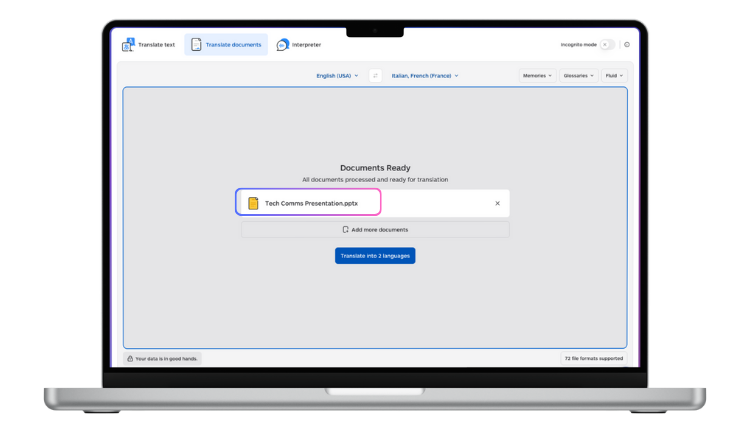
In Lara Translate: upload your PPT or PPTX, pick the target language(s), click Translate, and download the translated file.

Official step-by-step: How to Translate a PowerPoint
Why PowerPoint translation often goes wrong (real cases)
Most slide translation issues are not “bad language”. They are bad slide output.
- Text overflow: translated text is longer, and headings spill outside the box.
- Broken hierarchy: bullets lose indentation or turn into plain paragraphs.
- Inconsistent terms: the same product feature gets translated differently on different slides.
- Deck drift: marketing slides suddenly read like legal copy (or the opposite).
The right approach is to treat PowerPoint translation as a format-preserving workflow, not a copy-paste task.
Reference: Formatting preservation during document translation
Quick decision table: what kind of deck are you translating?
| Deck type | What usually breaks | Best approach |
|---|---|---|
| Sales / pitch deck | Tone, claims, slide flow | Use Fluid (or Creative for brand voice) and lock key terms with a glossary |
| Product / technical deck | Terminology drift, labels | Use Faithful + glossary + translation memory for consistency |
| Training / enablement deck | Readability, long sentences | Use Fluid and keep bullets concise |
| Investor / finance deck | Precision, numbers context | Use Faithful and review critical slides |
How to translate a PowerPoint with Lara Translate
If your goal is a translated deck you can present (and still edit), this is the clean workflow:
- Open Translate documents in Lara Translate.
- Click Upload and select your PPT or PPTX file.
- Confirm the source language (auto-detected) and select one or more target languages.
- Click Translate.
- Download the translated PowerPoint file(s).
Official guide: How to Translate a PowerPoint
Translate multiple PowerPoints at once (bulk PPTX translation)
If you are rolling out the same deck across regions, bulk translation saves time and improves consistency. Upload multiple PPTX files, set target languages once, then download everything in one run.
- Go to Translate documents.
- Click Add documents (or drag and drop multiple decks).
- Select one or multiple target languages.
- Click Translate to process all files at once.
Reference: Bulk file translation
Make PowerPoint translations consistent (Styles, glossaries, and memories)
Slide decks fail when key terms drift across slides, or when the tone changes from one section to the next.
- Styles help you match intent: Faithful for precision, Fluid for readability, Creative for brand voice.
- Glossaries lock product names, feature labels, and “must-translate-this-way” terms.
- Translation Memories reduce inconsistency across repeated decks and updates.
Helpful references:
Supported PowerPoint formats (PPT, PPTX, and more)
Lara Translate supports PowerPoint formats including PPT, PPTX, and common presentation variants, as part of its wider document translation support.
Reference: Supported document formats in Lara Translate document translation
Common mistakes when translating PowerPoints (and how to avoid them)
1) Copy-pasting slide text into a generic translator
You lose layout context, break hierarchy, and still have to rebuild slides. Translate the PPTX file instead, so the deck stays intact.
2) Translating without terminology rules
Decks repeat the same concept across slides. Use a glossary and translation memory to keep naming consistent.
3) Using the wrong style for the content
Pitch decks need readability and persuasion. Technical decks need precision. Pick Faithful, Fluid, or Creative intentionally.
4) Treating the first export as “final”
For high-stakes decks, do a quick pass on the title slide, agenda, and key charts. Fixing 5 slides beats rebuilding 50.
Quick cheat sheet: the fastest right way to translate a PowerPoint
- One deck: upload PPTX → select language(s) → translate → download PPTX
- Multiple languages: upload once → select multiple targets → translate → download each version
- Many decks: bulk upload → set targets once → translate all → download all
- Sales/marketing: Fluid or Creative + glossary for brand terms
- Technical/finance: Faithful + glossary/TM + quick review of key slides
Try it now: translate your PPTX online
If you want a translated deck that still looks like a deck, start here and see how it handles your terminology, context, and formatting.
FAQ
How do I translate a PowerPoint and keep formatting?
Translate the PPT/PPTX file with a format-preserving workflow, then download the translated deck as PPTX so it stays editable and presentable.
Can I translate a PPTX into multiple languages at once?
Yes. Upload the deck once, select multiple target languages, and download each translated version.
Will the translated PowerPoint keep the original layout?
A presentation-aware workflow preserves slide structure and formatting so the translated deck matches the original layout.
Can I bulk translate multiple PowerPoint files?
Yes. Use bulk document translation to upload multiple decks and translate them in one run.
Which translation style should I use for presentations?
Use Faithful for technical or finance slides, Fluid for training and general decks, and Creative for marketing slides where voice matters.
Helpful references:
This article is about:
- How to translate a PowerPoint (PPT/PPTX) online and keep formatting
- How to translate slide decks in multiple languages in one run
- How to bulk translate multiple PowerPoint files
- How to keep terminology consistent with Styles, glossaries, and translation memories
- Which PowerPoint formats are supported for translation