

PDF translation sounds like a one-click job until you need an output you can actually use.
A translated PDF is only good if it stays readable, shareable, and reviewable. That means tables still look like tables, headings keep hierarchy, and the content inside screenshots or scanned pages does not get ignored. So, how to translate a PDF online?
|
TL;DR: translate PDFs like a pro
|
Short answer
To translate a PDF online and keep formatting, use a tool that preserves layout and supports OCR for image text (scans, screenshots) plus password-protected PDFs. In Lara Translate, upload your PDF, select one or more target languages, enable Translate images only if the file contains screenshots or scanned parts, then download the translated PDF or export to DOCX for edits.
Why does it matter?
Most “PDF translation” failures are not language failures. They are workflow failures: missing text inside images, broken tables, and layout drift that makes the translated file unusable. A layout-preserving PDF workflow with OCR is the difference between “I understood it” and “I can actually ship it.”
How do I translate a PDF online and keep formatting?
You need two things: layout preservation (so the PDF stays readable) and OCR for text inside images (so screenshots and scans are not skipped). If the PDF is locked, you also need a workflow that supports password-protected PDFs directly.
With Lara Translate, the workflow is simple: upload the PDF, select the target language(s), turn on Translate images only when needed, translate, then download the translated PDF (or export to DOCX if you want to edit text).
Official reference: How to Translate a PDF file

Why PDF translation often goes wrong (real cases you have probably seen)
The “PDF problem” is rarely about language. It is about structure.
- The finance PDF with tables: you translate it, and the numbers are fine, but the table turns into a wall of text. Now nobody trusts the report.
- The supplier spec sheet: half the important information is inside a screenshot embedded in the PDF. A basic translator only translates selectable text, so you miss critical bits.
- The legal contract: it is password-protected, and the tool fails before it starts. Or it “works” but forces extra steps.
- The internal draft: the source is a DOCX with revisions, exported to PDF for circulation. You translate the wrong version and review becomes chaos.
A good PDF translator online solves these situations without turning your day into a mini workflow.
Quick decision table: which PDF do you have?
| Your PDF type | What usually breaks | Best approach |
|---|---|---|
| Text-based PDF (selectable text) | Layout shifts, spacing, headings | Use a layout-preserving PDF translation workflow, then download the translated PDF |
| PDF with screenshots (UI captures, charts, callouts) | Key text stays untranslated because it is inside images | Enable Translate images so OCR detects and translates text embedded in images |
| Scanned PDF (image pages) | Nothing is selectable, most tools output incomplete translations | Use OCR-based image translation inside the PDF, then render translated text back in place |
| Password-protected PDF | Upload fails, or you are forced into extra steps | Upload and enter the password when prompted to translate securely |
| Your goal | Best output | Setting to use | Why it matters |
|---|---|---|---|
| Shareable translated file for review | Translated PDF | Layout preservation (default) | Reviewers need the same structure, not pasted text |
| Edit copy after translation | Export to DOCX | Export option after translation | Fast revisions without rebuilding the layout manually |
| PDF contains screenshots or scans | Translated PDF | Translate images (OCR) | Without OCR, key text inside images stays untranslated |
| Translate a batch with consistent terminology | Multiple translated files | Styles + Glossary + TM | Stops term drift across documents and teams |
How to translate a PDF file with Lara Translate
If your goal is a translated PDF you can send to a client, teammate, or reviewer, this is the clean workflow:
- Open Translate Documents in Lara Translate.
- Upload your PDF (browse or drag and drop).
- Confirm the source language (auto-detected) and select one or more target languages.
- Click Translate.
- Download the output as a translated PDF (or export as DOCX if you need to edit text).
Official step-by-step: How to Translate a PDF file
Try Lara Translate in your own workflow
If you want a translated PDF that still looks like a PDF, start here and see how it handles it.
You need to subscribe to use Lara’s document translation
How to translate text inside images in a PDF (the feature most people miss)
Many PDFs are mixed: they contain normal text plus images that also contain text. Think screenshots, scanned signatures, stamps, product labels, diagram callouts, or charts with text baked in.
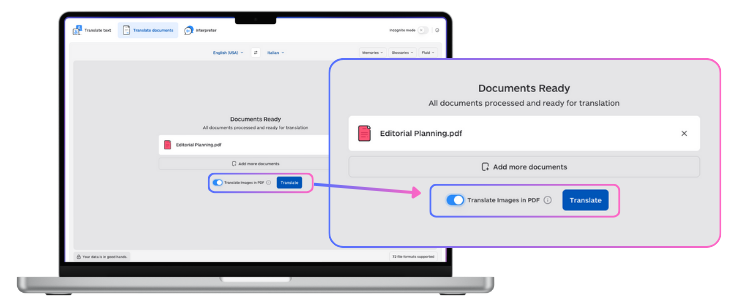
Turn on Translate images when your PDF includes image text. Lara Translate uses OCR to detect text in images, translates it, and renders the translated text back in place so the file stays readable and shareable.
- If enabled, text inside images is detected via OCR, translated, and re-rendered in the PDF.
- If disabled, only selectable text is translated.
- If you translate the same PDF into multiple languages, the same image-translation setting applies across targets.
Reference: Document file translation (including PDFs)
How to translate a password-protected PDF
If you translate PDFs for legal, finance, HR, or procurement, locked PDFs are normal. The key is to avoid “unlock it elsewhere first” workflows.
With Lara Translate, you can upload a password-protected PDF. If a protected PDF is detected, Lara prompts you to enter the password directly in the interface, then processes the translation like any other PDF.
Reference: Support for Password-Protected PDFs and DOCX Files with Revisions
How to translate multiple PDF files at once (bulk PDF translation)
 Real life rarely gives you one PDF. You get a folder: invoices, certificates, manuals, and slides exported to PDF.
Bulk translation solves two problems at once: time and consistency. You translate everything in one run, with the same style and terminology rules applied across files.
- Go to the Translate Documents tab.
- Upload multiple files (add documents or drag and drop).
- Select one or multiple target languages.
- Click Translate to process all documents at once.
Reference: Bulk file translation
Make PDF translations consistent across teams (Styles, glossaries, and memories)
Most PDF translation mistakes are not grammar mistakes. They are consistency mistakes.
- Brand terms drift: product names, feature labels, and taglines get translated differently in every file.
- Technical terms vary: the same component is translated one way in a manual and another way in a spec.
- Tone changes: support docs become overly formal, while marketing PDFs sound robotic.
For teams, consistency comes from Styles + Glossaries + Translation Memories, applied across every PDF in the batch, so terms and tone do not drift from file to file.
Lara Translate supports 70+ file formats for document translation, so PDF can stay part of the same workflow as Word, PowerPoint, Excel, HTML, and localization formats.
References:
Common mistakes when translating PDFs (and how to avoid them)
1) Translating only the selectable text layer
If your PDF contains screenshots or scanned sections, you will miss key content unless you enable Translate images (OCR) for image text.
2) Choosing “copyable text” when you actually need a deliverable
If you need a file you can share, review, or publish, prioritise layout preservation and in-place rendering of translated content.
3) Translating a locked PDF with workarounds
If the document is protected, use a workflow that supports password-protected PDFs directly. That keeps the process clean and reduces risk.
4) Translating PDFs one-by-one when you have a batch
Bulk translation helps you keep terminology consistent, reduce repetitive setup, and ship faster.
Quick cheat sheet: the fastest right way to translate a PDF
- Normal PDF: upload → select language(s) → translate → download PDF
- PDF with screenshots: upload → enable Translate images (OCR) → translate → download PDF
- Scanned PDF: upload → enable Translate images (OCR) → translate → download PDF
- Locked PDF: upload → enter password when prompted → translate → download PDF
- Many PDFs: bulk upload → set languages once → translate all → download all
Try it now: translate your PDF online
Try Lara Translate in your own workflow
If you want a translated PDF that still looks like a PDF, start here and see how it handles it.
You need to subscribe to use Lara’s document translation
FAQ
How do I translate a PDF online and keep formatting?
Use a PDF translation tool that preserves layout, then download the translated PDF without manual reformatting. If the PDF includes scans or screenshots, use OCR so text inside images is translated too.
Can I translate a scanned PDF?
Yes, but you need OCR so text inside scanned pages can be detected, translated, and rendered back into the PDF.
How do I translate a PDF that has screenshots or images with text?
Enable image translation so OCR can extract and translate text embedded in images inside the PDF.
Can I translate a password-protected PDF?
Yes. If the PDF is protected, enter the password when prompted, then translate normally.
Can I translate multiple PDF files at once?
Yes. Use bulk document translation to upload multiple PDFs and translate them in a single run.
Can I export my translated PDF to Word?
Yes. Download the translated file as PDF or export to DOCX for editing.
What is the best PDF translator for business documents?
Look for layout preservation, OCR for image content, password-protected support, and terminology controls like glossaries and translation memories.
Helpful references:
- How to Translate a PDF file
- Password-protected PDFs support
- Multiple document translation
- Translation styles
This article is about:
- How to translate a PDF online and keep formatting
- How to translate scanned PDFs and PDFs with screenshots using OCR
- How to translate password-protected PDFs securely
- How to bulk translate multiple PDF files for faster workflows
- How Lara Translate supports professional PDF translation inside a 70+ file format workflow